Posting Groups #18 – FA Sales Posting

If we want to sale our fixed assets, it is a similar process as FA purchasing, but in opposite direction. In this situation, system uses customer posting group, VAT and general posting groups and FA posting groups.

You can see this process concept on following flowchart. One of specifics is how system determines VAT Production Posting Group. You can use it on one of following ways:

  • Manually choosing VAT Production Posting Group;
  • Inheriting from manually choosing/changing General Production Posting Group (Def. VAT Prod. Posting Group);
  • Inheriting from VAT Production Posting Group, configuring on Acq. Cost Acc. On Disposal on FA Posting Group;
  • Inheriting from General Production Posting Group (Def. VAT Prod. Posting Group), configuring on Acq. Cost Acc. On Disposal on FA Posting Group.
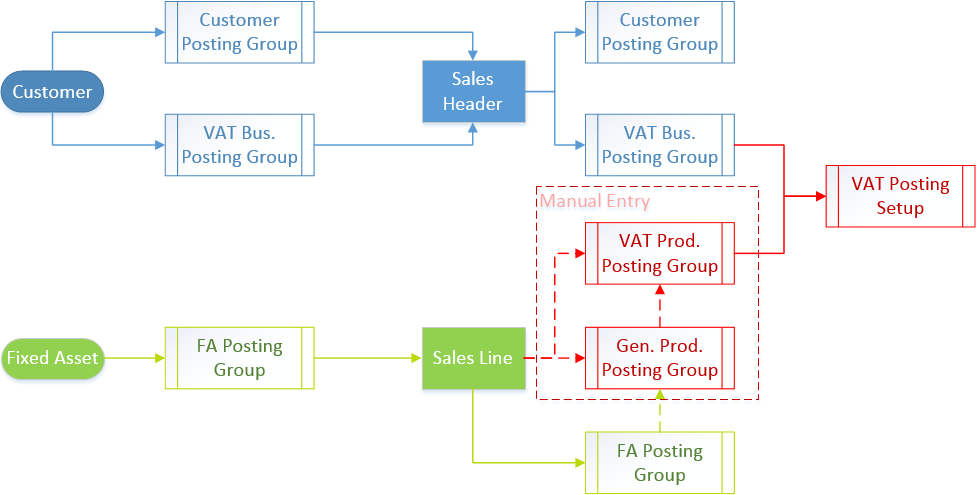
FA_Sale_FwC

Other specific in FA sales process is that system uses different configuration from FA Posting Group, depending of FA sales price (higher or lower price in comparison with Book Value).

In my first example, you will see what G/L entries you will get when we sale FA with higher price:

FA_Sale_G

In this example, you will see result of FA sales posting with lower price:

FA_Sale_L

On both of these examples, you will see that we have the last additional G/L entry. This entry will exist as Residual caused by rounding of Additional-Currency, but only if you use Additional Currency configured on General Ledger Setup. This entry will be usually a zero amount.
Posting Groups #17 – FA Reclassification Journal Posting

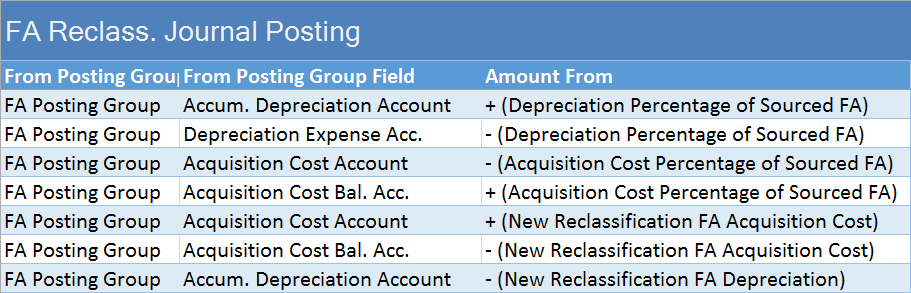
If we need to transfer, split up or combine our fixed assets, we can do it using the FA reclassification journal. In my following example, I split up my existed FA, but everything is almost the same in other examples. Using the FA reclassification journal, system uses only FA Posting Group for G/L entries allocation.

When you Reclassify your journal, you will get lines in FA G/L Journal. After you post it, you can see this posting result in G/L entries in following table:

FA ReclassJ

Posting Groups #16 – FA Depreciation Posting

Depreciation is a method of allocating the cost of a Fixed Asset over its useful life. In NAV for this purpose, you can run batch job Calculate Depreciation. In this posting process, system will use only FA Posting Groups.

Assuming you checked, ‘Insert Bal. Account’ on Calculate Depreciation batch job, you will get following G/L entries as posting result:

FA_Depr_post

Posting Groups #15 – FA Purchase Posting

In my first post about posting groups, I show you what results are when you post item purchase. I also show how looks like when we post Item Charge purchase. Now, in this post, I will describe some difference when you want to purchase Fixed Asset. Generally, it is a similar process, but it still has some difference. Some posting groups will not be used, but we also have one new posting groups – FA Posting Group. On this setup, we can configure all accounts in relation with fixed assets processes.

Process of using all posting groups in FA purchase process is shown on following flowchart:

FA Pch FlwCh

Depending on the FA Posting Type on Purchase Line, we can get two different results. If we want to buy new fixed asset, we will choose Acquisition Cost type and we will get following G/L entries:

FA Pch Inv

But, we can also choose Maintenance FA Posting Type to post maintenance for some existing fixed asset. In this situation, we will get following G/L entries:

FAm Pch Inv

In previous example, I didn’t use discounts, because I have already showed it when I described item purchase. In this case, everything is the same.

Posting Groups #14 – Payment Discounts

One of features in Microsoft Dynamics NAV is using of payment discount. You can configure conditions of using this functionality on General Ledger Setup. With this configuration, I mean on Appln. Rounding Precision and Payment Tolerance and types of Payment Accounts from Customer Posting Groups. More about this configuration, you can find using Help for these fields.

We can use payment tolerances and discounts in few different situations. You can see how it generally works on following flowchart:

##1

In my first example, I have configured only payment tolerance without discounts. When we post payment some less from original amount on invoice (e.g. 2.395 instead 2.400), we will get following G/L entries:

##2

If our payment is greater than Invoice Amount reduced by discount, we will get following entries. System will post full payment as original invoice amount plus tolerance and discount, as well:

##3

If payment is less than Invoice Amount reduced by discount, we will get following entries. System will post full payment as original invoice amount, discount and tolerance:

##4

Posting Groups #13 – Finance Charge and Reminders

When we have overdue sales invoices, we usually can use Reminders and/or Finance Charge Memos. Both of these documents increases debits of our customers. We don’t post these documents, but we issue them. But, these issued documents also can make G/L entries.

On the first flowchart, you can see how system uses posting groups on Finance Charge Memos.

FWC_FinChargeMemo

Results of this issued document in G/L entries are as following:

FinChargeMemo

Now, on the second flowchart, you can see how system uses posting groups on Reminder. It uses very similar as on Finance Charge Memos, but fees on Finance Charge Memos lines are based only on Terms, while fees on Reminders can be based on Terms and Levels.

FWC_Reminders

Results of Issued Reminders in G/L entries are as following:

Reminders

Posting Groups #12 – Payment Posting

When we post payments, we usually have payments for customers and from vendors. In the same time, we should have bank account posting as balance accounts. Bank account is not necessary, but it is the best practice.

When we post payments from bank statement, we will get the same G/L entries, regardless we have payment in local currency or in some other. These are entries as following:

1PaymStat

If we use non-local currency in payment process, after running Adjust Exchange Rate batch job, we will get the following G/L entries:

2PaymAdjustER

In previous example, you could see result if used currency exchange rate was increased. But, if exchange rate was decreased, the posting results in G/L entries would be as following:

3PaymAdjustER

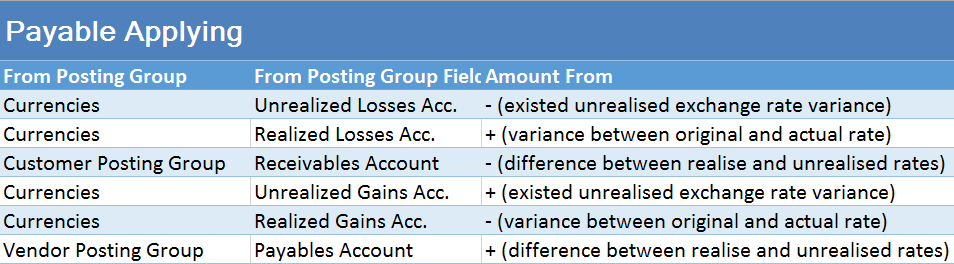
All previous results were unrealized exchange rates gains or losses, but when we apply these payments, we will get realized exchange rates as on following table:

4PaymApply

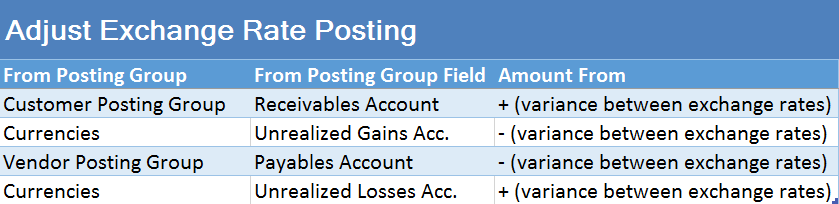
All postings, based on difference currency code, use posting groups and accounts as on following flow chart:

AdjFlowChart

Posting Groups #11 – Prepayments Posting

Before I start with this post, I want to emphasize once again, in all my examples I use W1 database. I know that prepayments can be quite differently from country to country, but I have used only W1 examples here.

Now, when this is clear, we can continue with examples. First, I will describe purchase prepayment invoice. When we choose to create Prepayment Invoice from Purchase order, system will post document with G/L Account in line (from General Posting Setup) and with following G/L entries:

PPPI

The similar situation is when we create and post sales prepayment invoice. Then, we will get these G/L entries:

PSPI

If we want to post Prepayment Credit Memo, in both cases, we will get the same entries, but with opposite signs.

Posting Groups #10 – Item Returns Posting (Sale & Purchase)

In my earl posts about posting groups, I have showed purchase and sales processes. But both of these processes have its opposite processes.

If our customer wants to return items to us, we can use the Sales Return Order for this. When we finish posting, we will get Return Receipt and Sales Credit Memo as result.

On other side, if we want to return items to our vendor, we can use the Purchase Return Order for this. As result of posting, we will get Return Shipment and Purchase Credit Memo.

I will not prepare flow chart about using posting groups, because we can use the same schemas as we already have in Item Sale Posting and Item Purchase Posting posts.

First, I will describe sales return process. When we post Return Receipt, we will get only these G/L Entries:

##1

But, when we finish posting and post Sales Credit Memo, we will get more G/L Entries:

##2

The similar situation is in purchase return process. When we post Return Shipment, we will get again only these G/L Entries:

##3

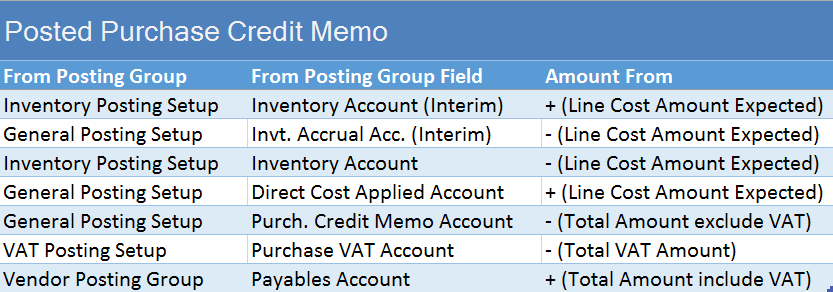
But, when we post Purchase Credit Memo for this item, we will get more G/L Entries:

##4

And, on the end when we run Adjust Cost – Item Entries batch job, we will get the following G/L Entries (variance between expected and actual cost):

##5

Posting Groups #9 –Item Sale Posting with Payment Method

I have already showed item sale process posting here in Posting Group #2 post. But, we can have some specific variants of this posting. One of them is when we use Payment Method.

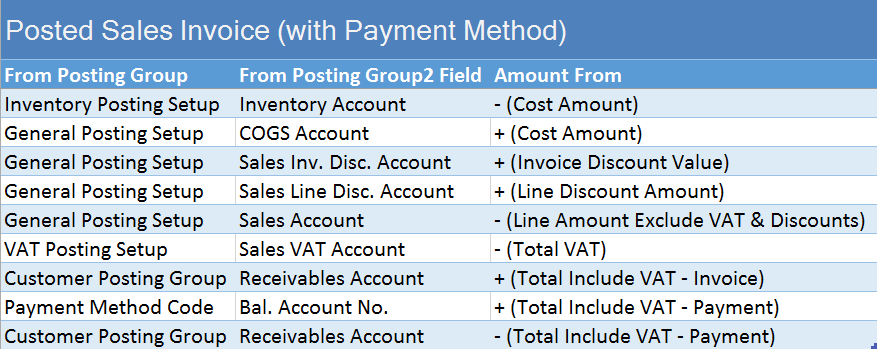
If you choose Payment Method code on sales document header, and this Payment Method has configured Bal. Account Type and Bal. Account No., NAV will automatically create the balancing journal line. This functionality is great when we are being paid in full at the time of sale, but we can use this feature in some other specific process.

You can see how system works with Payment Method on following flow-chart:

SalesPMC

When we finish with this Sales Order posting, we can find following G/L entries navigated to Posted Sales Invoice. You can see standard G/L entries about invoice and the last two of them, connected with Payment:

SI_PyM_GLe