NAV on Azure SQL on NAVTechDays

Last week we finished one of the best NAV conferences this year. NAV Tech Days this year had about 950 NAV passionate attendees from all around the world. Everything in organization was the amazing; Luc did a great job.

This NAV Tech Days was very special for me, because I was the speaker on this conference for the first time. My topic on NAV Tech Days was “Deploying and Managing Dynamics NAV 2016 with Azure SQL Database”. This is something new in Microsoft Dynamics NAV 2016. I know, a lot of partners still not use NAV on Azure, but by my opinion this feature can move all of us forward. Azure SQL can save a money and we finally have a good tool for managing our multitenant environment – Management Service Portal.

I gave a word to people on my session that I’ll publish my presentation and PowerShell scripts on my blog. You can find them here:

In few following scripts, I’ll describe all details about using NAV 2016 on Azure SQL Server and give you some answers on additional questions I already got.

2015-11-23_13-19-19.png

Do You Have Suggestions for Better NAV?

Very often I hear ideas how NAV can be better, but people think Microsoft doesn’t listen. This is not true, Microsoft really wants to hear all your suggestions. Customer feedback is very important for Microsoft. Because of that, spend a bit of time to give your suggestions about NAV.

If you don’t know how you can do it, just try to login to Microsoft Connect. You can add your suggestions here or support some other good idea. If you want to create a new, just click on this button and choose NAV as your product.

Connect

If you want to give a chance to your idea, try to be detailed with reasons why it will improve NAV. I know, many of you already know for this possibility, but many of you don’t know. Give your ideas and make an NAV better.

Report Layouts per Customer in NAV 2016

Microsoft Dynamics NAV 2016 is released about one month and we could see a lot of different new features. One of the small but amazing news is possibility to add different report layouts per each customer. This was one of very often requirement in implementation process and finally we can use it.

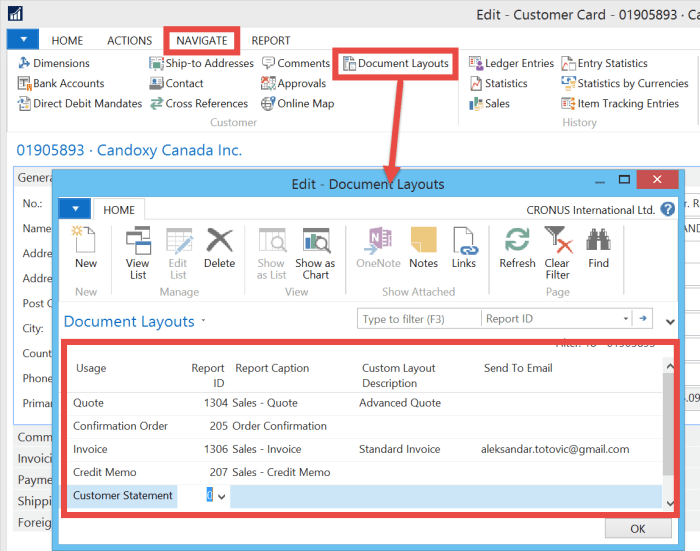
We can choose different reports per customer and after that, different report layouts. We can also add an e-mail as default per each document. It is possible for Quote, Order Confirmation, Invoice, Credit Memo and Customer Statement.

CustomerRepLayouts

We just need to open a customer card and find Document Layouts on Navigate tab. Than choose report IDs and layouts. Eventually, you can add an e-mail. You can use RDLC or Word layouts, as well. Now, if you print one of these documents, you will see that these report document layouts are configured as default.

If you want to make new document report Word layout, I already wrote about it here.

Directions NA and Directions EMEA 2016

Few days ago, Directions 2015 season has finished. Directions EMEA in Mannheim has finished in first part of October and Directions NA in Orland has finished on the end of the same month. There were a really amazing conferences, bigger then ever. We had a a lot of excellent sessions and announcements of the last NAV release.

After all these news, we have a complete year to make some good projects with NAV 2016 using all these knowledge we learned on Directions sessions. Now we have some also amazing NAV conferences (NAV TechDays and Convergence), but with them this year conference season is finished.

What we can expect the next year? Of course, we are waiting new Directions, as well. Currently, we already know where Directions will be and start to prepare for them with never better NAV.

See you there.

New CUs for NAV 2015, NAV 2013R2 and NAV 2013

Yesterday I’ve published article about the first CU for Microsoft Dynamics NAV 2016.

Only one day after this release, Microsoft also published new Cumulative Updates for:

Now, you can download and try them.

CU 1 for NAV 2016 Has Been Released

The first cumulative update for Microsoft Dynamics NAV 2016 has been released today. It includes all application and platform hotfixes and regulatory features. This cumulative update is known as Build 43402 and you can download it here from Partner Source.

One of the platform hotfixes is solving the issue when Dynamics NAV 2016 overwrites Dynamics NAV 2015 MMC controls. There are also some useful hotfixes as for example: G/L budgets do not export and import as in Dynamics NAV 2015, the password on the Setup page can be edited in view mode, cannot using of toolbar in report preview…

There are also a lot of application hotfixes for almost in all NAV modules.

But I’m not sure what exactly mean the feature: “Setting the language and regional format in the Web client setup is no longer supported”. If I understand it good…

But, first to install it and then more information.

NAV 2016 Universal App System Requirements

In my few articles, I’ve already wrote about Phone Client in NAV 2016 and how to install it on own smartphone with self-signed certificate. Also, I already wrote about NAV 2016 system requirements.

But in all of these articles, I didn’t wrote about system requirements for phone client. And now, it is not phone client; it is an NAV Universal App. It can work on any device you have, but if this device meets requirements.

In short, Universal App can work on devices with Windows 10/8.1, Windows Phone 8.1, iOS 8.4 and Android 4.4.3 with minimum 1 GB RAM (for Windows and Android). Tablets must meet minimum 7″ screen size with minimum 960×510 resolution and Phones must meet minimum 4″ screen size with minimum 854×480 screen resolution.

In my older article about system requirements I said that there are not official data, this is my research. But if you want more about official system requirements, try here on MSDN. I hope, this is a clear.

My PPTs from Directions EMEA and NA

I’ve just published my Power Point presentations from both of Directions conferences. You can find presentations from Directions EMEA and Directions NA. I didn’t want to publish them earlier because Directions NA wasn’t closed.

Now, you can find all details from these two presentations and learn how to implement standard NAV solution in construction business. If you need some help about this, give me a question. If you want to know more about vertical solution for NAV in Construction, I will answer everything you need.

Presentation from Directions EMEA 2015

Presentation from Directions NA 2015

These presentations will be available for download until the end of this year.

Directions NA 2015 has opened

Direction NA 2015 has opened yesterday in Orlando (Florida). This is one of the most important NAV conferences in America. There are about 600 attendees. Key note session by Microsoft was a bit different as on Directions EMEA. In the forefront, it was Microsoft Dynamics NAV Managed Service, a really amazing tool for managing your clients on the cloud.

Today we are starting with new sessions. You can find more (agenda, speakers, sponsors…) about this event on this link.

WP_20151025_015

How to Install NAV 2016 Phone Client as Test Environment

We have new NAV 2016 more than two weeks. One of the really exciting news is using of Universal Apps. We finally can use NAV on phone.

But one of conditions of using of Phone Client is installing of security certificate. This is the same story as we already have in NAV 2015 for using of Tablet Client. If we have signed certificate, there is no problem. But if we have not it…

Can we use self-signed certificate on phone? Yes, we can. I will show how to do it on Windows Phone.

Of course, first we need to download Dynamics NAV Universal App for Windows Phone from Store. Type Dynamics NAV in Store Search and download this app. You can easy find it as app made by Microsoft Corporation with new logo.

Than we have to have installed NAV 2016. In my example, I’ve installed NAV 2016 on Azure. You can do it easy if you have Azure subscription. Or you can do it on your own servers and install self-signed certificate on your server. If you deploy NAV 2016 on Azure using PowerShell scripts, you will have already created certificate. I’ll install this certificate on my own computer in Internet Explorer.

Run your Internet Explorer as Administrator and type your NAV 2016 Web Client URL. Choose “Continue to this website (not recommended).” and click on “Certificate error” > “View Certificates” > “Install Certificate”.

PhoneClient1

Choose Local Machine and “Place all certificates in the following store” > Browse > “Trusted Root Certification Authorities” > OK > Next > Finish > OK > OK.

Open MMC on your computer and add Certificates as snap-in using Add/Remove Snap-in command. Open “Certificates – Current User” > “Trusted Root Certification Authorities” > Certificates and find your already installed certificate. Right-click on certificate and chose Open. Go to Details tab and click “Copy to file” > Next > Next and choose your certificate name. Save this certificate XXXXX.cer on your computer and send it to your e-mail (e-mail using on your phone).

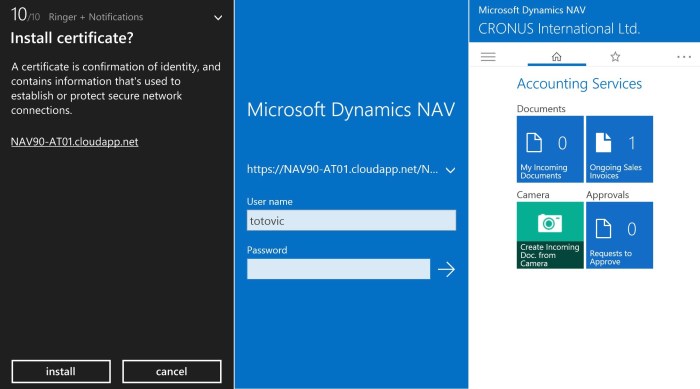
When you get this e-mail on your phone, click on your certificate in attachment and install it. Then run your Dynamics NAV Universal App and type your service URL https://YourComputerName/WebServerInstance and your username and password.
PhoneClient2

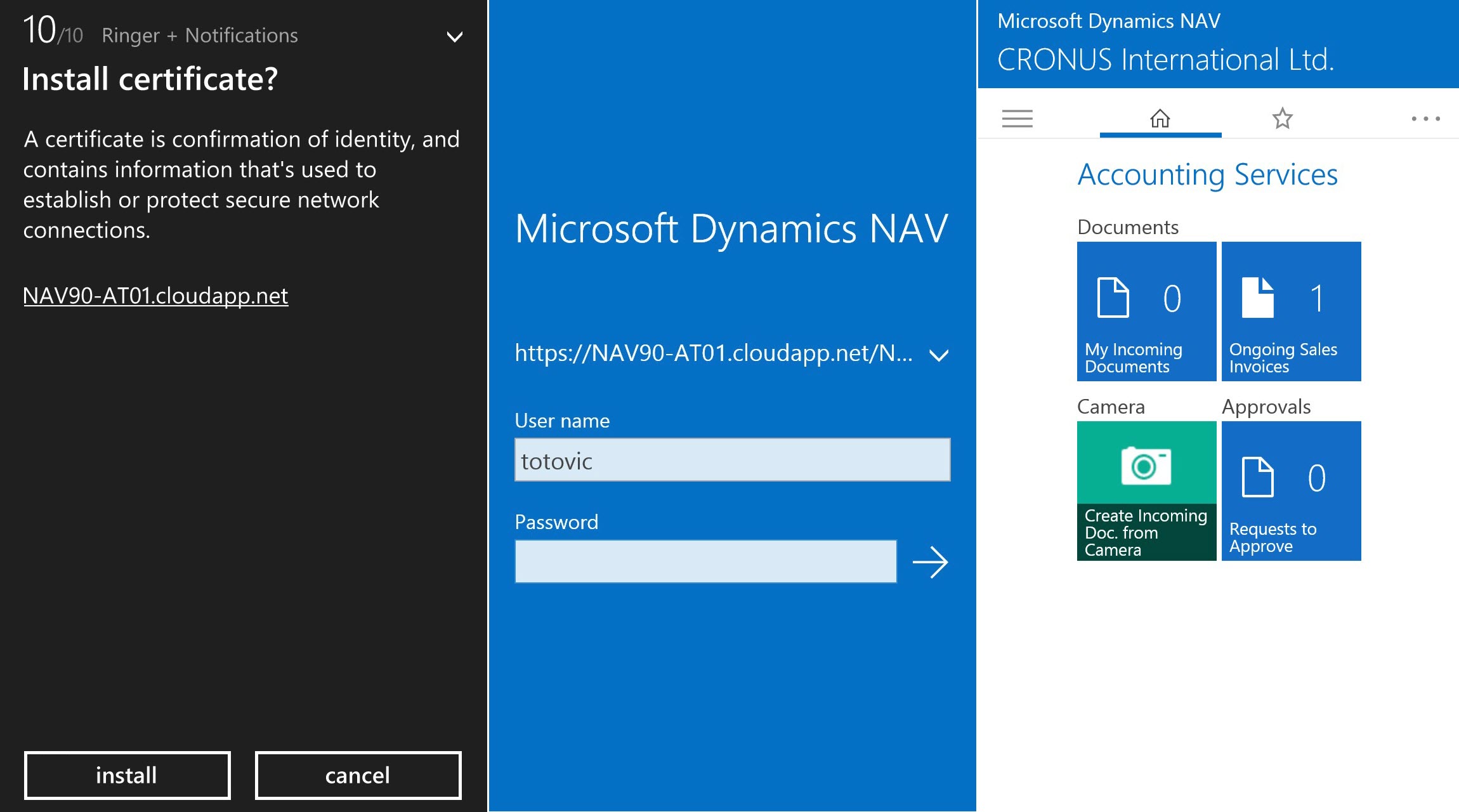
If you finished everything I said, you will open your NAV instance on your phone as you can see on picture.