Project Madeira – Tax and Email Setup

OK, in previous mails, we’ve already made the basic configuration and data migration, but now we need to continue with “Madeira” setup. The next step is Sales Tax Setup.

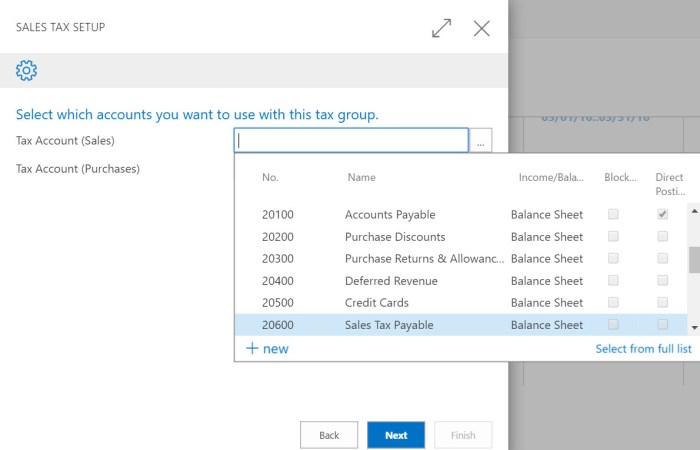
When we start wizard, the tax group of TAXABLE is created. Then, we need to add sales and purchase tax accounts:

ProMad11.jpg

After that, we need to set up city tax rate, county tax rate and state tax rate. And, finally we need to choose for whom we want to add these tax areas.

You can notice, I speak only about taxes and not about VAT. This is because this “Preview” is only for US area.

After we configure taxes, we will continue with email configuration. We can choose between O365 or some other providers. If we choose O365 option, we just need to fill our User ID and password. But if we choose other, we need to fill more details: Authentication, SMTP Server and SMTP Port and of course, our credentials:

ProdMadeira12.jpg

After we configured this, we can send test email from the wizard. And this will be all about configuration of tax and email. Very easy, right?

Project Madeira – Data Migration

As you already used wizard to make some primary configuration, you can continue with using of few another wizards to finish complete setup of your company. You can find a small Assisted Setup to see what you need to finish.

ProMadS1.jpg

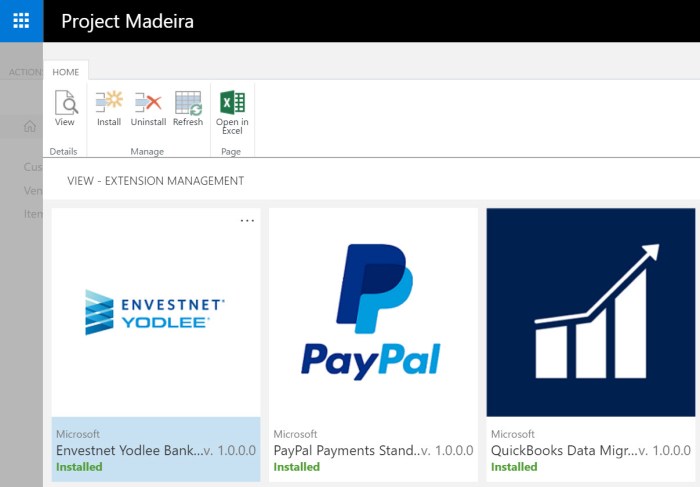
When you open a Migrate Business Data, you will continue with the wizard. And first, you can see what extensions you already have. Yes, you hear fine; you can use different extensions as apps. By default, you have three of them: Envestnet Yodlee Bank Feeds, PayPal Payments Standard and QuickBooks Data Migration (just click on Open Extension Management and you will see). It looks fine:

ProMadS2.jpg

Then, you can choose to import from Excel or from QuickBooks (because you have an extension). Than, you can download all templates and fill them. When you fill them, you need to configure Settings to set default templates and import this Excel file after that.

ProMadS3.jpg

You will see the numbers of your main data (Customers, Vendors and Items) and if this is correct, just apply them. If you have errors, you can see them with all details. On the end, you need to finish process and import is completed.

It is easy, but I think it will not be possible to be finished without some support from partners. Client without standard NAV knowledge will not be in situation to import and configure everything they need. This is still job for partners.

Project Madeira – Configuration

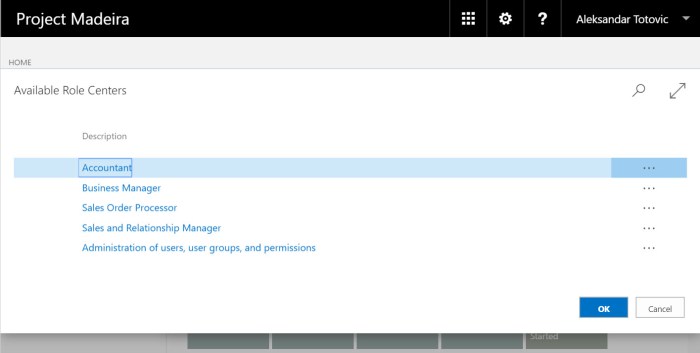
When you open “Project Madeira” for the first time, you will get access to the Cronus demo company with a Business Manager role center. Of course, you can this change role center, but you have not all role centers as you can find in standard Dynamics NAV solution. There are “only” five role centers:ProMadeiraRCs.jpg

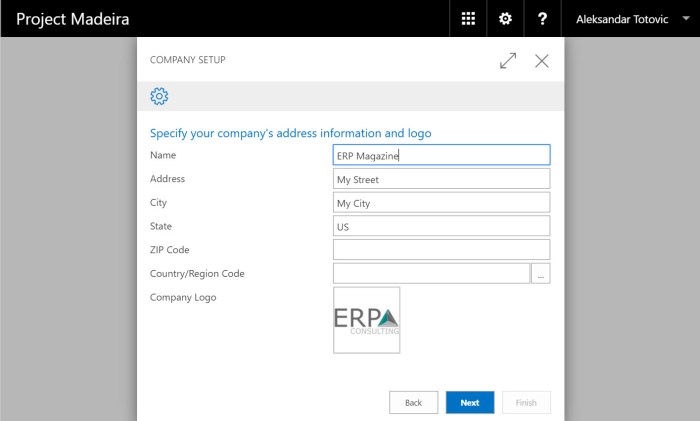
But for this kind of software, it is more then enough. It is really everything what you actually need. Of course, you can create your really company. When you open My Setting, you can find how to change companies. You can choose Cronus as you actually use and “My Company”. When you choose “My Company”, you need to log-out and log-in, and you will get the wizard for company configuration. When you click “Next”, you will see the standard configuration questions. These questions are very simply and everybody can finish this questionnaire (the basic company data, bank data, accounting period… and that’s it):

ProMadeiraQues.jpg

You will get your production environment for your company. This wizard is simply and excellent and the most important, on this way you’ve just got your company in SaaS. You can continue your work.

This is just small intro about configuration. You can expect more soon.

Project Madeira – Preview

Today, Microsoft has published the first public preview of “Project Madeira”. I’ve just installed and opened this version. This will be the first Microsoft ERP as SaaS. Microsoft continues with their vision “cloud-first-mobile-first”. We can use this software as App on WP, iOS and Android phones and tablets and as web application. When you look this on the first sight you can see, it look like as Microsoft Dynamics NAV and this is basically NAV, but only in the root.

ProjectMadeira1.jpg

You will see, this system has only the basic features, something similar as Small Business Role Center in older NAV versions, but this is not the same. There are a lot very interesting things and this is only first impression about it, but it look awesome.

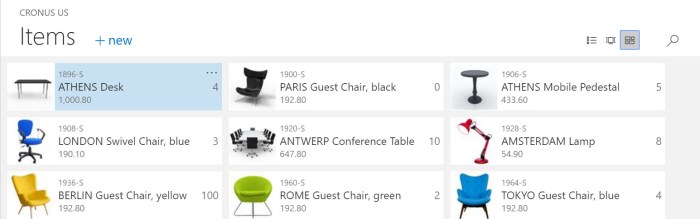
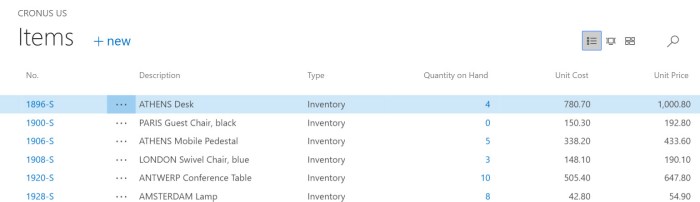
For example, you can see your items on three different ways (bricks, tiles or list) as you can see on this picture:

ProjectMadeira2.jpg

ProjectMadeira3.jpgProjectMadeira4.jpg

This is only one nice features and I need to check more to give you a complete user experience. I’ll spend few next days with Madeira and you will find more about this product soon. I expected something new and awesome, but this is really something amazing. Currently I can just repeat Microsoft words: Microsoft is reinventing business productivity with Project “Madeira.”

MSProMad.jpg

April 2016 CU’s for Dynamics NAV

Few days ago, Microsoft has been published new Cumulative Updates for Microsoft Dynamics NAV 2016, 2015, 2013R2 and 2013. This time, there were only few platform hotfixes (four for NAV 2016 and two per all other versions). They also include some application hotfixes and regulatory features that have been released for these NAV versions:

  • NAV 2016 – Cumulative Update 6 (Build 45480)
  • NAV 2015 – Cumulative Update 18 (Build 45483)
  • NAV 2013R2 – Cumulative Update 30 (Build 45478)
  • NAV 2013 – Cumulative Update 37 (Build 45477)

update-1170x630

You can check all hotfixes and download these cumulative updates on the following links:

What about FEFO and Costing

After my the last article, I’ve got comments about FEFO. First, thanks for reading my blog :), and then yes, it deserves to write a few sentences about it, because it is very useful feature in NAV.

But first, what actually FEFO means? It is First-Expired-First-Out method. What is the first we have to notice about it? FEFO is a picking method, but it is not a costing method. This method is important for a lot of very specific industries (pharmacy, food…), but it is just one specific way how to configure your location.

FEFO.jpg

If you want to use FEFO, your items have to have configured a serial or/and lot numbers. In additional on each item tracking code setup, the SN-Specific Warehouse Tracking field or the Lot-Specific Warehouse Tracking field must be selected. And now, we can conclude that FEFO actually uses Specific Costing Method. It is FEFO, but it is nothing more then Specific method. Everything is the same as in all other Specific Method types, but when you select FEFO on your location, system will take care about picking order using expiration date.

SpecificFEFO.jpg

You can find more about FEFO on MSDN here or in Mark Brummel Application Design book.

Calculating COGS in NAV

Generally COGS (Cost of Goods Sold) is an unknown parameter that must be recorded and calculated. We have (or we can have) exactly information about Beginning Inventory and Net Purchases, but COGS depends of Costing Method:

cogs.jpg

This is because it is connected with fluctuations over time in the unit acquisition costs of inventory items. COGS will be an unknown value until we choose costing method for each item.

The choice of a costing method has two consequences. It determines which purchase entries and sales entries will be applied to each other when you post a document. This is the application method part of the costing method and I’ve already wrote about it. It also influences the unit cost calculation, which is itself used for posting to the general ledger. This is the cost flow assumption part of the costing method. I’ve already wrote basically about costing methods in Microsoft Dynamics NAV.

And do not forget, regardless of what costing type you use, all of them have minimum one common thing. When the quantity on inventory is zero, the inventory value must also be zero.

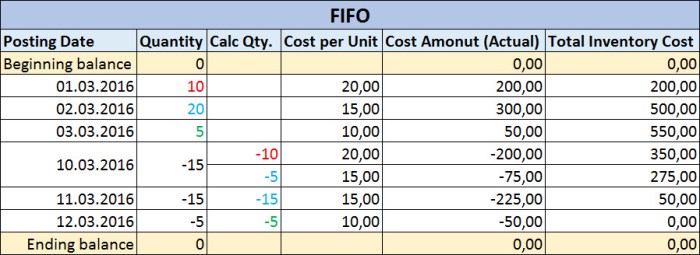
Now I want to give you some examples how system uses different costing methods.

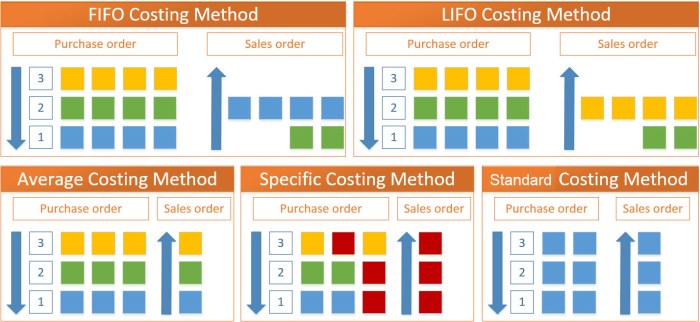
1-FIFO.jpg

When we use FIFO method, system will post quantity decreasing every time based on the first input. If we use LIFO method, situation is totally opposite; quantity decreasing is based on the last input.

1-LIFO.jpg

When we use average costing method, posting of quantity decreasing however, determined by calculating a weighted average of the remaining inventory at the valuation date of the inventory decrease.

1-Average.jpg

In situation when we use standard costing method, system doesn’t use purchase cost from posted invoices. System will use Standard Cost for all inventory postings (increase and decrease).

1-Standard.jpg

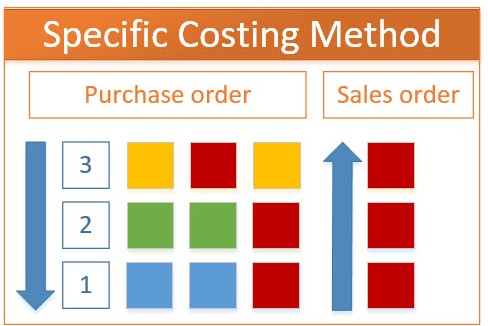
And at the end, when we use specific costing method, system is not based on some time order. If we use this costing method, it means we have assumption that individual units of items can be physically identified, typically with serial and/or lot numbers. Every time when we want to post inventory decreasing, we have to choose what exactly inventory unit we want to consume/sale.

1-Specific.jpg


Introduction in Dynamics NAV Costing

In almost all NAV implementations, we need to configure and use costing (inventory, manufacturing, jobs…). This is one of the main functionalities in all ERP solutions as well as in NAV. Because of that I will prepare the series of costing articles with an overview of the principles used within the costing area.

In this first part, I will make a small introduction about costing methods. Microsoft Dynamics NAV supports the five following costing methods:

  • FIFO
  • LIFO
  • Average
  • Specific
  • Standard

Now, in the following part I will just describe these costing types.
InvCost.jpg

FIFO

The FIFO costing method means “First In First Out”. It first assigns the value of the increases with the earliest posting dates on inventory. COGS is calculated using the value of the first inventory acquisitions.

An item’s unit cost is the actual value of any receipt of the item, selected by this explained FIFO rule. In inventory valuation, it is assumed that the first items placed in inventory are sold first.

LIFO

The LIFO costing method means “Last In First Out”. It first assigns the value of the increases with the most recent posting dates on inventory. COGS is calculated using the value of the most recent inventory acquisitions.

An item’s unit cost is the actual value of any receipt of the item, selected by previous explained LIFO rule. In inventory valuation, it is assumed that the last items placed in inventory are sold first.

Average

The Average costing method calculates a weighted average of the remaining inventory on the last date of the average cost period in which the inventory decrease was posted. COGS is calculated using the average value of the inventory acquisitions.

An item’s unit cost is calculated as the average unit cost at each point in time after a purchase. For inventory valuation, it is assumes that all inventories are sold simultaneously.

Specific

The Specific costing method overrides assumption about how cost flows from inventory increase to inventory decrease with the accurate cost information, creating a fixed application between these entries.

An item’s unit cost is the exact cost at which the particular unit was received.

Standard

The Standard costing method works with predetermined costs (rather than actual cost) for all inventory increases and it affects the value of the inventory decreases.

An item’s unit cost is preset based on estimated. When the actual cost is realized later, the standard cost must be adjusted to the actual cost through variance values.

Conclusion

This was only small introduction about costing types as preparation for the more advance knowledge about using costing in Microsoft Dynamics NAV. In the following articles, I’ll describe more about facts when users need to use these costing methods as best practices. I’ll write about all details in posting results and posting rules as well.
How to Configure Limited Users in NAV?

A few days ago I’ve wrote about new possibilities in using of Limited Users in NAV 2016. I think this is big improvement, because we can use limited users for much more roles.

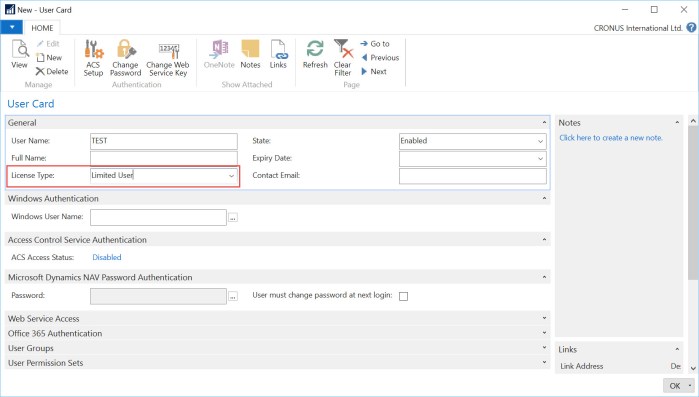
But I got a few comments about configuration limited users. OK, you can configure users as limited and this is all. Nothing more.

l-1.jpg

But people wants to configure what three additional application tables these limited users can use. Base on the standard NAV, this is not possible. These users get write access to a maximum of three application tables in the object range 0 – 99,999,999 other than the General Ledger Entry table. But system will count the first three used application tables beside the default tables. This is counted by the session. That means, users can use different three application tables in different sessions.

Some of administrators still want to limit these users on some specific tables. There is not feature for this requirement, but it can be made using User Permission Sets. We can create one permission set with all read permission on all tables (or less if you want this). Then, we can configure additional permission set with all permissions (insert, modify, delete) on our default 151 application tables. And on the end we can configure specific permission set based on our requirements for three additional tables.

Every time when we want to configure new limited user, we just need to add him these first two permission sets and one specific for him (or his role). In this case this limited user will have read permission to all tables and all other permissions to default tables and three we added to him. In this case, his three application tables will not depends of his first usage in session.

This is not some specific feature, but it is useful work around solution for configuration.

Limited Users in NAV 2016

I suppose the most of you have already used Limited Users. It is pretty good possibility to save some money for users who have not a lot different processes to work in NAV. But limitation was a big; you could insert in only 3 tables by your need and in 80 additional by default. It was enough for some basics processes (creating contacts, HR, warehouse and similar).

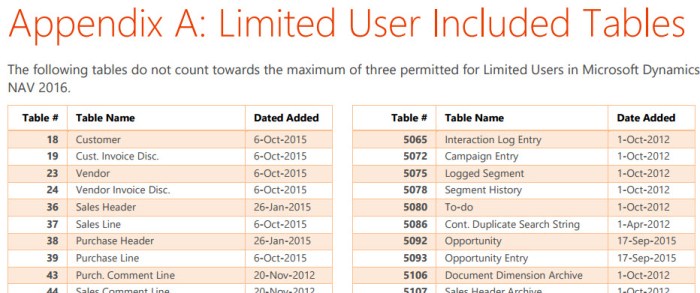
But from NAV 2016, we have a pretty greater possibilities. That means we can use for inserting even 151 default tables; you can find completely list here. Some of the most important default tables for insert are:

  • Customers and Vendors
  • Customer and Vendor Invoice Discounts
  • Sales and Purchase Headers and Lines
  • Deferrals
  • Sales/Puchase Price and Line Discount
  • Assembly Order Headers and Lines
  • Incoming Documents
  • Workflow tables

You can see that with these tables in combination with three additional by your needs, we can use Limited Users for a lot different processes. It can decrease project cost and improve quality.

LimitedUsers.jpg