Release plans are dead — how I’m tracking the Dynamics 365 roadmap now

Every March and every September for the last few years, my routine has been the same. Microsoft publishes the release plan, I download the PDF, I filter Release Planner down to Sales, Customer Service, Customer Insights, and Power Platform, and I build the “What’s New” deck that I present to partners each month. That routine ended on 25 August 2026, when Microsoft announced there would be no 2026 release wave 2 plan — not delayed, not renamed, just none.

This post is what I found when I sat down to rebuild my workflow, including the parts that broke and the parts I actually like better.

What Microsoft announced

The short version, from the official announcement by Richard Riley (GM, Agents and Low Code):

  • The twice-yearly release wave model is retired. Starting September 2026, new Dynamics 365, Power Platform, and Dataverse capabilities are published continuously, as soon as Microsoft commits to them, rather than being held for an April or October announcement.
  • Everything moves to the AI at Work roadmap (the site formerly known as the Microsoft 365 roadmap) at aka.ms/AIatWorkroadmap. Dynamics 365, Power Platform, Dataverse, Microsoft 365, and Copilot roadmap items now live in one place.
  • Each item has a lifecycle: In Development → Rolling Out → Launched. The item stays on the roadmap and gets updated as it progresses, instead of disappearing after publication like release plan entries did.
  • Release plans on Microsoft Learn stop being published from September 2026. The old ones stay online for historical reference.
  • Release Planner retires by 15 November 2026.
  • Only roadmap content with a public preview or GA date of 1 June 2026 or later migrates to the new roadmap. Anything older stays in the archived release plans.
  • Saved views in “My Release Plans” do not carry over. The AI at Work roadmap has no personalised saved views at all.

The two things that are explicitly not changing: product release schedules stay as they are, and Message Center remains the place for tenant-specific change notifications.

What broke for me

I’ll be honest about the friction, because most coverage of this change reads like a press release.

  1. My saved filters are gone. I had a curated view in Release Planner covering exactly the apps I present on. That’s dead by mid-November, and there is no equivalent. The workaround is a bookmarked URL with the filters baked in, plus an RSS subscription to that filtered view. It works, but it’s a step backwards for anyone who maintained several views.
  2. No more “the plan” as a document. Partners loved being able to say “it’s in the wave 2 plan” and point at a PDF. That artefact no longer exists. The replacement is a CSV export of a filtered roadmap view, which is fine for planning spreadsheets but not something you hand to a customer.
  3. The historical split is awkward. For the next few months, I’m working from two sources: archived release plans for anything that shipped before June 2026, and the AI at Work roadmap for anything after. If a partner asks “when did feature X go GA”, I need to know which side of the line it falls on.
  4. Bookmarks and internal docs. Every “see release plan” link in our internal partner documentation now needs updating. Small job, but it has to be done before November.

What I actually like

Continuous disclosure is better for support. Under the wave model, a feature that Microsoft committed to in May might not be publicly disclosed until the September plan. Partners would open tickets about behaviour that was already planned to change, and I couldn’t tell them. Now I can point to a roadmap item the moment it’s committed.

The lifecycle status is useful. Release plans told you a target date and then went silent. The new roadmap tells you whether something is still in development, actively rolling out, or launched — and updates that status. For a support role, that’s the question I’m actually asked most: “Is it live in my region yet?”

Feature IDs are searchable and shareable. Every item has an ID, and you can link directly to it. That’s exactly what I want to put in a ticket response.

The part nobody is talking about: querying the roadmap from your own tools

This is the piece I think is the most interesting and the least covered. Microsoft has published a Release Communications MCP Server that exposes the AI at Work roadmap (and Azure Updates) to any MCP-compatible AI client. No authentication, no licence, free to use.

The endpoint is:

https://www.microsoft.com/releasecommunications/mcp

Standard configuration for most clients:

{
"servers": {
"MRC-MCP-Server": {
"type": "http",
"url": "https://www.microsoft.com/releasecommunications/mcp"
}
}
}

It exposes four tools: get_recent_roadmaps, get_roadmap_by_id, get_recent_azure_updates and get_azure_update_by_id. The roadmap tools support OData-style filtering by product, platform, release ring, cloud instance, status, and dates, plus text search on titles. Data refreshes daily.

Documented clients include VS Code, Visual Studio, GitHub Copilot CLI, Claude Desktop, Claude Code, Cursor, and Codex. It’s also a plain remote MCP server, so it can be added as a tool in a Copilot Studio agent.

Why this matters for my monthly webinar: instead of manually scrolling a filtered web page, I can ask, “list all Dynamics 365 Sales and Customer Insights roadmap items updated in the last 30 days with status Rolling Out” and get the raw material for the deck. That’s my old Release Planner filter, except it answers questions.
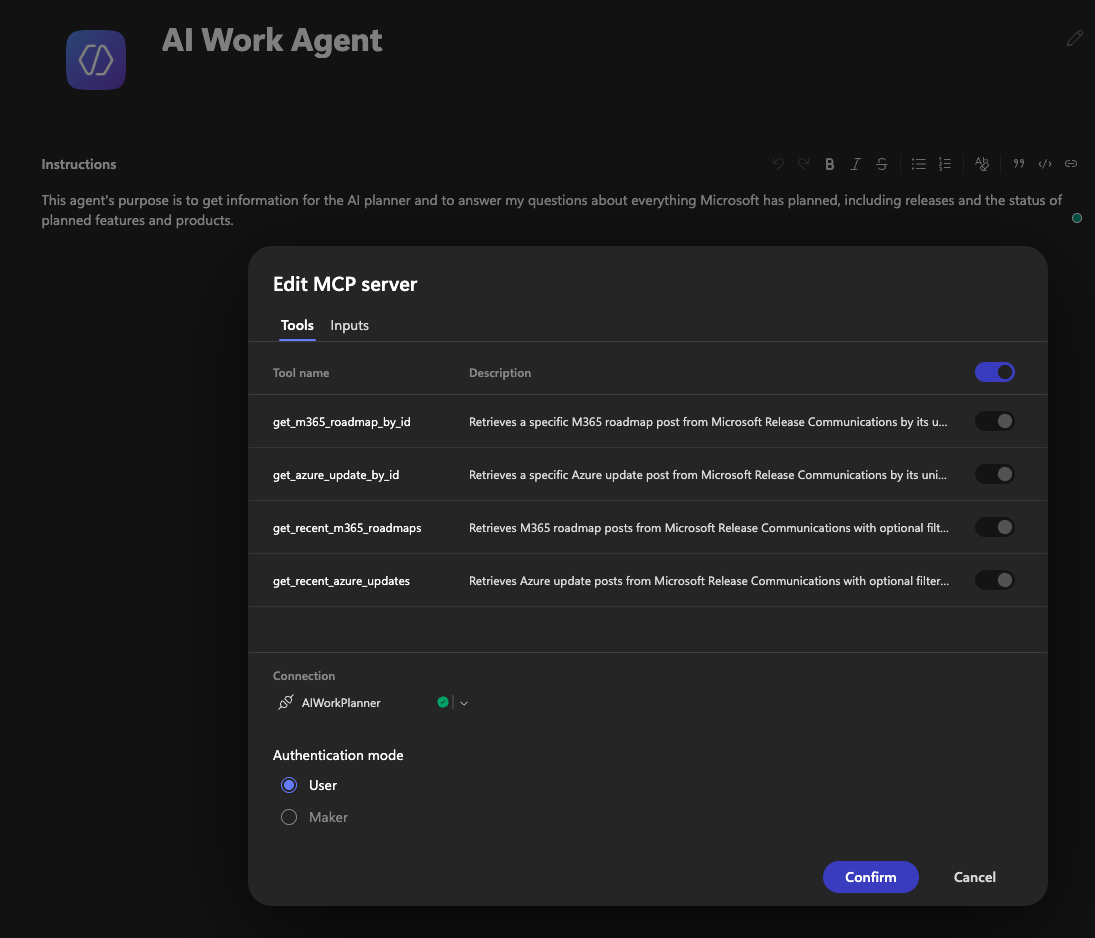
One practical note from the docs: AI clients sometimes don’t invoke the MCP tools unless you’re explicit. Mention “AI at Work roadmap” in the prompt, and don’t mix Azure and Microsoft 365 questions in the same request.

My new workflow

Here’s what I’ve set up to replace the wave routine:

  1. One filtered roadmap URL for the products I cover, bookmarked, with the RSS feed for that view added to my reader.
  2. A monthly review on the first working day of each month — pulling the last 30 days of changes, which becomes the webinar content. Microsoft itself recommends a monthly or quarterly rhythm to replace the wave cadence; monthly matches what I already do.
  3. The MCP server connected to my AI client for ad-hoc partner questions and for generating the first draft of the update list.
  4. Message Center still checked for tenant-specific rollout notices — the roadmap tells you what’s coming. Message Center tells you when it hits your environment.
  5. Archived release plan links kept for anything pre-June 2026.

New App – Microsoft Invoicing

I’ll start this post with two phrases “Amazing” idea and App and “Unfortunately”.

First “amazing”, because it is really new cool App in Office 365. With this new online mobile App you can easy create and send very good looking invoices to your customers in PDF format. It is awesome application for very small business. And except creating and sending invoices, you can accept your payments, mark your invoices as paid or unpaid; add and edit your customers, view yearly and monthly sales and overdue payments… It is really cool and smart thing in your hands.

But why “unfortunately”? This “unfortunately” is for now, because you can currently try this app only if you are invited and of course if you are using Office 365… and not all Office 365 packages. Currently, it is possible only with Office 365 Business Premium Subscription.

If you are lucky, when you open your Office 365 dashboard, you will find Business Center and you will find Invoicing.

Invoicing01

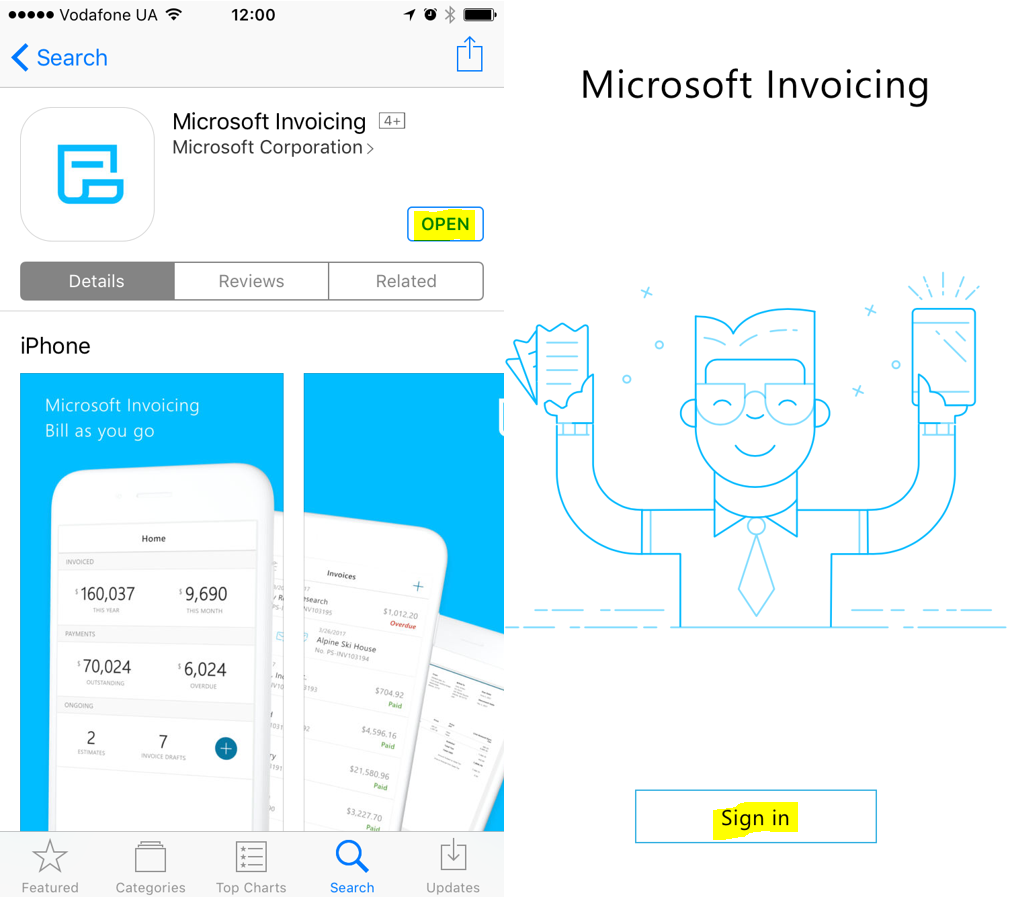
And now, I’ll show you in few steps how to download and run this App. You can download it from AppStore for your iPhone or from Google Play for your Android devices. Just to know, I’ve tried only on iPhone.

When you find it on your store and download it, you will run App and find ‘Sign In’ button.

Invoicing11.PNG

O course, you just need to click on this button and to continue with logging. Of course, for logging, you must use your Office 365 credentials. System will the first ask for you Office 365 account and then open standard Office 365 login page to enter you password.

Invoicing12

And as I already said, if you are lucky one, you can try this App now. if you are not so lucky :(, you will get a message that App not accessible…

This is all for this post. In the next post, I’ll write more about features.

NAV 2017 Roadmap

In just two month, Microsoft will publish new Microsoft Dynamics NAV version. In the encounter of this event, month ago Microsoft published the last NAV roadmap on WPC in Toronto. Now, we can see what will be generally the main features in NAV 2017.

NAV2017_Roadmap1.jpg

We still cannot notice a lot of things (these thing are not so clear), but if we try to use Project “Madeira”, we can find a lot of some new features and that means, we can expect the most of them in NAV as well.

In the same time, Directions NA has already published agenda for this conference and now we can see the main topics, because NAV 2017 will be published in this period. See you there.

Create an Invoice from Outlook Calendar in Project Madeira

I’ve already wrote about using integration of Outlook and Project Madeira. If you use Exchange Online, you can use a lot of automation. As I wrote in my last article, everything I used is based on Project “Madeira” currently demo features, but I expect we will have minimum the same in new NAV 2017. But OK, we will still wait with this until we get the official new release.

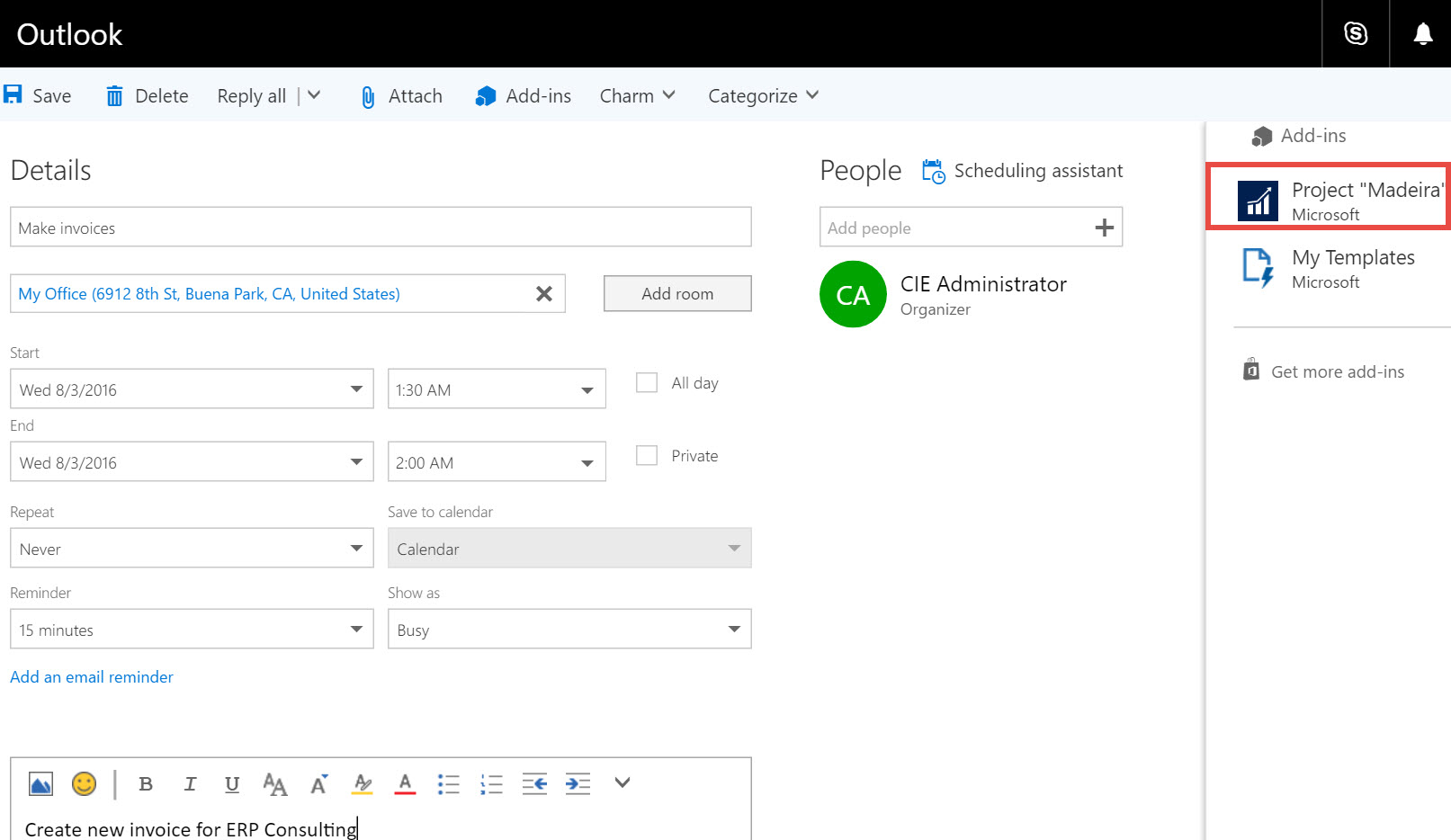
I older articles, I showed you how to use this kind of integration in emails, but now we can use some automation in Outlook Calendar as well. If we make an appointment to make some invoice for example, when we open this appointment we will notice Project “Madeira” button.

MadeiraCal1.jpg

Using this, system will as us what contact we want to use and when we choose one of them we will get all necessary information about him. Now, we can make new quote, invoice, order or credit memo for him if we want. We can add everything we want in this document without leaving the Outlook Calendar. When I finish, I can send this document on approval or just post or post and send.

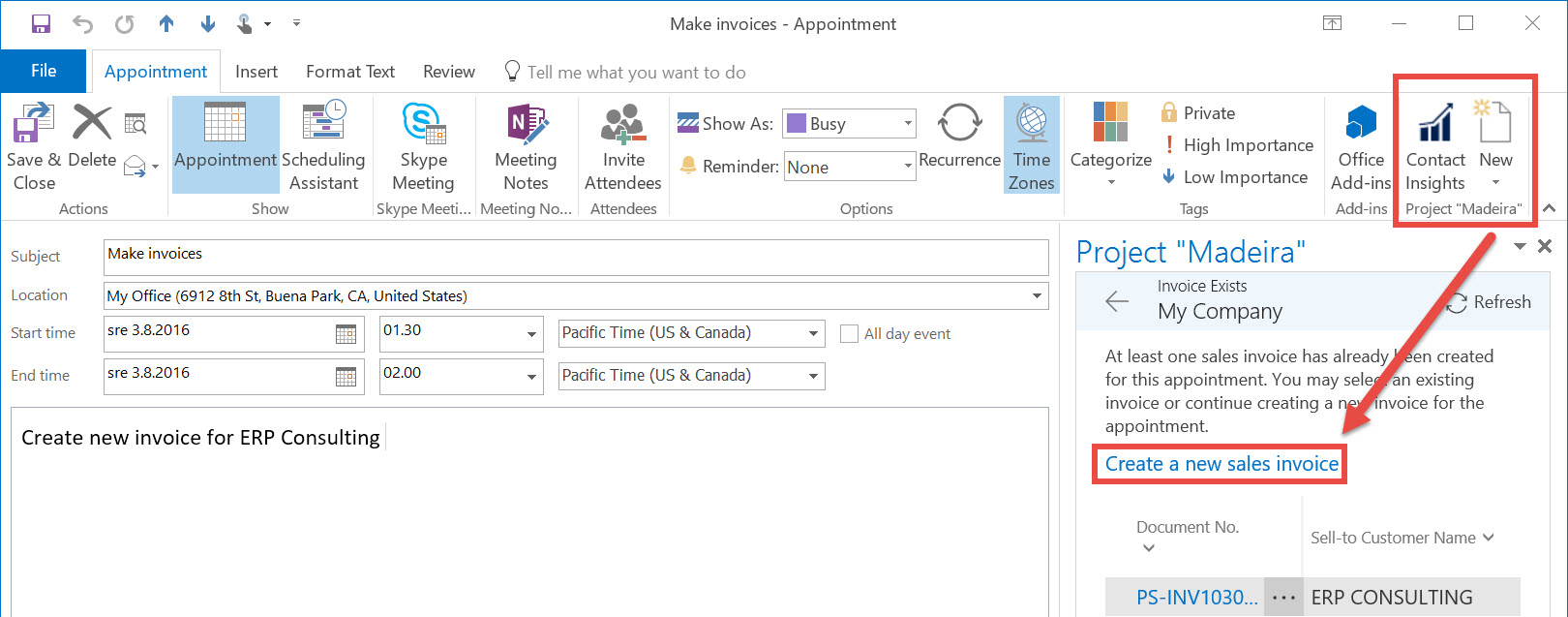
On my first picture, I captured how it looks like in Outlook Online, but everything is a possible using desktop Outlook (as I noticed, you just must use Exchange Online). If we use desktop Outlook and open the same appointment, we can notice two buttons. The first is about Contact Insights and the second is intended for directly creating a new documents. You can type a new document directly in the right part of appointment or click on “Pop Out” button (you can use this in online and desktop versions as well) to get independent window for easier way of typing.

MadeiraCal2.jpg

And when you finish everything is the same as in online version. Now you can choose to work in Project “Madeira” or in NAV from email or from calendar and it will make your daily business faster for sure.

Microsoft Dynamics 365!

Today, Microsoft published story about Microsoft Dynamics 365 on Partner Source and on their blog. And in the same moment, they’ve also published Microsoft AppSource. What is this?

MSDyn365.jpg

Microsoft says that this represents the end-to-end intelligent business applications in the cloud and it will be worldwide available in the fall of this year. Generally Dynamics 365 will bring the best of Dynamics ERP and CRM solutions and currently it is based on Project “Madeira” (but not only; we can expect the enterprise edition of Dynamics 365 based on AX) and CRM Online, but not only on them. It will provide the main business processes as Finance, Sales, Customer Service, Field Service, Operations, Marketing and Project Service Automation.

And even more. This is not closed system. This system is natively integrated with big data and IoT, Power BI, Cortana Intelligence, Microsoft Flow,… everything what you need and when you need. Classic Software-As-A-Service story, but very advanced. I think I don’t need to spend my words about integration with Office 365; this integration will be extremely deep (you already saw just a part of this in my previous article about using “Madeira” with Outlook).

Dynamics365.jpg

And of course, if you want to know something more about it, the best is to attend on WPC during the July. Microsoft will provide three session about this new solution. You can also see more about it on Summit this year (Scott Guthrie will speak about it) and I hope on Directions.

You can expect more from me about this soon. But this is just small the first introduction about new solution in the family; remember this name – Microsoft Dynamics 365.

Project Madeira with Desktop Outlook

In my few previous articles, I showed you how you can use Project “Madeira” with Outlook. But in all these posts, I used Outlook Online. You can also do everything the same in Desktop Outlook. You just must use Exchange Online.

Because of that, I want to show just some example in Desktop Outlook using Office 2016. You can use all examples I already showed. In this my small example, I got an email about some Invoice Issue from client.

MadeiraDesktopOutlook1.jpg

In this case, you just need to run “Desktop Links” add-in and Outlook will open your invoice in email body. For example, I’ll make an invoice correction and change discount fro 5% to 10% and re-post and re-send invoice to my customer.

You just need to choose Correct and system will make and post credit-memo, the same as invoice and create new invoice with the same data. You will change everything you want and choose “Post and Send”. System will post this invoice and create new email with this invoice in attachment as PDF.

But we have something more. In the right corner, we can find “Contact Insight” button and when we run it, we will get all information about this customer in the right pane. This pane is interactive and that means you can click on any data and you will get new information here.

Also, you can find “New” button and we can create all sales and purchase documents from this place. I think almost all functionalities in the Online and Desktop Outlook are mostly the same, but Desktop Outlook experience is even better.

Advanced Scenario with Project Madeira and Outlook

I think in my few previous posts, I’ve already showed some very interesting Project “Madeira” feature in collaboration with Office 365 and Outlook. Now, I will finish this small story with the some more advanced business scenario.

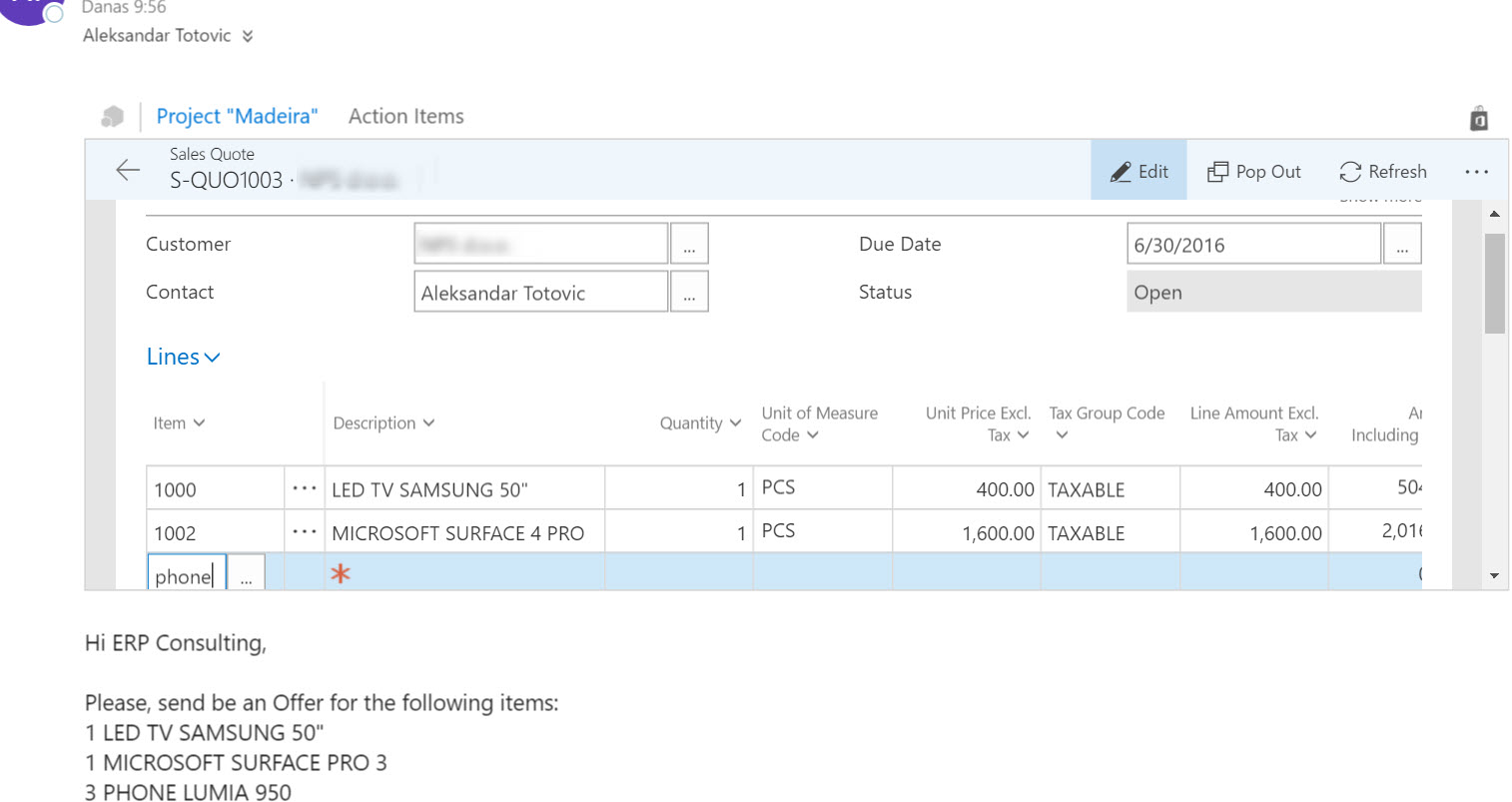
I got an email from my client where he asks an offer for some items. As I expect, because he is my old client, “Madeira” automatically recognized him and gave me possibility to see his company contact card or him as my customer. This second info is more useful for me.

MadeiraScenario1.jpg

On this card, I can see his balance, past due balance, overdue as a chart and few interesting tiles with information about his existing quotes, orders, invoices, credit memos, posted documents… If I want to see details about his balance, I need just to click on amount and I’ll get all information from Customer Ledger Entry; again everything in mail Outlook client. I can see posted document from this entry or edit if I want it…

MadeiraScenario2.jpg

And the same situation is if I click on amount in the chart. I also can use these tiles to see all documents with details from this default place.

OK, I decided I’ll give him an Offer. From this customer card, I can make new Sales Quote (I can make other sales document as well). As I expected, system noticed me that he has overdue balance, but I will live with this risk J. Now, I just need to fill what he wanted on quote and choose Send by email.

MadeiraScenario3.jpg

System will automatically create new email with attached Quote as PDF and all necessary information in mail body. And I just need to click Send. When I get confirmation, I will continue with working making an Invoice and sending approval request. And after that I’ll choose to Post and Send this invoice.

As you saw, we can make almost all sales business processes without leaving our Outlook client. And this is not everything we can; this is only part of possibilities. But we can see all of these in only few months. I am really waiting to see this product in production environment.

Invoices in Project Madeira via Outlook

Few days ago, I wrote article about working with contacts in Project ‘Madeira’ via Outlook. Now,  want to show something more about integration with Office and Outlook.

What if you get an e-mail with invoice number in mail body? Outlook will underline this number and make link to your actual invoice in NAV if you just click on it. Beautiful.

MadeiraInvoice1.jpg

If invoice with this number doesn’t exist, system will offer you to search document in all your sales and purchase documents. You just need to choose type of documents, and you will get list of your documents as bricks. Impressive.

MadeiraInvoice2.jpg

But what when you find your documents? First, you can continue to work with this document in your mail body or you can choose to open it in new window for a better visibility. And then, you can choose a lot of actions, everything from your e-mail (you don’t need to open your Madeira client during all these actions).

MadeiraInvoice3.jpg

If I choose the first option (Send), system will just make a reply mail with this Invoice in PDF as attachment with the basic details about this invoice in a mail body.

MadeiraInvoice4.jpg

But you can make a different actions as well. Maybe you need to correct this posted document (system will automatically create and post Credit memo and create new document) or you want to create a Credit memo or change your payment service… Everything of this is possible, but only if this contact is connected with your customer.

There are still more possibilities, but in some other article… Currently we can say, Project ‘Madeira’ promises a lot.

New Extensions for Project Madeira

When I run Project ‘Madeira’ for the first time, I found only three extensions there:

  • QuickBooks Data Migration
  • PayPal Payments Standard
  • Envestnet Yodlee Bank Feeds

All of them were created by Microsoft. But now, we can find eight of them (one new from Microsoft and few of them by ChargeLogic and Sana Commerce).

MadeiraExtensions.jpg

It looks nice to see new extensions here from other vendors. I hope we will have a hundreds of them in few months as well.

But I’m afraid about their visibility when we have a hundreds or thousands of them. I use brick view for the best visibility, and yes – search works fine, but I think we have to have some additional tags. Minimum I need is Category tag, because we will have a lot of completely different types of extensions (data migration, notifications, integrations, payment, some specific vertical or horizontal solutions, localisations,…). Also, it will be fine to have Market tab because some of extensions are for global market, but some of them will be only for some specific countries.

I expect to have some kind of rating as well. We will have a lot of similar extensions, and we need something for differentiation. I think these ideas can improve ‘Madeira’ experience. But it look it will be a great product.

Contacts in Project Madeira via Outlook Client

In the last few articles about Project ‘Madeira’, I wanted to show how to configure it and some basics about usage and limitations. Now, I want to show you how we can use Project ‘Madeira’ using our Outlook. First, just to know, to do it we need Exchange Online (I’m using O365).

In this example, I’ve got an e-mail from unknown person. If we use a small icon on the top on e-mail, system will as us what to do with this contact.

MadeiraOut1.jpg

If I choose to add this contact as a contact in my Project ‘Madeira’, I can associate this contact with some of the companies… And everything without leaving my Outlook. If we don’t know how to use some of the fields, we need just to click on this field caption and we will get a small help.

MadeiraOut2.jpg

Now if we want to edit this contact, we can do it using “Edit” button. Or if this is not so comfortable to you, you can choose “Pop Out” button to open this contact in independent window. We also can run some other processes, eg. creating opportunity, creating interaction, checking or creating a quote… or run statistic or send some of the reports (in file format you want).

MadeiraOut3.jpg

If you run e-mail from this person some other time, system will recognize her as a contact. If this contact is not connected with a company, system will offer you this possibility. And everything is a live with your ‘Madeira’ database. You don’t need to leave your Outlook page.