Directions 2016 NAV Conferences

In this moment, we have the final countdown until Dynamics NAV conference season will start. We have 47 days until the opening Directions NA and 64 days until the opening Directions EMEA this year.

Directions.png

This year Direction NA will be held the first, but Directions EMEA will be only 17 days later and I’m sure we have something new on both of them. Currently we have published agenda only for Directions NA, but I’m pretty sure that agendas will be similar, maybe with only small changes.

I love these conferences and I’m sure you will find a lot of reasons to attend on one of them, depending where you actually live. I think that the most important reasons will be launching of NAV 2017 and Project “Madeira” as well as Dynamics 365. You will find a lot of sessions about news in these new products. You will also learn more about integration with other systems, about using of PowerShell, how to take advantage of using Managed Services, how to improve your knowledge in lot of different areas… Also, you will learn more about project management, user experience, get some real-life experience… You will enjoy in awesome Keynotes … and maybe the most important – meet new people. I think these kind of events are the best places for networking; people are the most important wealth… and you can find and meet a lot of them on these conferences because they are the biggest NAV conferences.

In the same time, you can attend Cloud Sure Step sessions or try to pass new NAV exams powered by Association of Dynamics Professionals. I advice you to try some of these exams; I had participation in some of them and I think they are very good way to prove your expertise.

And finally, I will be lecturer on both of these conferences and I hope I’ll meet a lot of you – amazing people. See you there:

New Dynamics NAV August 2016 Cumulative Updates

Currently Microsoft hasn’t yet published that new Cumulative Updates are already published on their blog. But they already published Cumulative Updates for NAV 2015, NAV 2013 R2 and NAV 2013 in Friday. And, they have just published CU for NAV 2016 today.

nav_cu.jpeg

You can download all these Cumulative Updates from the following links:

There are a lot of interesting Platform and Application hotfixes and local hotfixes as well and you just need to download and test them. I’ve just noticed them and I need to check all of these.

NAV 2017 Roadmap

In just two month, Microsoft will publish new Microsoft Dynamics NAV version. In the encounter of this event, month ago Microsoft published the last NAV roadmap on WPC in Toronto. Now, we can see what will be generally the main features in NAV 2017.

NAV2017_Roadmap1.jpg

We still cannot notice a lot of things (these thing are not so clear), but if we try to use Project “Madeira”, we can find a lot of some new features and that means, we can expect the most of them in NAV as well.

In the same time, Directions NA has already published agenda for this conference and now we can see the main topics, because NAV 2017 will be published in this period. See you there.

Create an Invoice from Outlook Calendar in Project Madeira

I’ve already wrote about using integration of Outlook and Project Madeira. If you use Exchange Online, you can use a lot of automation. As I wrote in my last article, everything I used is based on Project “Madeira” currently demo features, but I expect we will have minimum the same in new NAV 2017. But OK, we will still wait with this until we get the official new release.

I older articles, I showed you how to use this kind of integration in emails, but now we can use some automation in Outlook Calendar as well. If we make an appointment to make some invoice for example, when we open this appointment we will notice Project “Madeira” button.

MadeiraCal1.jpg

Using this, system will as us what contact we want to use and when we choose one of them we will get all necessary information about him. Now, we can make new quote, invoice, order or credit memo for him if we want. We can add everything we want in this document without leaving the Outlook Calendar. When I finish, I can send this document on approval or just post or post and send.

On my first picture, I captured how it looks like in Outlook Online, but everything is a possible using desktop Outlook (as I noticed, you just must use Exchange Online). If we use desktop Outlook and open the same appointment, we can notice two buttons. The first is about Contact Insights and the second is intended for directly creating a new documents. You can type a new document directly in the right part of appointment or click on “Pop Out” button (you can use this in online and desktop versions as well) to get independent window for easier way of typing.

MadeiraCal2.jpg

And when you finish everything is the same as in online version. Now you can choose to work in Project “Madeira” or in NAV from email or from calendar and it will make your daily business faster for sure.

Item Attributes in NAV 2017

How many times you needed some additional attributes on item? And every time you added some new field or something… Now, we will have a small, but smart feature in new NAV2017 – “Item Attributes”. Well, I still cannot say it will be in new NAV for sure, because currently it is a part of Project “Madeira”. But the most of the new features in “Madeira” will be part of NAV2017 and my title is named as you read because of that.

What is Item Attributes? This is something similar to dimensions. We have one additional table with Item Attributes. You can create Attributes as you want. And for each assigned Attribute to Item, you can assign Item Attribute Value (again as you want). You can use a lot of different attributes and everything depends by your needs.

MadeiraItemAtt1.jpg

Good thing is when you add your attributes and values to some item, you can see all of them in fact box in the right side of page, on both of them card or list. And even more, you can filter your items based on Item Attributes.

MadeiraItemAtt2.jpg

MadeiraItemAtt3.jpg

You can choose different attributes and you can use standard filters when you want to use attribute values for filtering (you can easy use “Select More” for this purpose).

All these examples are made on Project “Madeira” and you can do it by yourself using Project “Madeira” demo instance. You can also find more about Item Attributes here.

Create Items with Item Templates in New NAV and Madeira

First, this feature is currently published in Project “Madeira” and I’m sure it will be part of NAV 2017, but almost all about NAV 2017 is still by NDA and I cannot write about it.

But this feature is looks fine and I want to share it. When we created new Items we usually used Item Category to preconfigure some fields for item. But now, I think we have a better feature. We can just configure page “Set Up Customer/Vendor/Item Templates” with a lot of data. And that means this feature is not connected only with Items (you notice it right); you can also use this feature as template for other codes.

MadeiraTemplates.jpg

Now, you can chose one of the templates from list or to create your own template choosing table number to dedicate template to some of the tables. OK, if you want to create Item Template, you will use table 27.

When you open Item template, you can see that now you can configure lot of different fields, as for example:

  • Base Unit of Measure
  • Automatic Extended Texts
  • Type (Inventory or Service)
  • Price include tax and Price/Profit Calculation with profit and discount groups
  • Costing Method and Indirect Cost
  • and Posting groups in Financial Details

But you can do even more, you can open Dimensions command from ribbon and preconfigure dimensions and dimension value and as well as value posting for dimensions (mandatory, same code, no code). And now when you want to create new Item, system will ask you what Item Template you want to use from all enabled templates.

MadeiraSelectTempolate.jpg

If you want to change something you can later use command “Apply Template” from ribbon to add some template to your item.

If you didn’t use some template or if you changed some details, you can also use command “Save as Template” to save these values as template for some other usage.

MadeiraRibbon.jpg

Interesting feature and you can use this not only for items. This is more standardized feature in comparison with older versions.

NAV Madeira is NAV 2017

We know the name now. The next release of Microsoft Dynamics NAV will be NAV 2017. It is no longer a secret and we will not use the code name NAV “Madeira” in the future.

New version will have a lot of new improvements, but I’ll share more about it with you very soon (it is still by NDA). Currently, this is just a small fast news.

Microsoft Dynamics 365!

Today, Microsoft published story about Microsoft Dynamics 365 on Partner Source and on their blog. And in the same moment, they’ve also published Microsoft AppSource. What is this?

MSDyn365.jpg

Microsoft says that this represents the end-to-end intelligent business applications in the cloud and it will be worldwide available in the fall of this year. Generally Dynamics 365 will bring the best of Dynamics ERP and CRM solutions and currently it is based on Project “Madeira” (but not only; we can expect the enterprise edition of Dynamics 365 based on AX) and CRM Online, but not only on them. It will provide the main business processes as Finance, Sales, Customer Service, Field Service, Operations, Marketing and Project Service Automation.

And even more. This is not closed system. This system is natively integrated with big data and IoT, Power BI, Cortana Intelligence, Microsoft Flow,… everything what you need and when you need. Classic Software-As-A-Service story, but very advanced. I think I don’t need to spend my words about integration with Office 365; this integration will be extremely deep (you already saw just a part of this in my previous article about using “Madeira” with Outlook).

Dynamics365.jpg

And of course, if you want to know something more about it, the best is to attend on WPC during the July. Microsoft will provide three session about this new solution. You can also see more about it on Summit this year (Scott Guthrie will speak about it) and I hope on Directions.

You can expect more from me about this soon. But this is just small the first introduction about new solution in the family; remember this name – Microsoft Dynamics 365.

July 2016 NAV Cumulative Updates

Yesterday (July 5th) new NAV Cumulative Updates have been released. As usually in expectation of new NAV version, Microsoft published updates for the last four NAV versions:

You can download them for the previous links. If you are thinking if this is the right moment for your upgrade to the last version and the last Cumulative Update, the answer is YES. Very soon we will get the newest very impressive NAV version and this will be the first step in preparation for using the newest NAV version.

upgrade-dynamics-nav-course-img.png

As usually, NAV 2016 has the most of hotfixes, both platform and application, NAV 2015 slightly less and for the other two versions, just few of them. You can also find some local application hotfixes.


Project Madeira with Desktop Outlook

In my few previous articles, I showed you how you can use Project “Madeira” with Outlook. But in all these posts, I used Outlook Online. You can also do everything the same in Desktop Outlook. You just must use Exchange Online.

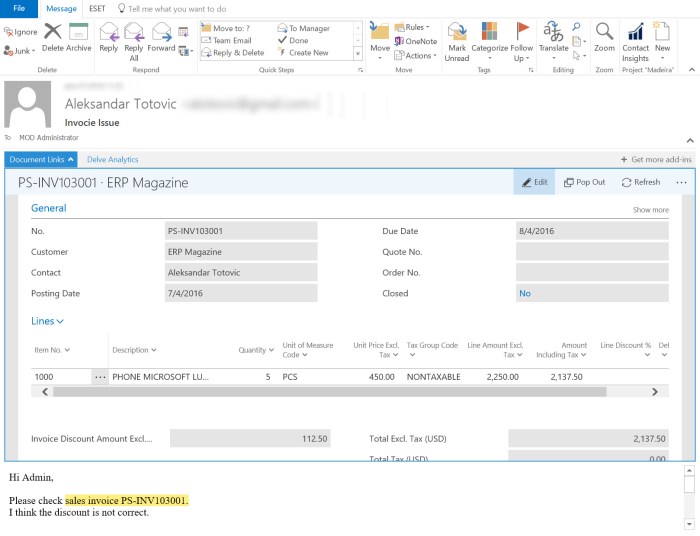
Because of that, I want to show just some example in Desktop Outlook using Office 2016. You can use all examples I already showed. In this my small example, I got an email about some Invoice Issue from client.

MadeiraDesktopOutlook1.jpg

In this case, you just need to run “Desktop Links” add-in and Outlook will open your invoice in email body. For example, I’ll make an invoice correction and change discount fro 5% to 10% and re-post and re-send invoice to my customer.

You just need to choose Correct and system will make and post credit-memo, the same as invoice and create new invoice with the same data. You will change everything you want and choose “Post and Send”. System will post this invoice and create new email with this invoice in attachment as PDF.

But we have something more. In the right corner, we can find “Contact Insight” button and when we run it, we will get all information about this customer in the right pane. This pane is interactive and that means you can click on any data and you will get new information here.

Also, you can find “New” button and we can create all sales and purchase documents from this place. I think almost all functionalities in the Online and Desktop Outlook are mostly the same, but Desktop Outlook experience is even better.