CU 1 for NAV 2016 Has Been Released

The first cumulative update for Microsoft Dynamics NAV 2016 has been released today. It includes all application and platform hotfixes and regulatory features. This cumulative update is known as Build 43402 and you can download it here from Partner Source.

One of the platform hotfixes is solving the issue when Dynamics NAV 2016 overwrites Dynamics NAV 2015 MMC controls. There are also some useful hotfixes as for example: G/L budgets do not export and import as in Dynamics NAV 2015, the password on the Setup page can be edited in view mode, cannot using of toolbar in report preview…

There are also a lot of application hotfixes for almost in all NAV modules.

But I’m not sure what exactly mean the feature: “Setting the language and regional format in the Web client setup is no longer supported”. If I understand it good…

But, first to install it and then more information.

NAV 2016 Universal App System Requirements

In my few articles, I’ve already wrote about Phone Client in NAV 2016 and how to install it on own smartphone with self-signed certificate. Also, I already wrote about NAV 2016 system requirements.

But in all of these articles, I didn’t wrote about system requirements for phone client. And now, it is not phone client; it is an NAV Universal App. It can work on any device you have, but if this device meets requirements.

In short, Universal App can work on devices with Windows 10/8.1, Windows Phone 8.1, iOS 8.4 and Android 4.4.3 with minimum 1 GB RAM (for Windows and Android). Tablets must meet minimum 7″ screen size with minimum 960×510 resolution and Phones must meet minimum 4″ screen size with minimum 854×480 screen resolution.

In my older article about system requirements I said that there are not official data, this is my research. But if you want more about official system requirements, try here on MSDN. I hope, this is a clear.

My PPTs from Directions EMEA and NA

I’ve just published my Power Point presentations from both of Directions conferences. You can find presentations from Directions EMEA and Directions NA. I didn’t want to publish them earlier because Directions NA wasn’t closed.

Now, you can find all details from these two presentations and learn how to implement standard NAV solution in construction business. If you need some help about this, give me a question. If you want to know more about vertical solution for NAV in Construction, I will answer everything you need.

Presentation from Directions EMEA 2015

Presentation from Directions NA 2015

These presentations will be available for download until the end of this year.

How to Install NAV 2016 Phone Client as Test Environment

We have new NAV 2016 more than two weeks. One of the really exciting news is using of Universal Apps. We finally can use NAV on phone.

But one of conditions of using of Phone Client is installing of security certificate. This is the same story as we already have in NAV 2015 for using of Tablet Client. If we have signed certificate, there is no problem. But if we have not it…

Can we use self-signed certificate on phone? Yes, we can. I will show how to do it on Windows Phone.

Of course, first we need to download Dynamics NAV Universal App for Windows Phone from Store. Type Dynamics NAV in Store Search and download this app. You can easy find it as app made by Microsoft Corporation with new logo.

Than we have to have installed NAV 2016. In my example, I’ve installed NAV 2016 on Azure. You can do it easy if you have Azure subscription. Or you can do it on your own servers and install self-signed certificate on your server. If you deploy NAV 2016 on Azure using PowerShell scripts, you will have already created certificate. I’ll install this certificate on my own computer in Internet Explorer.

Run your Internet Explorer as Administrator and type your NAV 2016 Web Client URL. Choose “Continue to this website (not recommended).” and click on “Certificate error” > “View Certificates” > “Install Certificate”.

PhoneClient1

Choose Local Machine and “Place all certificates in the following store” > Browse > “Trusted Root Certification Authorities” > OK > Next > Finish > OK > OK.

Open MMC on your computer and add Certificates as snap-in using Add/Remove Snap-in command. Open “Certificates – Current User” > “Trusted Root Certification Authorities” > Certificates and find your already installed certificate. Right-click on certificate and chose Open. Go to Details tab and click “Copy to file” > Next > Next and choose your certificate name. Save this certificate XXXXX.cer on your computer and send it to your e-mail (e-mail using on your phone).

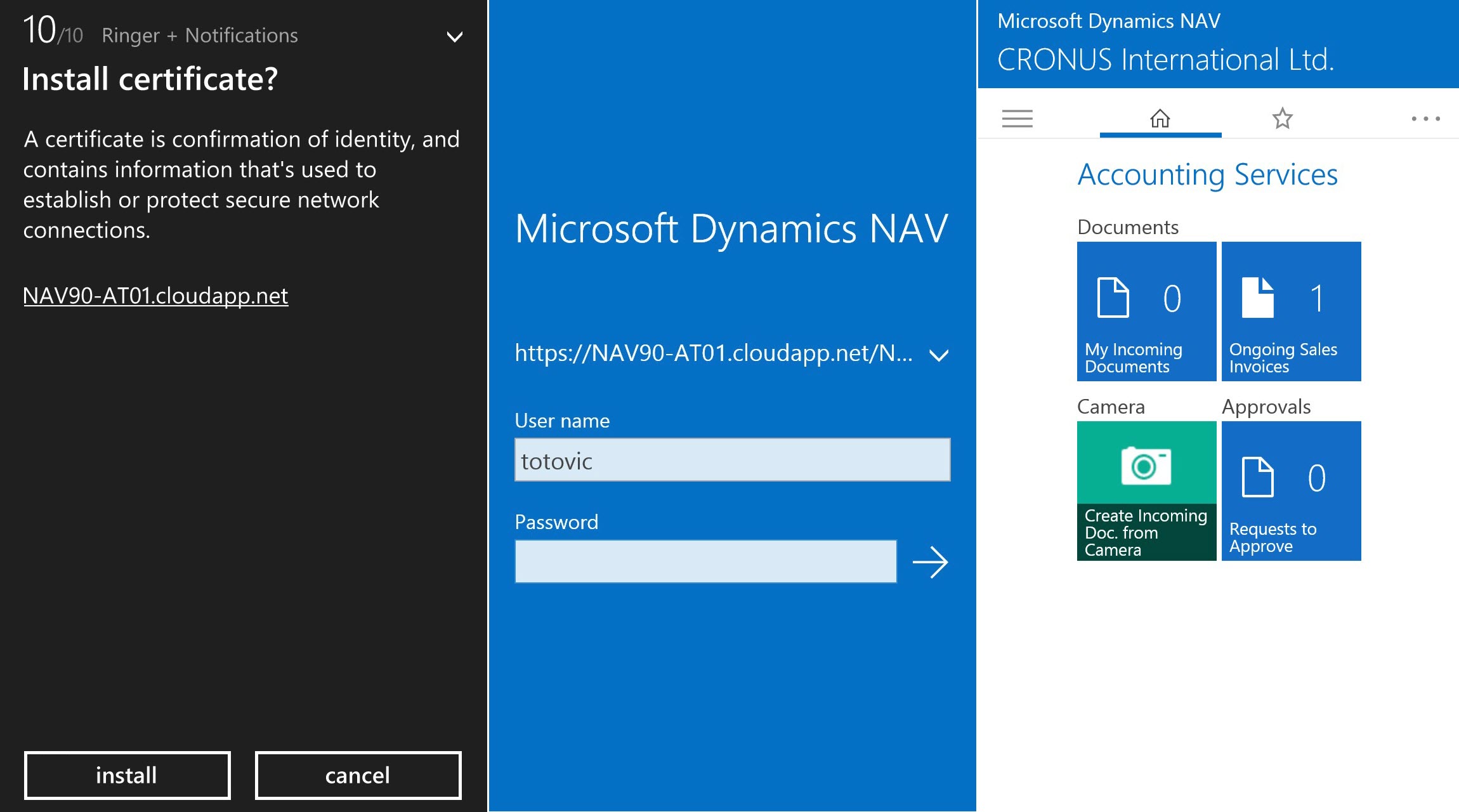
When you get this e-mail on your phone, click on your certificate in attachment and install it. Then run your Dynamics NAV Universal App and type your service URL https://YourComputerName/WebServerInstance and your username and password.

PhoneClient2

If you finished everything I said, you will open your NAV instance on your phone as you can see on picture.

How to Run NAV 2016 Integration with CRM Online

In my previous article, I described how you can register your trial CRM Online subscription. Now, I suppose you want to test new feature in NAV 2016 – enabling natively integration with CRM Online.

We can do in on following way. Before we start with integration, we should enable encryption in Data Encryption Management page. After that, to configure connection in NAV 2016, open “Microsoft Dynamics CRM Connection Setup” page and type your Dynamics CRM Online URL you already registered (https://YYYYYYYY.crm4.dynamics.com), your username (full YourAccount@XXXXX.onmicrosoft.com) and password.

Now we need to test the connection settings. We can do it running Test Connection command on ribbon. When we run it, NAV will try to establish a connection to the Dynamics CRM server and if the settings are valid and a connection can be established, a message appears that states the test was successful. If everything is OK, then we need click in Enable check-box.

NAVCRM1

After you configure all these fields, you need to click Yes to make synchronization between CRM Online and NAV. After synchronization is finished, the connection to CRM Online is configured and CRM integration is enabled.

NAVCRM2

Now, you can configure some additional fields if you want. I suppose to use help for this (but I’ll write about it in other articles). And on the end, if you want to disable CRM integration, you only need to uncheck Enable field.

How to Create CRM Online Trial Subscription

I suppose all NAV people have already heard that NAV 2016 has natively Dynamics CRM Online integration. This is a really great feature in new NAV release. Probably most of you want to try how it looks like. If you don’t know how to create your trial CRM Online subscription or didn’t try it, this article is for you. I want to show you how to do it, step by step.

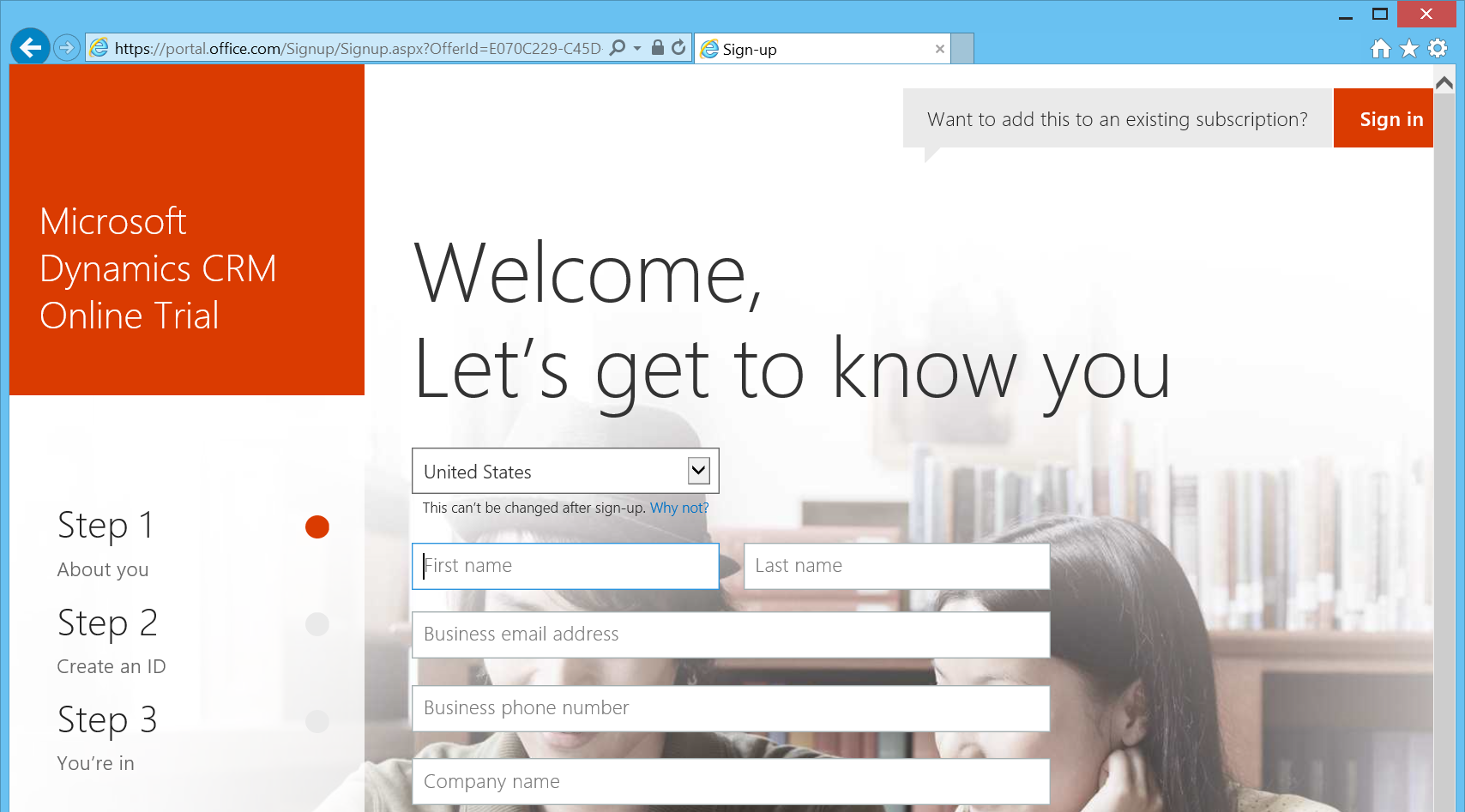
First open this web page. On this page, in upper right part, click the “Sign In”. You have to type your Office 365 account.
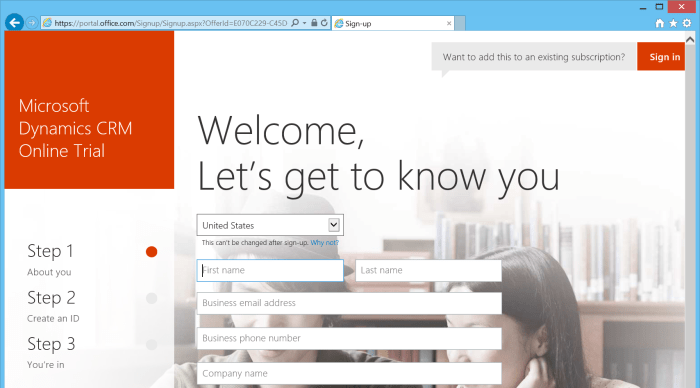
CRM1

Now you need to confirm this order to get Microsoft Dynamics CRM Online Trial with 30 day subscription for 25 users. After you confirm it, you will open your Office 365 Portal. You will see new e-mail with all instructions and I suggest read it. Click on Login and choose Admin.

Go to your Active Users on portal and add CRM license to you and your other users. You can do it clicking on Edit > Licenses > and check “Microsoft Dynamics CRM Online Professional”. Click Save.

Now you need to choose your CRM App, enter your domain name you already registered (*.onmicrosoft.com) and click “Continue Setup”.

CRM16

You can find potential issue here. Maybe you will not see it, but it is possible. If you get the following error message, try do to next step:

You are not a member of this organization. You (YourAccount@XXXXX.onmicrosoft.com) do not belong to the organization YYYYY. Verify the organization name and try to sign in again.

Resolution: Click the “Sign Out” button on the page that you see the error on. Then log back in with the correct login to access your Dynamics CRM Online organization. This is because the cookies that are used in the Internet Explorer browser sessions are trying to use your previous credentials to login.

Then, you should confirm some details about your language, country and currency. Then click the “Finish” and you can start “get started video”.

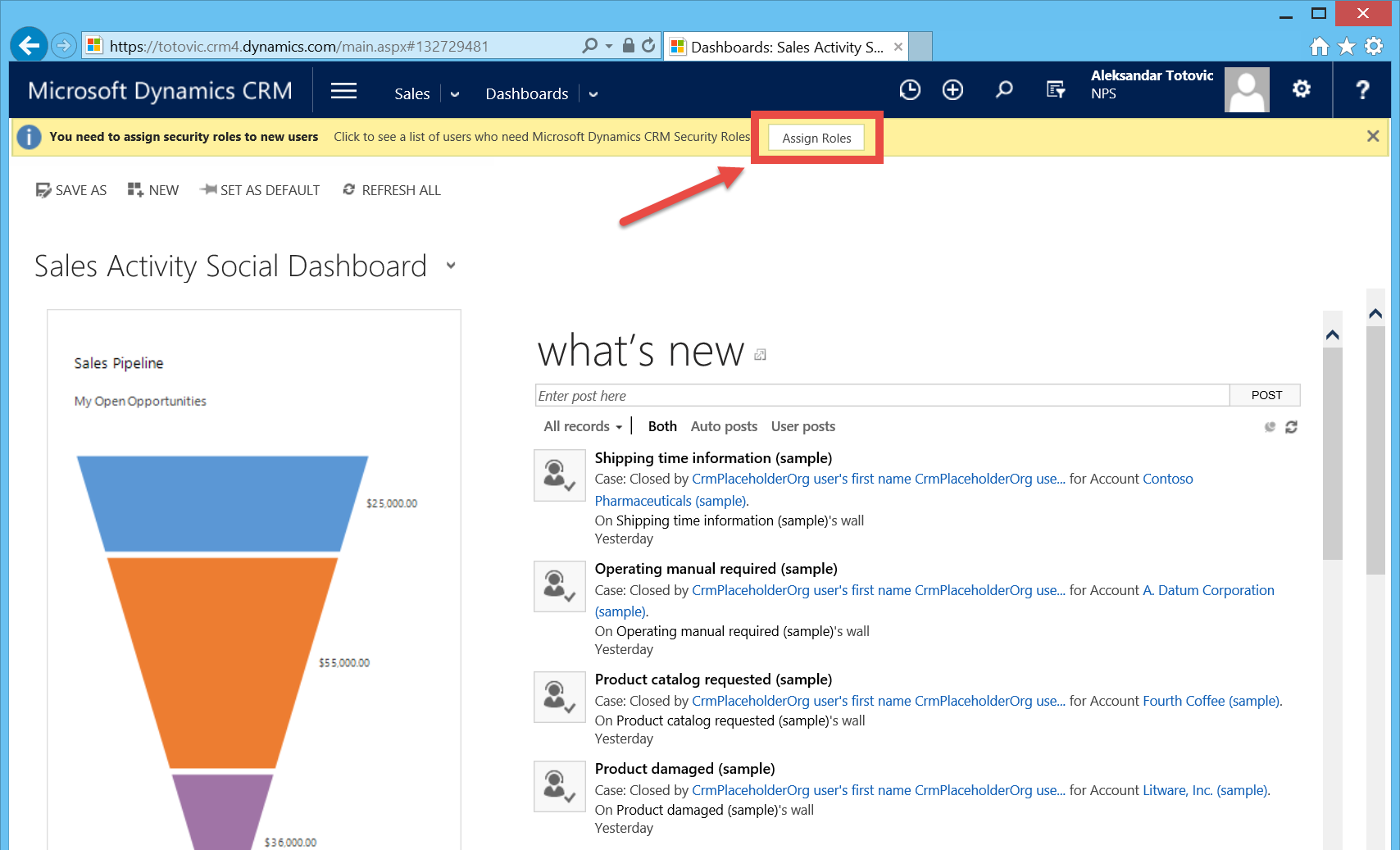
And… You’re in! Click on your CRM Online URL you’ve got on this page (copy this URL because you will need it later and for integration with NAV 2016). Now you’ve opened your CRM Online and you have to assign security roles to the new user. You can do it clicking Assign Roles button on the top of the screen.

CRM15

Now, assign security roles in CRM so this user can access your Dynamics CRM organization.

You can use your 30-days trial Dynamics CRM Online subscription. In next article, I will show how you can connect your CRM Online subscription with your NAV 2016.

New Certification Exams for NAV

As you already know, Microsoft has canceled official exams for Microsoft Dynamics NAV. Currently, three exams for NAV still exists, but only for NAV 2013. Microsoft does not want to prepare new exams in future for NAV and GP. But it does not mean that we will have not exams in the future.

Microsoft want to support the launch of the Association of Dynamics Professionals and exams preparation by Community, because certification is an important way for individuals to develop their skills and enhance the value they are able to add to their clients or employers.

In the close future, the Association of Dynamics Professionals will continue with certification exams for NAV and GP. First, we can expect two new exams for NAV 2015 at the fall this year. After that, it will be continued. You can find more about it on http://www.dynamicspro.org/.

About the Association of Dynamics Professionals:

Founded in 2015, the Association of Dynamics Professionals is an independent, not-for-profit membership organization devoted to the Microsoft Dynamics Community. The Association exists to serve its members and to improve the community as a whole through knowledge sharing, education and the establishment of competency standards and assessments.

See you soon with new NAV certification exams…

You can find more about exam here.