If you use API’s in Business Central, probably you found some limitations in methods, depending on API to API. Sometimes you can do more, sometime less. For example, with Accounts you can use only GET method (I still don’t understand why?), and so on…
You can find details about all of them here, but I prefer to have everything on one place as it will be easier to decide if I would use standard API or eventually I need to create the custom one. Because of that, I’ve made this matrix with all standard API’s and methods you can use with them:
Except these limitations, it would be nice to know that you have some other limits as well and they are important if you want to use API’s in some solutions. Even if those limits are high, they are still limits. For example, you can have maximum 600 requests per minute in production environment and 300 in sandbox. Complete list of limits is here.
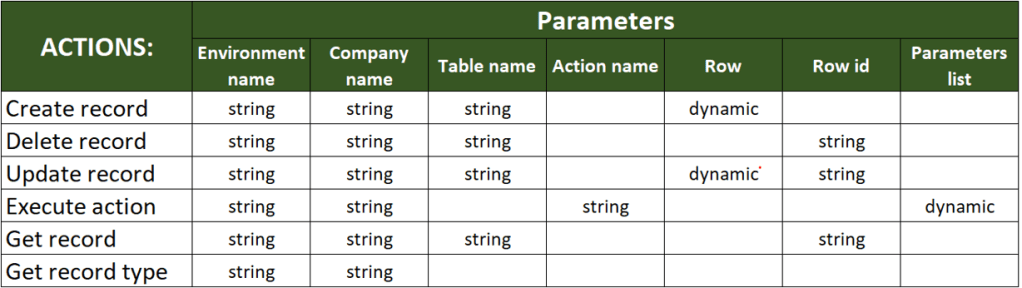
And what is also important? If you are using those API’s through Power Platform (or Logic Apps) connectors, you should understand their actions and parameters. All details can be found here, but there is a table for better understanding:
It is important to mention that all that information are subject of change.
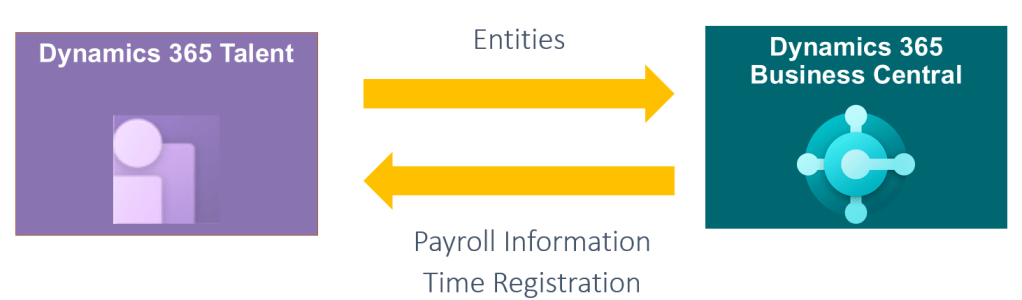
When I think about new Business Central features, the first thing in my mind is openness for integrations. As a part of Dynamics 365 family, the main power of this solution is when it can work simultaneously with other. Because of that, I showed these capabilities in a few conferences. As I got lot of requirement to explain it in more details, I’ll write about good example of BC integrations with one other Dynamics 365 solution – with ‘Dynamics 365 Talent’.
‘Dynamics 365 Talent’ is a new Microsoft Dynamics HCM solution (new name ‘Dynamics 365 Human Resources‘). This solution was initially based on AX HRM, but now it is separated solution. As we can use it independently and this solution is really amazing HCM system, I think it can be interesting how we can integrate this solution with Business Central and make them as the powerful tool together… and with no code.
If you are thinking how to make it and how to make it with no code, the answer is using one of the Azure services – Logic Apps. As ‘Dynamics 365 Talent’ has entities on CDS and Logic Apps has connectors for CDS and for ‘Business Central’, only what we need to do is to map entities and fields in both systems and of course, to think abut business logic on the first place. Depends what is the primary reason for integration, we can choose some of the options:
integrate HRM core system with HR in Business Central
integrate Attract or Onboard apps in Talent with Business Central.
In second option, we will use HR module in Business Central and use only one or two parts from ‘Dynamics 365 Talent’. On the other side, in first option we will use core HR in ‘Dynamics 365 Talent’. In this text, I chose to explain the first option.
In this first text, I’ll just explain some basic concepts and you will find more details in the following texts with this topic.
Basic setup in Business Central
First, as we don’t need all HR capabilities in Business Central (we already have all of them in dedicated HR solution – ‘Dynamics 365 Talent’), we will move only data necessary for other areas in Business Central. In this example I’ll show how to move data to Employee table as this table can be used for example in a Payroll system or you can use this information in Fixed Assets card.
Locate information in Talent
Now when we have the basic configurations, we can continue with integration. First, we need to find where an employee’s data are saved in Talent. To find this we need to open list of CDS entities and we can do it using PowerApps platform.
When we have these basic information, we can continue with technical parts how to do it in a practice.




 Totovic Dynamics 365 Blog