Multitenancy on NAV2015 Image on Microsoft Azure

When we speak about NAV on Azure, we expect Multitenancy as main strength. This is because, we expect an easy repeatability. Now, I will explain how to achieve this goal using NAV 2015 image deployed on Microsoft Azure.

We have excellent tolls, but we also have some rules. First, if you already run “O365 Integration pack” and “ClickOnce Deployment pack” scripts, unfortunately you cannot use this tools. You will get message similar as on following picture:

Multi0

You need to have a clean image deployment with running only “Initialize the VM pack” (must run it). Then, you need to run install.ps1 file from C:\DEMO\Multitenancy folder. You can find it, when you click on Enable Repeatability from NAV on Azure Welcome Screen. You can run this PowerShell file using PowerShell ISE.

When you open this script, you have to replace “vmadmin” in path with your user name on all places you can find. You can see one of the examples on following picture:

Multi0-1

You could also rename tenant ID, if you want it. It has name “Default”, by default.

After that, you can save and run your script. When script is finished, you will get URLs file with your new links with tenants.
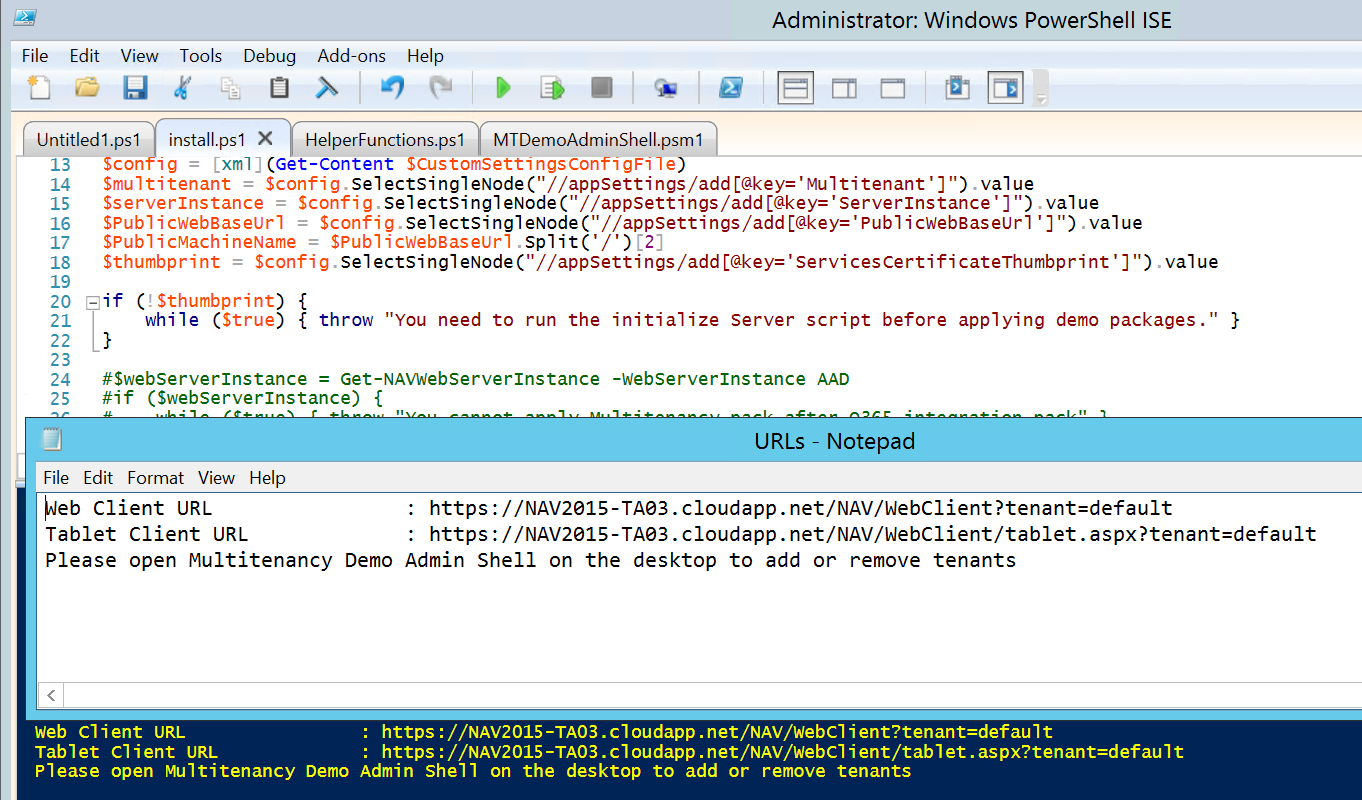
Multi1

Now, you can use these new links to run your NAV 2015 with tenant. If you want to add new tenant or remove existed, you can do it running Multitenancy Demo Admin Shell from your VM desktop. You can also use it tool to add users to tenant or remove existed from tenant.
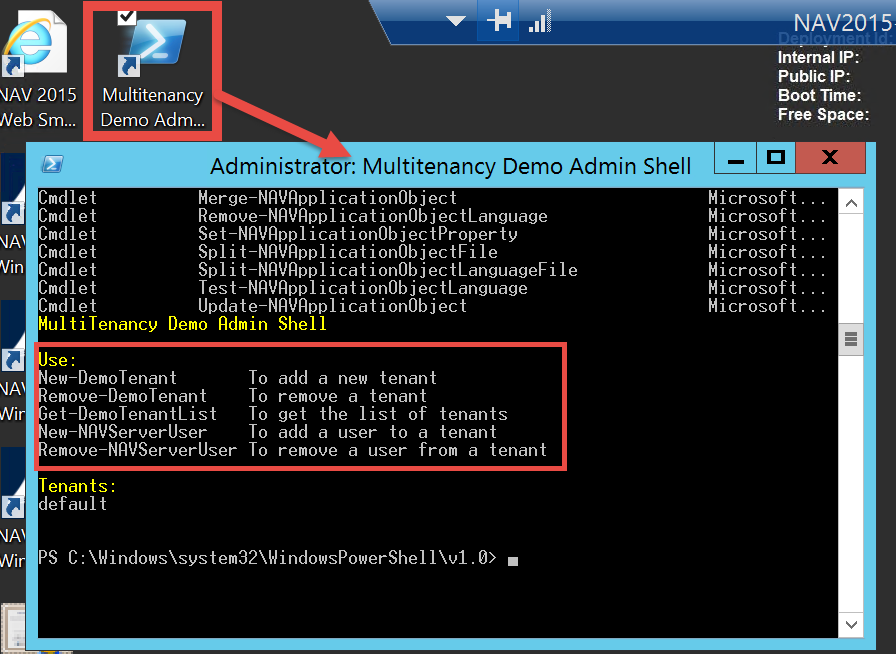
Multi2

Using ClickOnce to create Windows Client for NAV2015 Image on Microsoft Azure

The last time when I wrote about new NAV 2015 image on Microsoft Azure, I showed you how to create VM and how to change credential to NavUserPassword for really cloud using. After running the Initialize the Virtual Machine, you got possibility to run all NAV clients from VM and Web Client from your computer. Of course, for this you had to add new Endpoint on Microsoft Azure Portal: HTTPS, with 443 as port numbers. But, I suppose you want to use NAV with Windows Client from your PC. For this usage, we again got an excellent tool on Welcome screen. You need to click on Install Click Once deployment of the Windows Client link and you will find PowerShell script in DEMO folder. You need to run your PowerShell ISE as Administrator and open this script install.ps1. Now, you only need to run this PS script. After few minutes, system will show you all links, and on the end link for ClickOnce. ClickOnce1

Now, you have to add new Endpoints on your Microsoft Azure Portal:

  • HTTP, with 80 as port numbers for ClickOnce install (this port is configured in previous script)
  • Windows Client, with 7046 for NAV Window Client running

ClickOnce0

When you finish with Endpoints, you have to use your ClickOnce link from URLs file on your Internet Explorer. System will open ClickOnce Online Installation page. You need to run Install and wait. ClickOnce2

After installation is finished, you only need to fill your credentials and run your Microsoft Dynamics NAV 2015 Windows Client on Microsoft Azure.

ClickOnce3

That’s all about easy using script for ClickOnce Windows Client installation. But, I will show you something more about it few daysd

CU3 for Microsoft Dynamics NAV 2015

Cumulative Update 3 for Microsoft Dynamics NAV 2015, known as Build 39368 is published in January 21. You can find CU3 on this link, but if you try to find it on the list of all cumulative updates, you cannot find it. I don’t know why, but it still missing here. On this list, you can find only CU1 and CU2. But, if you use my first link, you can find CU3 easy.

As we used to, this cumulative update includes all hotfixes and regulatory features that have been released for Microsoft Dynamics NAV 2015, including hotfixes and regulatory features that were released in previous cumulative updates.

We can find here a lot of platform hotfixes, but you can also find Microsoft Social Listening integration (I already wrote about it) on this list. You can also find a really lot of application hotfixes in following functional areas:

  • Cash Management
  • Finance
  • Fixed Assets
  • Inventory
  • Job
  • Manufacturing
  • Purchase
  • Sales
  • Service
  • VAT/Sales Tax/Intrastat
  • Warehouse

You can also find local application hotfixes for AU, DE, ES, FI, FR, IT, NA, NL, NO, RU and SE, as well as regulatory features for NA, NL, DACH and ES.

I expect, Microsoft will publish this formally on their blog.

Microsoft Social Listening on #NAV2015

Microsoft Social Listening offers hosted online services available to a wide variety of customers and is comprised of the following social capability components within the software application:

  • Social Media Monitoring – ability to listen to and monitor publicly available social communications across public and managed networks administered by third parties.
  • Social Analytics – ability to identify, compute, and project queries related to publicly available documents and posts.

You can find more about Microsoft Social Listening here.

But, what is with integration between Microsoft Social Listening and Microsoft Dynamics NAV? First plan was to publish this integration in next NAV version – “Corfu”, but we can find announcements, that this will be part of Microsoft Dynamics NAV 2015 in CU3. We still expect CU3, but you can find following helps on MSDN and How Do I video:

  • MSDN has published Help about adding and setup Microsoft Social Listening with Microsoft Dynamics NAV 2015 here,
  • Vjeko has published How Do I video about this topic in CU3 here.

Now, we will wait for new CU3 and hope it will be published :).

Video Series on Partner Source Site

In the last few years, you could find a lot of different “How Do I” videos on MSDN or Youtube. But, you always had a problem when you want to find some specific video. Now, Microsoft have arranged a part of Partner Source for these videos and not only for videos. If you are a Microsoft Dynamics NAV partner, you will easy find video you need.

Microsoft organizes six different contents “buckets” from the Readiness & Training News page for Microsoft Dynamics NAV. There are:

Now, you can find all currently published videos, allocated in logical parts. In the near future, there will be a lot new videos to make cohesion between them and all of us hope that it will help to all partners.

New Cumulative Update 2 for NAV 2015

Cumulative Update 2 for Microsoft Dynamics NAV 2015 has bee released today. It includes all application (Administration, Finance, Inventory, Manufacturing, Marketing, Purchase, Sales, Service and Warehouse) and platform hotfixes and regulatory features that have been for Microsoft Dynamics NAV 2015. It has a lot hotfixes for following localisations: Germany, Denmark, Spanish, Finland, France, Italy, North America, Netherlands, Norway, Russia, Sweden, United Kingdom,

You can download Cumulative Update 2 for Microsoft Dynamics NAV 2015 from here. This CU is named as Build 38798.

Mainstream Support for NAV 2009 Ends

Mainstream support for all Microsoft Dynamics NAV 2009 versions ends January 13th, 2015. This is the last NAV version with the classic client. Of course, NAV 2009 also has RTC client, but a lot of companies use classic client. That means, Microsoft ends with classic client support.

Upgrade

Maybe, this is the right moment to think about upgrade to the newer NAV versions. In this situation I recommend NAV 2015. With the new Microsoft Dynamics policy, we have new cumulative updates every month, and if you use them, you will stay current in the future. That means, you will not have a need for new upgrade in following years, because you will always have the newest version. This will make a less of your investment in the future and less your users adapts to new versions – a lot of benefits.

Source: https://mbs.microsoft.com/customersource/northamerica/NAV/support/support-news/MainstreamSupportNAV2009

Merge-NAVApplicationObject -ModifiedPath?

I hope, you already know what is new PowerShell application merge tool in Microsoft Dynamics NAV 2015. The new application merge features include a few of PowerShell cmdlets, but now, I will write only about Merge-NAVApplicationObject.

This tool compares the changes that have been made between two sets of NAV application objects, and applies the difference to a third set of application objects. The result of merge are text files with the merged objects and text files with conflicts, where cmdlet could not merge them.

This cmdlet is as following:

Merge-NAVApplicationObject -ModifiedPath C:\Upgrade\MODIFIED -OriginalPath C:\Upgrade\ORIGINAL -ResultPath C:\Upgrade\RESULT -TargetPath C:\Upgrade\TARGET

To run this command, we have to determine what is ORIGINAL, MODIFIED, TARGET and RESULT.

ORIGINAL is the baseline of application merge.

TARGET is version of application that we want to apply the difference between the original and modified.

RESULT is finally version of merged objects with conflicts, as well.

But, what is a MODIFIED?

Can we set our customized database in MODIFIED (and new NAV version in TARGET) or we can use new version of NAV as MODIFIED (and our customized version as TARGET)?

We usually have a less differences between new version of NAV and ORIGINAL. When you make test with both combinations, you will see that merging when you use new NAV version as MODIFIED is two time faster in comparison when you set a your customization as MODIFIED.

But “two times” is in relation with minutes, not hours and it is not so important. Result is important. In my very complex example (a lot of customizations), results is almost the same. I have 1194 conflicts in one test and 1197 in other. That means, it is also not important.

But very important thing is that if you set NAV new version as MODIFIED, you can have problem with license in import objects process.

Because of that, you always have to use your customized solution as MODIFIED and the new NAV version as TARGET.

Microsoft Dynamics NAV 2015 E-learning Courses

Microsoft Dynamics NAV 2015 was released last month. We were able to see the news on a lot of conferences.

But now, Microsoft publish e-learning courses about Microsoft Dynamics NAV 2015 to help the learning process. They currently published 5 courses. There are following courses:

  • What’s New Functional in Microsoft Dynamics NAV 2015
  • What’s New Technical in Microsoft Dynamics NAV 2015
  • Finance Essentials in Microsoft Dynamics NAV 2015
  • Finance Advanced in Microsoft Dynamics NAV 2015
  • Development Environment Introduction in Microsoft Dynamics NAV 2015

You can find these courses here. We can expect more courses in following period.