March 2016 CU’s for Dynamics NAV

Cumulative Updates for Microsoft Dynamics NAV 2016, 2015, 2013R2 and 2013 has been released today:

  • NAV 2016 – Cumulative Update 5 (Build 45243)
  • NAV 2015 – Cumulative Update 17 (Build 45244)
  • NAV 2013R2 – Cumulative Update 29 (Build 45254)
  • NAV 2013 – Cumulative Update 36 (Build 45241)

These cumulative updates include all application and platform hotfixes and regulatory features that have been released for these NAV versions.

update-1170x630.png

There are a really lot of application and platform hotfixes for the NAV 2016 and proportionately less for older versions. All versions, except NAV 2013 have both of application and platform hotfixes. NAV 2013 has only few application hotfixes. Some of them are common hotfixes for more versions, and some of them are only for one version.

You can check all hotfixes and download these cumulative updates on the following links:

Introduction in Dynamics NAV Costing

In almost all NAV implementations, we need to configure and use costing (inventory, manufacturing, jobs…). This is one of the main functionalities in all ERP solutions as well as in NAV. Because of that I will prepare the series of costing articles with an overview of the principles used within the costing area.

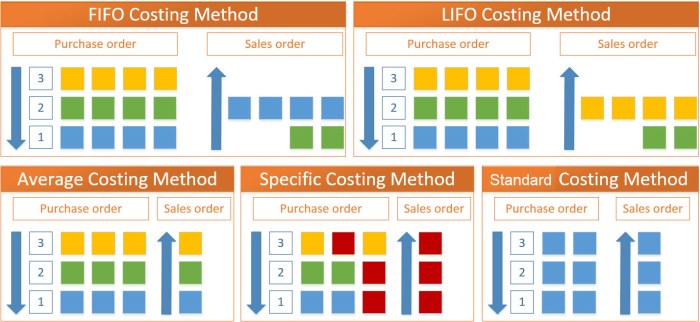
In this first part, I will make a small introduction about costing methods. Microsoft Dynamics NAV supports the five following costing methods:

  • FIFO
  • LIFO
  • Average
  • Specific
  • Standard

Now, in the following part I will just describe these costing types.
InvCost.jpg

FIFO

The FIFO costing method means “First In First Out”. It first assigns the value of the increases with the earliest posting dates on inventory. COGS is calculated using the value of the first inventory acquisitions.

An item’s unit cost is the actual value of any receipt of the item, selected by this explained FIFO rule. In inventory valuation, it is assumed that the first items placed in inventory are sold first.

LIFO

The LIFO costing method means “Last In First Out”. It first assigns the value of the increases with the most recent posting dates on inventory. COGS is calculated using the value of the most recent inventory acquisitions.

An item’s unit cost is the actual value of any receipt of the item, selected by previous explained LIFO rule. In inventory valuation, it is assumed that the last items placed in inventory are sold first.

Average

The Average costing method calculates a weighted average of the remaining inventory on the last date of the average cost period in which the inventory decrease was posted. COGS is calculated using the average value of the inventory acquisitions.

An item’s unit cost is calculated as the average unit cost at each point in time after a purchase. For inventory valuation, it is assumes that all inventories are sold simultaneously.

Specific

The Specific costing method overrides assumption about how cost flows from inventory increase to inventory decrease with the accurate cost information, creating a fixed application between these entries.

An item’s unit cost is the exact cost at which the particular unit was received.

Standard

The Standard costing method works with predetermined costs (rather than actual cost) for all inventory increases and it affects the value of the inventory decreases.

An item’s unit cost is preset based on estimated. When the actual cost is realized later, the standard cost must be adjusted to the actual cost through variance values.

Conclusion

This was only small introduction about costing types as preparation for the more advance knowledge about using costing in Microsoft Dynamics NAV. In the following articles, I’ll describe more about facts when users need to use these costing methods as best practices. I’ll write about all details in posting results and posting rules as well.

How to Configure Limited Users in NAV?

A few days ago I’ve wrote about new possibilities in using of Limited Users in NAV 2016. I think this is big improvement, because we can use limited users for much more roles.

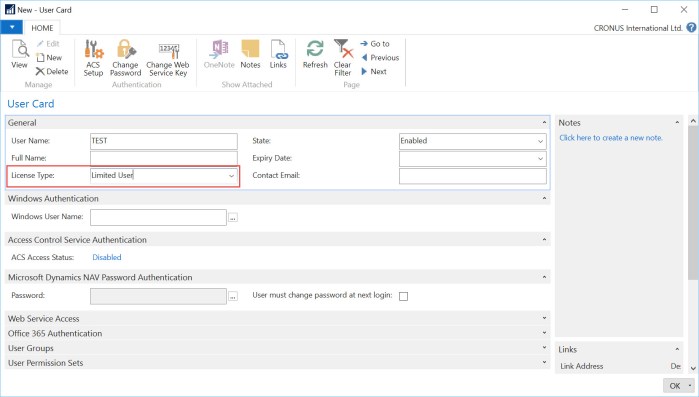
But I got a few comments about configuration limited users. OK, you can configure users as limited and this is all. Nothing more.

l-1.jpg

But people wants to configure what three additional application tables these limited users can use. Base on the standard NAV, this is not possible. These users get write access to a maximum of three application tables in the object range 0 – 99,999,999 other than the General Ledger Entry table. But system will count the first three used application tables beside the default tables. This is counted by the session. That means, users can use different three application tables in different sessions.

Some of administrators still want to limit these users on some specific tables. There is not feature for this requirement, but it can be made using User Permission Sets. We can create one permission set with all read permission on all tables (or less if you want this). Then, we can configure additional permission set with all permissions (insert, modify, delete) on our default 151 application tables. And on the end we can configure specific permission set based on our requirements for three additional tables.

Every time when we want to configure new limited user, we just need to add him these first two permission sets and one specific for him (or his role). In this case this limited user will have read permission to all tables and all other permissions to default tables and three we added to him. In this case, his three application tables will not depends of his first usage in session.

This is not some specific feature, but it is useful work around solution for configuration.

Limited Users in NAV 2016

I suppose the most of you have already used Limited Users. It is pretty good possibility to save some money for users who have not a lot different processes to work in NAV. But limitation was a big; you could insert in only 3 tables by your need and in 80 additional by default. It was enough for some basics processes (creating contacts, HR, warehouse and similar).

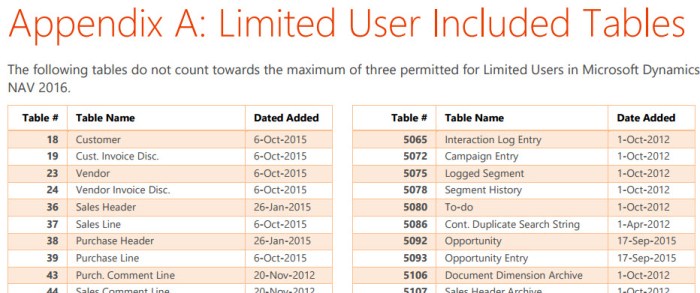
But from NAV 2016, we have a pretty greater possibilities. That means we can use for inserting even 151 default tables; you can find completely list here. Some of the most important default tables for insert are:

  • Customers and Vendors
  • Customer and Vendor Invoice Discounts
  • Sales and Purchase Headers and Lines
  • Deferrals
  • Sales/Puchase Price and Line Discount
  • Assembly Order Headers and Lines
  • Incoming Documents
  • Workflow tables

You can see that with these tables in combination with three additional by your needs, we can use Limited Users for a lot different processes. It can decrease project cost and improve quality.

LimitedUsers.jpg

Posting Groups in Assembly Order in NAV

In my previous articles about using of posting groups in Dynamics NAV, I didn’t describe using of posting groups in Assembly Orders. Assembly Orders are here in the few last versions of NAV and I want to show them as well.

Using of Assembly Orders is not so complex and we can use only Items on header and Items and Resources in lines. Because of that, we can use only Inventory Setup and General Posting Setup. You can see the flow chart with description of usage these posting groups:

AssOrdFlCh.jpg

When we post one Assembly Order, we will get the following G/L Entries:

AssOrdEntr.jpg

Posting Groups in Service Management with Warranty

I’ve already show how looks like using of posting groups in Service Management in NAV, but when you use Service Item with currently active Warranty, there are some differences. Generally, system will use Line Discounts configured on Service Item as Warranty % for “parts” and “labor”. If you have 100% warranty, posting will be as the following:

SM-w01.jpg

System posted inventory cost for all item line based on costing type. But for each line (Item, Resource…) system posts sales line amount and the discount with the same value.

But, when you have warranty with the less percentage than 100%, it will be a bit difference. System will post item cost again, but for each line, system posts sales line amount, discount and value as difference between sales amount and discount:

SM-w02.jpg

Registration Opened for Directions EMEA 2016

Directions EMEA 2016 in Prague attendee registration has opened from today. You can make registration here. You can use the early bird in registration and save as much as 300 EUR:

Super Early Bird Feb 16 to Apr 29   745 EUR (net)
Early Bird Apr 29 to July 31   895 EUR (net)
Normal July 31 to Oct 15 1.045 EUR (net)

Directions EMEA will be probably the biggest NAV Event in 2016 and you can have a really big benefit if you will be there. You can learn a lot of different topics and meet a lot of interesting people. Directions EMEA will be held on October 12-14, 2016 in Prague, Czech Republic.

DirectionsEMEA

In the same time, registration for Directions NA 2016 in Chandler, AZ is still not opened. I hope it will be soon. In the meantime, you can find the last registration information here.

See you there.

Posting Groups in Service Management in NAV

I’ve already wrote 27 articles about using of Posting Groups in NAV. Now, I’ll continue this series with the new topic – Service. When we use Service Order, all posting will be based on the following flow-chart:

ServiceFlCh.jpg

You can notice, this is very similar with postings in Sales, but we have some specifics about using of additional fees. But if you look at the part based on Service Lines, everything is the same. I want to accent that this part is drawn for items ()because of usage Inventory Posting Group and Location); if you use G/L Account or Resource, there will not be inventory postings.

Now, let look at the posting results. First, if we decide to post “Ship and Consume” from Service Line, that means these lines have been used for servicing but cannot be included in the invoice to the customer and we will have only inventory postings if we used items (in other cases, we will not have anything for posting):

Serv1.jpg

But if we decide to post “Ship and Invoice” from Service Line, the result will be different. In this case, we have some additional entries except inventory posting:

Serv2.jpg

And on the end, we need to finish posting from Service Order. If we have not some additional fees for invoicing, it will not be anything for posting, but if we have additional fees, it looks the same (for “Ship and Consume” and “Ship and Invoice” examples):

Serv3.jpg


MS SQL is a Global ODBMS Leader

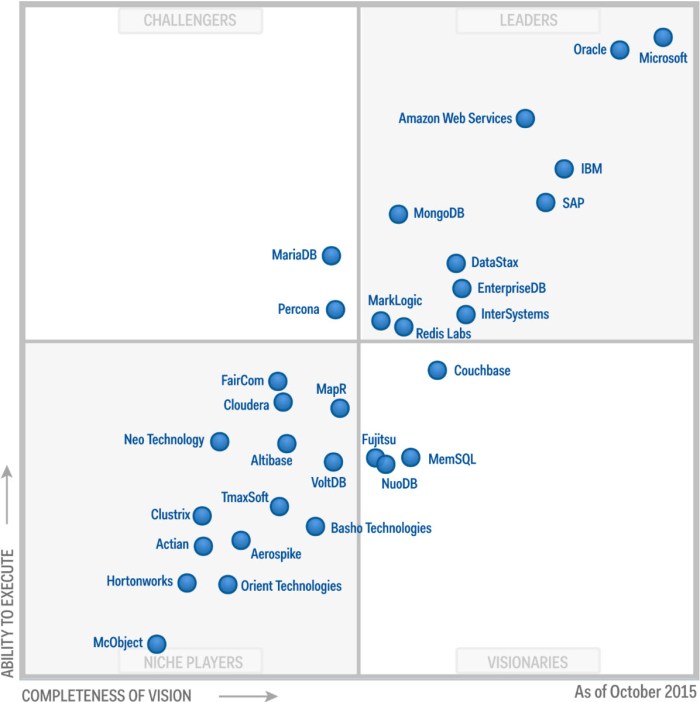
A few days ago, I’ve wrote about place of Power BI in Gartner survey about BI & Analytics solutions. Power BI was a global leader on Gartner Magic Quadrant. Now, we have new Gartner story about Operational Database Management Systems. For the first time, MS SQL is an absolutely leader and on better position in comparison with Oracle database.

ODBMS Gartner.jpg

The operational database management system (DBMS) market is concerned with relational and nonrelational database management products suitable for a broad range of enterprise-level transactional applications. These include purchased business applications, such as those for ERP, CRM, catalog management and security event management, and custom transactional systems built by organizations’ own development teams. Also included in Gartner’s definition of this market are DBMS products that support interactions and observations as new types of transaction. (from Gartner)

Microsoft deserves this position because they market its SQL Server DBMS for the operational DBMS market, as well as the Microsoft Azure SQL Database (a DBMS platform as a service), and the NoSQL DBMSs Microsoft Azure DocumentDB and Azure Tables.

It is very important that Microsoft continue with working on enterprise SQL Servers and on Azure SQL as well. And finally about NAV. Microsoft Dynamics NAV (from NAV 2016) works on both of these SQL versions and I think this cooperation between strong database and ERP solution will continue to deliver amazing business solutions.

Dynamics NAV Comparison Tool

If you want to upgrade your existing Dynamics NAV solution, now you can use NAV Feature Comparison Tool with added NAV 2016 features.

You just need to select you current NAV release and system will compare it with NAV 2016 and you can see key differences. All of these can help you to decide upgrade or not for sure. You can compare all version from the release 4.

You can find this new tool on the following link:

https://www.microsoft.com/dynamics/upgrade-compare/nav/default.html

CompTool.jpg