NAV TechDays 2015 Announcement

NAVTechDays

NAV TechDays is one of the best Microsoft Dynamics NAV technical conferences. This conferences is organized by Mibuso (I think all of you who work with NAV already knows what is Mibuso). NAV TechDays is the place where some of the best developers and leading business owners cross paths, exchange ideas, find partners and conceive projects. Every year conference has more and more attendees. I expect the same situation this year as well.

NAV TechDays 2015 is scheduled in November 19 & 20 (with pre-conference day at November 18). Currently we already know some of lectures and all of the labs on pre-conference day. On pre-conference day you can participate on one of the following labs:

  • Power BI for Dynamics NAV
  • Working with PowerShell in NAV 2015
  • Troubleshooting Essential for SQL Server and Dynamics NAV
  • Let it build! (TFS Build for Dynamics NAV)
  • NAV ALM using Team Foundation Server
  • Implementing the RoleTailored client with success
  • Installing and Configuring SQL Server for Microsoft Dynamics NAV
  • Developing control add-ins for Microsoft Dynamics NAV
  • NAV on Azure & in Office 365
  • An Introduction to Scrum
  • Generic, Repeatable & Low footprint coding techniques
  • Microsoft Dynamics NAV Application Architecture and Design Patterns

After this pre-conference day there will be two days of high valuable technical sessions. All speakers are the very experienced and well known in NAV world. The most of them are the MVPs or Microsoft employees. You can find all of them here.

Currently we already know titles of three sessions, prepared by Jorg, Arend and Vjeko. I also know title of my session on NAV TechDays. It will be one very exciting news about NAV ‘Corfu’ and Microsoft Azure, but currently I cannot publish it because this news is still by NDA. In few following months I will publish this title.

You can fill registration form on this page https://navtechdays.com/2015/register and I hope to see you there.

Now, I will continue with my Posting Groups series J and some new topics on this blog… See you…

How to Deploy NAV 2015 on Azure

First of all, I will make small introduction for all people who don’t know what a Microsoft Azure is. With simple words, Microsoft Azure is Microsoft cloud computing and services platform with physical infrastructure all around the world. On this cloud platform, there is a virtual machines, SQL databases, storages, with Visual Studio online, and many other things, as one “global operating system”. Microsoft Azure also can includes Microsoft Dynamics NAV services.

I will explain some basic deployment topologies that are supported. We can choose topology with one or two virtual machines.

If we choose to deploy Microsoft Dynamics NAV on a single virtual machine, the Microsoft Dynamics NAV Web Server components, Microsoft Dynamics NAV Server, SQL Server, and Microsoft Dynamics NAV database components will be installed on the same virtual machine.

#Azure1

If we choose to deploy Microsoft Dynamics NAV on a two virtual machines, the Microsoft Dynamics NAV Web Server components and Microsoft Dynamics NAV Server will be installed on one virtual machine, and the SQL Server and Microsoft Dynamics NAV database components will be installed on another virtual machine.

#Azure2

In the first scenario, this virtual machine represents a single cloud service on Microsoft Azure, and in second scenario each virtual machine represents a cloud service on Microsoft Azure. In both of these topologies, users can access Microsoft Dynamics NAV data by using the Windows client (from a ClickOnce site or without it), the Web or Tablet client and OData and SOAP web services.

If we want to deploy Microsoft Dynamics NAV 2015 on Microsoft Azure, we can use NAV Provisioning Tools for Microsoft Azure that support the automated deployment of Microsoft Dynamics NAV 2015 on Microsoft Azure virtual machines, using both of topologies. You can find NAV Provisioning Tools as Windows PowerShell scripts on Microsoft Dynamics NAV 2015 installation DVD on \\NAV2015DVD\WindowsPowerShellScripts\Cloud\HowTo\

#Azure3

You can find few files in this folder. First of all, you must configure Set-PartnerSettings file and after that you can run one of the following PowerShell scripts Example-1VM (deployment on 1 VP) or Example-2VM (deployment on 2 VMs).

If you want to deploy Microsoft Dynamics NAV 2015 on only one VM (usually for test or demo environment), you can find all details on How Do I video: https://msdn.microsoft.com/en-us/dynamics/nav/mt147285

Also, if you want to deploy Microsoft Dynamics NAV 2015 on two VMs (usually for production environment), you can find all details on How Do I video: https://msdn.microsoft.com/en-us/dynamics/nav/mt147286

In some other articles, I will describe all steps how to make Multitenancy environment or how to use production database, license, language etc.

Easy Deployment of the Latest NAV 2015 Version

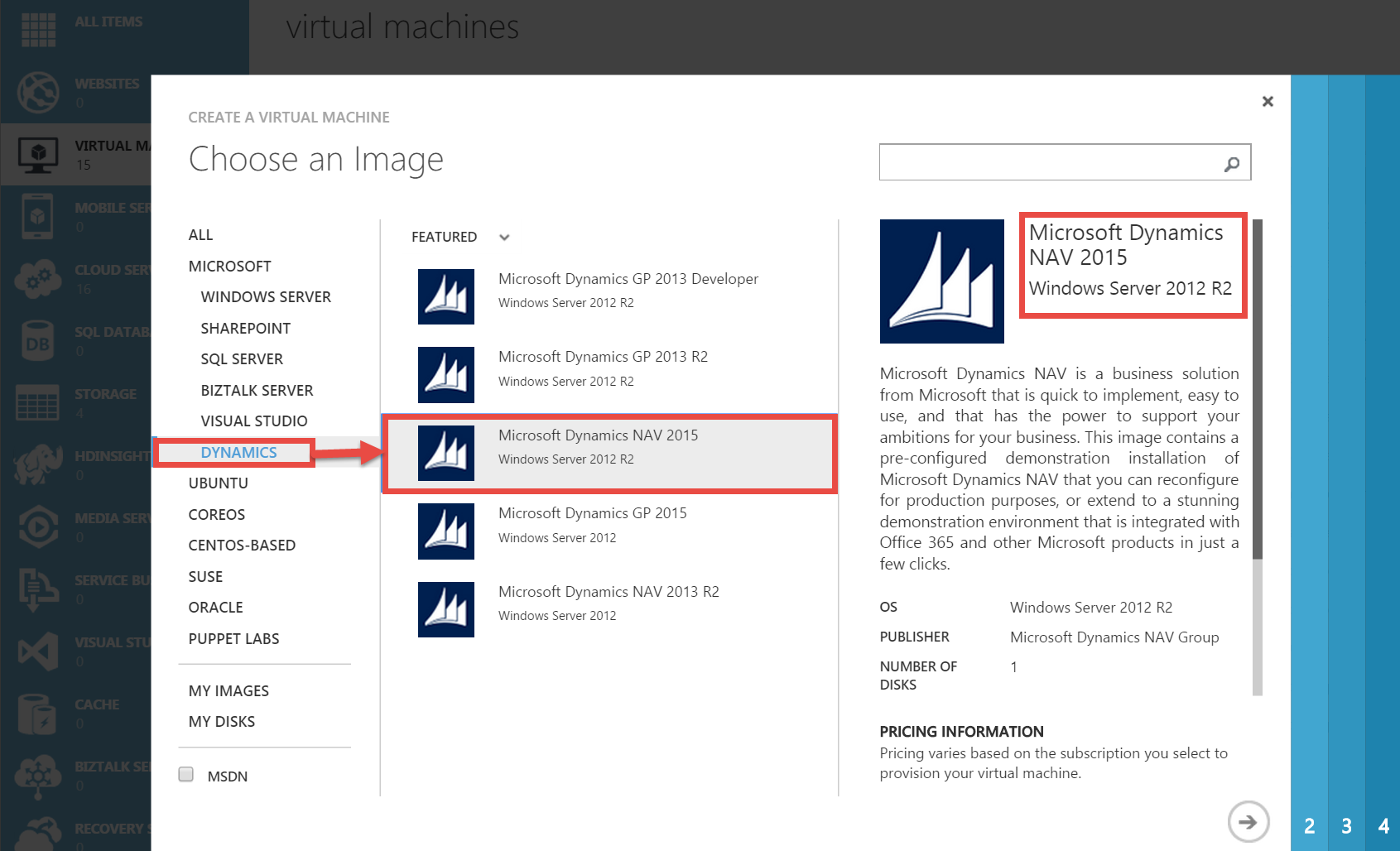
Today, Microsoft has published new article about easy deployment of the latest version of Microsoft Dynamics NAV on their blog. It is important to know that Microsoft always publishes the latest cumulative update (currently it is NAV 2015 with cumulative update 7). You can use this image to test the newest NAV 2015 version or to use as efficiency demo environment on Microsoft Azure.

I have also wrote about this image in my older posts and I can remind you about them:

I will prepare few more articles about this image, very soon.

MS Network 5 Retrospection

Last week, I was mainly in Neum (Bosnia and Herzegovina). Small town Neum on Adriatic see was a host of the MS Network 5, the biggest Microsoft Conference in Bosnia. I was on this conference for the second time, and I’m honored to be a part of this conference.

I have spent a 24 hours in my car on this trip, but I’m still happy about my participation on this conference. This is not Dynamics conference, but I was impressed how many people want to learn something about NAV. I had to stay an extra half-hour after the lecture to give an answers on all questions and I’m really happy about this. People want NAV and want to upgrade to the newest version.

Except my lecture, I attended on other sessions and learned a lot of news about other technology from my friends (outside NAV). I think I have to learn other technology every time I can. We have a small problems about internet in hotel, but this was a challenge how to prepare demo on Azure without internet :). But we solved all these problems, and everything was an awesome.

Big thank to Enis and other guys from Microsoft in Bosnia. I will gladly be a part of this conference the next year. We had adventures on trip (guys in my car know what I say) and big friendship on conference. In one word, awesome. See you.

WP_20150428_004

Multitenancy on NAV2015 Image on Microsoft Azure

When we speak about NAV on Azure, we expect Multitenancy as main strength. This is because, we expect an easy repeatability. Now, I will explain how to achieve this goal using NAV 2015 image deployed on Microsoft Azure.

We have excellent tolls, but we also have some rules. First, if you already run “O365 Integration pack” and “ClickOnce Deployment pack” scripts, unfortunately you cannot use this tools. You will get message similar as on following picture:

Multi0

You need to have a clean image deployment with running only “Initialize the VM pack” (must run it). Then, you need to run install.ps1 file from C:\DEMO\Multitenancy folder. You can find it, when you click on Enable Repeatability from NAV on Azure Welcome Screen. You can run this PowerShell file using PowerShell ISE.

When you open this script, you have to replace “vmadmin” in path with your user name on all places you can find. You can see one of the examples on following picture:

Multi0-1

You could also rename tenant ID, if you want it. It has name “Default”, by default.

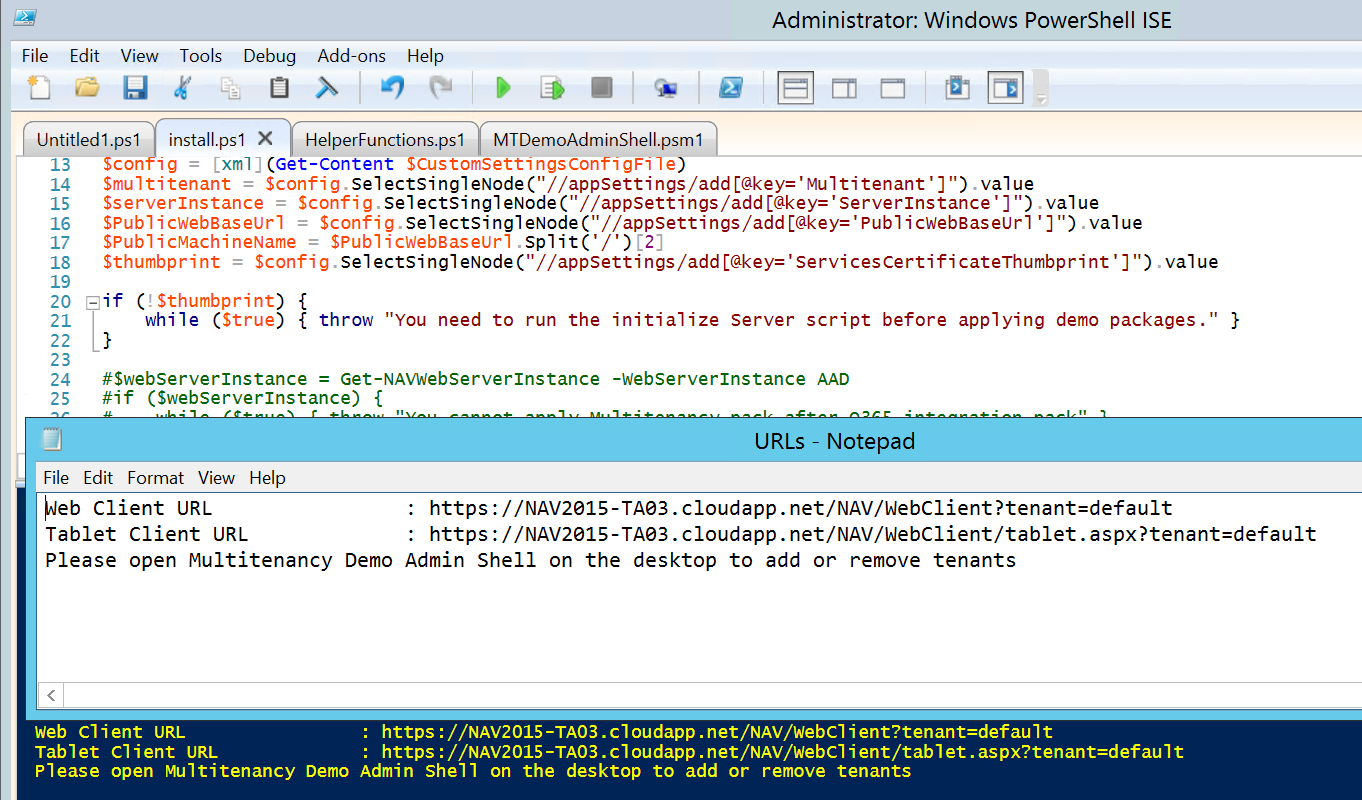
After that, you can save and run your script. When script is finished, you will get URLs file with your new links with tenants.

Multi1

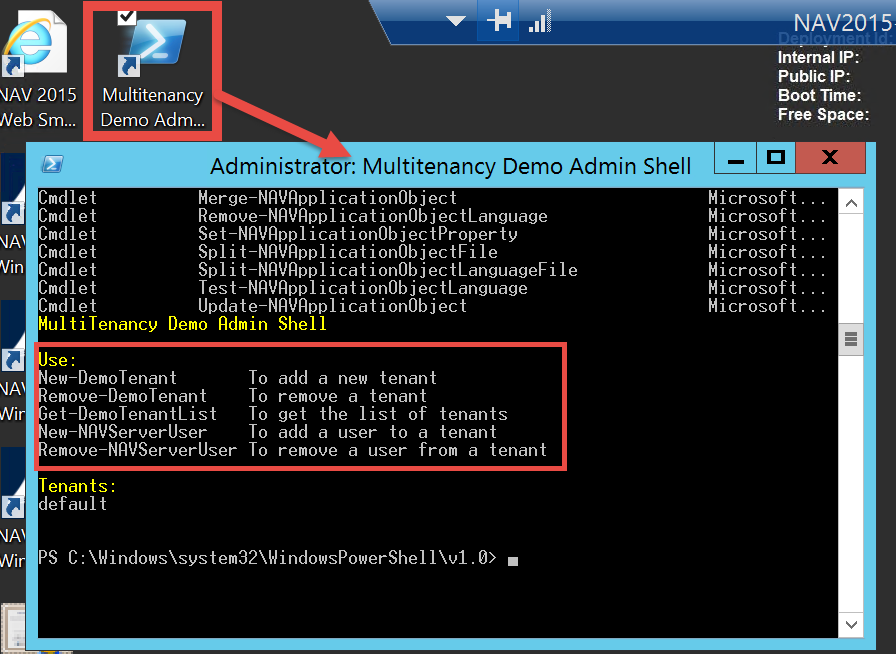
Now, you can use these new links to run your NAV 2015 with tenant. If you want to add new tenant or remove existed, you can do it running Multitenancy Demo Admin Shell from your VM desktop. You can also use it tool to add users to tenant or remove existed from tenant.

Multi2

Using ClickOnce to create Windows Client for NAV2015 Image on Microsoft Azure

The last time when I wrote about new NAV 2015 image on Microsoft Azure, I showed you how to create VM and how to change credential to NavUserPassword for really cloud using. After running the Initialize the Virtual Machine, you got possibility to run all NAV clients from VM and Web Client from your computer. Of course, for this you had to add new Endpoint on Microsoft Azure Portal: HTTPS, with 443 as port numbers. But, I suppose you want to use NAV with Windows Client from your PC. For this usage, we again got an excellent tool on Welcome screen. You need to click on Install Click Once deployment of the Windows Client link and you will find PowerShell script in DEMO folder. You need to run your PowerShell ISE as Administrator and open this script install.ps1. Now, you only need to run this PS script. After few minutes, system will show you all links, and on the end link for ClickOnce. ClickOnce1

Now, you have to add new Endpoints on your Microsoft Azure Portal:

  • HTTP, with 80 as port numbers for ClickOnce install (this port is configured in previous script)
  • Windows Client, with 7046 for NAV Window Client running

ClickOnce0

When you finish with Endpoints, you have to use your ClickOnce link from URLs file on your Internet Explorer. System will open ClickOnce Online Installation page. You need to run Install and wait. ClickOnce2

After installation is finished, you only need to fill your credentials and run your Microsoft Dynamics NAV 2015 Windows Client on Microsoft Azure.

ClickOnce3

That’s all about easy using script for ClickOnce Windows Client installation. But, I will show you something more about it few daysd

Changing Credential Type at NAV2015 Image on Microsoft Azure

Now, I have to continue my previous article about new Microsoft Dynamics NAV 2015 image in Gallery Image on Microsoft Azure. I said that system is configured with Windows credential type. Now, I want to describe, how you can change it very easy with prepared scripts in DEMO folder.

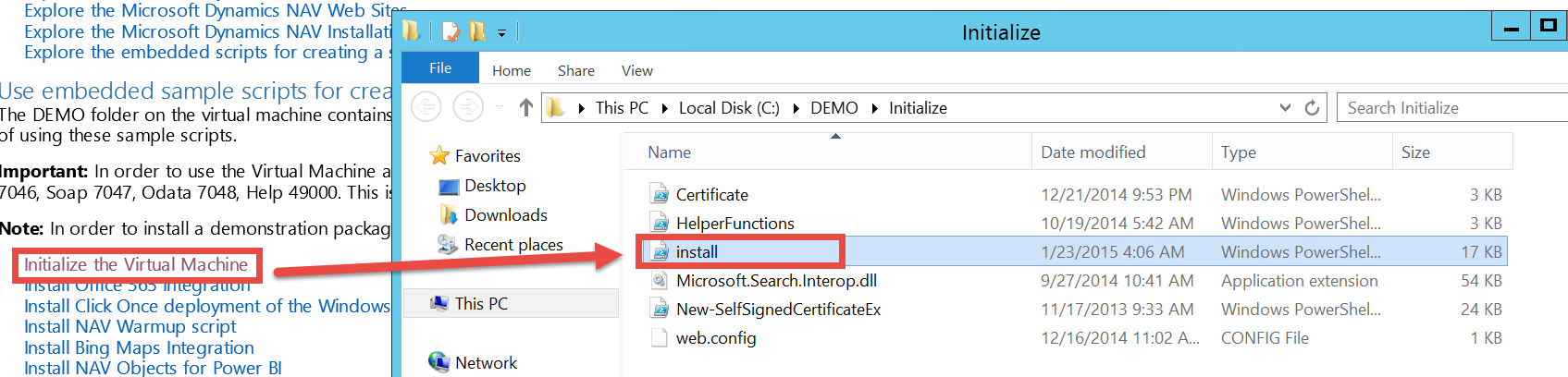
On ‘Welcome to Microsoft Dynamics NAV on Microsoft Azure’ page, you can find Initialize the Virtual Machine link and with it, you can open DEMO\Initialize folder with PowerShell scripts.

azure1

When you open and run install.ps1 script, you will configure Microsoft Dynamics NAV 2015 with NavUserPassword credential type with all necessary configurations. Script is pretty smart and when you run it, it will ask you all necessary configuration questions:

  • NAV language
  • NAV administrator username
  • NAV administrator password
  • Your Cloud-Service name
  • Certificate Pfx File

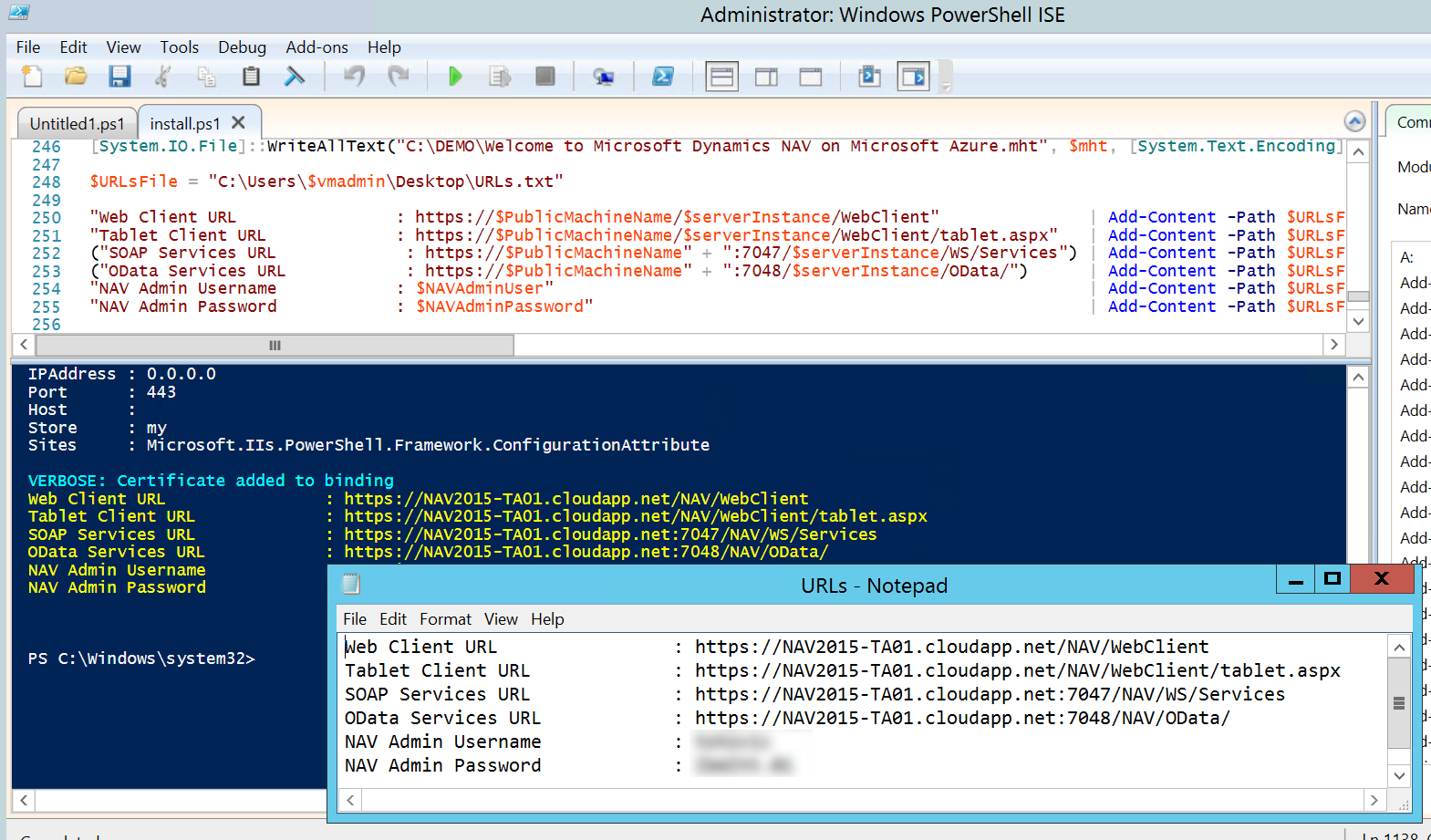
System always give you possibility to choose default values or to change with your own. For Certificate Pfx File, system ask you to fill your certificate file or choose self-signed certificate. When script finish all necessary tasks, you will get as result all information (URLs and credentials).

ađazure2

Also, you will get all shortcuts (Windows, Web and Tablet Client, Development Environment, Administration and Development Shells…) on your desktop.

Thanks to Microsoft. I really like this script, because everything is so easy. I will continue with other features on this Microsoft Dynamics NAV 2015 Gallery Image in few following days.

New NAV2015 Image on Microsoft Azure

Finally, we got a new NAV release as image on Microsoft Azure Gallery. This is Microsoft Dynamics NAV 2015 CU3. I expected it earlier, because GP 2015 has already existed. But, OK this is not so late. blog-1 Now, all of you who want to test Microsoft Dynamics NAV 2015, can do it on Microsoft Azure VM. And, I am really happy, because it is with the last CU with great features. You can install it easy as you only need to follow instructions and wait few minutes for deploying. You can use Connect icon to make connection with new Azure VM. When you are signed on VM, you have all necessary links and you can run new NAV. You can run Windows, Web and Tablet clients or Development Environment. You also can run Administration and Development Shells. But I am little disappointed, because again as for NAV2013R2, we have configured Windows credential type, not NavUserPassword. With Windows credential type, you can use this NAV only on this VM. You cannot have really Azure experience. You also have only two endpoints, but you can add additional. blog-2 To make Azure experience with logging from your computer, you have to change credential type with new tools (I will post about it). But regardless of it, it image has excellent tools. You can find all important location for NAV on VM easy and you can add your language, as well and do other great things. Some of features are not installed by default, but you can easy find installation DVD (using link on home page) and finish it if you need. You also can find a lot of cool demos. In any case, thanks to Microsoft for this image. I will have a lot of information for few days, after I make a few demos.

Video Series on Partner Source Site

In the last few years, you could find a lot of different “How Do I” videos on MSDN or Youtube. But, you always had a problem when you want to find some specific video. Now, Microsoft have arranged a part of Partner Source for these videos and not only for videos. If you are a Microsoft Dynamics NAV partner, you will easy find video you need.

Microsoft organizes six different contents “buckets” from the Readiness & Training News page for Microsoft Dynamics NAV. There are:

Now, you can find all currently published videos, allocated in logical parts. In the near future, there will be a lot new videos to make cohesion between them and all of us hope that it will help to all partners.