Universal App in Phone and Tablet Without Icons

Sometimes, when we install Universal App on our smartphone or tablet (NAV 2016 and NAV 2015 – only for tablets), we can notice one issue with missing Icons (Actions, Images,…). This is not something serious, but it can be unpleasantly.

UnAppNoIcons.png

But, it can be solved very easy. The reason of this issue is because your browser has configured Font download option as disabled.

NoFonts

You can solve this changing this property or adding your site as Trusted. To do this, you need to open your Internet Explorer, run your Microsoft Dynamics NAV web client and open Internet Options. Choose Security tab and choose Sites on the Trusted sites option. Add this sites as trusted and this is solved. Second way is to open Custom level and find Downloads section and change Font download to Enabled.

Now, you can run your Universal App again and everything will be fine:

UnAppYesIcons.png

VMs in New Azure Portal

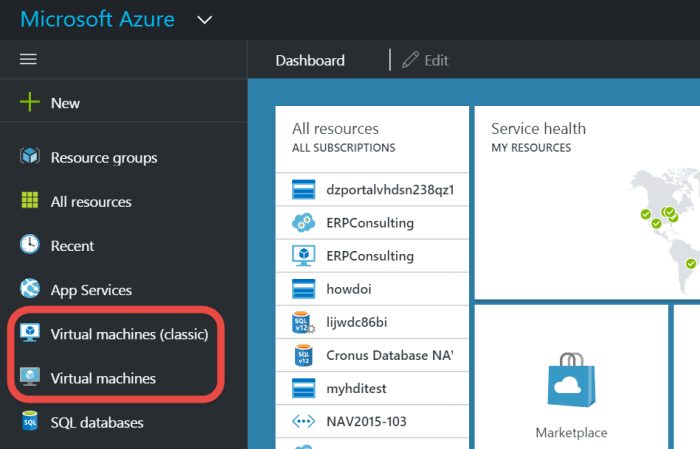
I’ve already wrote about new Microsoft Azure Portal code named Ibiza. When you look this new portal, one of the first news in that now we have two menus for virtual machines:

  • Virtual Machines
  • Virtual Machines (classic)

AzureVMandVMclassic.png

You will see that all virtual machines you already created using old Azure Portal are placed in Virtual Machines (classic). I want to give you a small descriptions about difference between these two options.

The new Azure Resource Manager with a new API doesn’t uses resources as the old API. Because of that, the classic API stack is still operational, but you’ll see those resources showed up as (classic). You have not a reason to convert classic VM to the new VM. You just need to know that you cannot include classic VM in a virtual network deployed with Resource Manager and they don’t have to be included in a virtual network (unless new VMs must be included).

But if you want to migrate classic VM to the newer model, first you have to be sure you can afford a downtime for your VM. If you can afford it, than you can do it using ASM2ARM PowerShell script. You can find all details here.

I hope, I helped you. I have some more information about it and I’ll prepare a real interesting example soon.

Bricks in NAV 2016 Phone Client

When we use lists in NAV 2016 Phone Client, we can notice some differences. This difference is based on new Field Group in NAV 2016. We can use a Brick Field Group to optimize space and readability for data that appears in page types such as ListPart, ListPlus, and List. The brick view compresses up to six columns of data and is only displayed when the page is shown on the NAV Phone client.

Picture1

This view has some limitations, for example you cannot delete directly in the list, indentation in repeater controls is not available, factboxes, multi selection, custom sorting, and advanced filtering are not available…

To open the Field Groups window, choose View, and then choose Field Groups. In a table, we can see two Field Groups: DropDown and Brick. If Brick Field Group doesn’t exists, DropDown is interpreted as Brick. Depending on the number of columns that we defined in the Field Group for the Brick, the layout was dynamically change.

Picture2.png

The brick layout supports using the Style Property and StyleExpr Property on pages that lets you mark, for example, numbers as favorable or unfavorable.

New NAV Cumulative Updates

In few first days of this year, in January Microsoft has been released a new Cumulative Updates for the following NAV versions:

You can download all of these Cumulative Updates from the previous links. Of course, as we already expected, the most platform and application hotfixes are intended for the newer NAV versions.

One specific platform hotfix is prepared for all four versions – The Dynamics NAV client disconnects when you refresh a sub part.

But few of them are prepared for the last three versions (NAV 2016, NAV 2015 and NAV 2013R2):

  • Bypass license check for development permissions;
  • You cannot remove items from the Home menu of the navigation pane;
  • “Metadata for Query 50000 that is published as a web service is not valid for OData” error message when you use a web service built on a query;
  • Actions in profiles that are controlled by dynamic visibility are hidden incorrectly.

Of course, there are more very interesting hotfixes and news and some of them will be detailed described in next period. For now, just download, install and try.

My 2015. Infograf

See you next year…

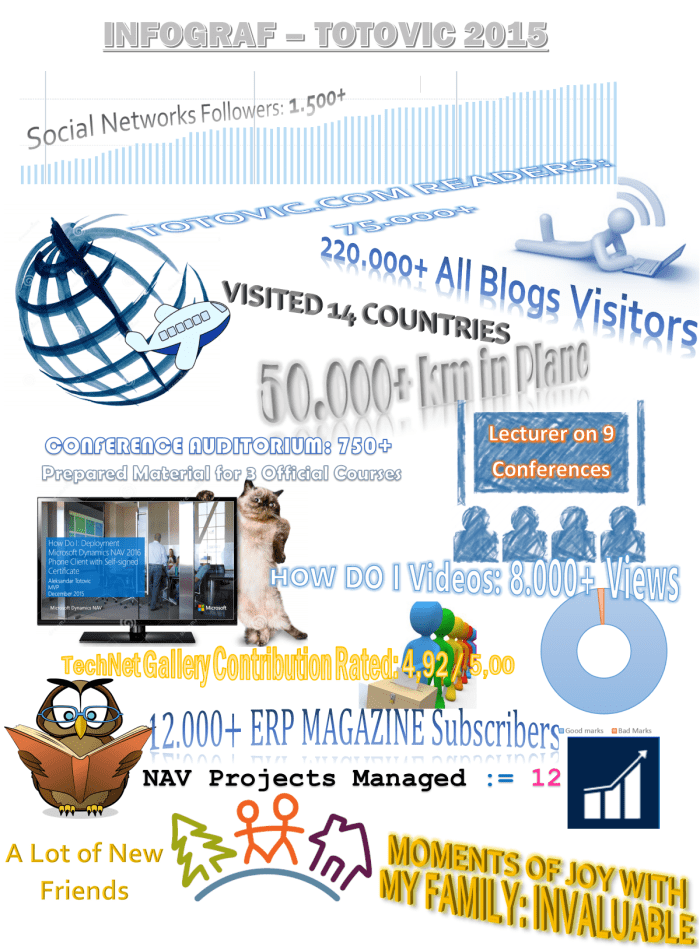
InfografTotovic2015.png

The last year in this time, I said I had the one of the best year ever and I didn’t want the better year than previous. However I had a better year.
The last year I wanted for you a better year than mine and I want the same this year, as well. I hope, you will have the best year in your life, just a bit better than mine.
If it happens, I’ll be happy because of you and me. Happy New Year to all of you!

A Merry Christmas and Happy New Year

This is almost the end of this year and I want to wish to all of you a Merry Christmas and Happy New Year.

merry-christmas-and-happy-new-year.jpg

It is also the time to make a small retrospective of this year. Personally, this year was really great for me, as well as the previous year. I had a lot of very good projects, I started with publishing new magazine (and already got the award for this idea), I traveled a lot of countries and I was speaker on lot of very interesting conferences all around the world (and also in my country). I met a lot of new good friends. We got a new really exciting NAV version… I hope the next year will be the same and maybe even better.

I want to say thanks to all people that supported me. Of course, thanks to all people that do not supported me :-); they are a reason I am trying to be better. I want to all of you to have a year that is better than I already had this year (this is not so easy, but I really wish this for you 🙂 ). I also hope, we will get an awesome new version of NAV (‘Madeira’) next year; I already know some features and I am sure it will be really amazing new version.

And, of course, special thanks to my friends all around the world and especially to my family (my wife, son and dog).

NAV 2016 Video Courses

Microsoft Dynamics NAV 2016 is about two month and half here. Currently, you can find a lot of instructions on MSDN and very interesting How Do I videos.

But, you can also find official video courses on DLP and Microsoft IT Academy. Microsoft already published these seven following courses:

  • Introduction to Microsoft Dynamics NAV 2016
  • Finance Essentials in Microsoft Dynamics NAV 2016
  • Finance Advanced in Microsoft Dynamics NAV 2016
  • Application Setup in Microsoft Dynamics NAV 2016
  • Installation and Configuration in Microsoft Dynamics NAV 2016
  • Development Environment Introduction in Microsoft Dynamics NAV 2016
  • Data and Code Upgrade in Microsoft Dynamics NAV 2016

I really recommend to see these courses. And you can expect some new courses soon, as well.

Also, you can expect more exams about NAV made by Association of Dynamics Professionals.

Administering Azure SQL

Now we have Microsoft Dynamics NAV 2016 on Azure SQL Server, I’m getting a lot of different questions about this topic. One of them is related with database administration.

If you want to administer Azure SQL Server, you can do it through SQL Server Management Studio. You just need to use your full Azure database name (YourDatabaseName.database.windows.net) and login to database using SQL Server authentication. Of course, previously you have to add your IP address to Azure SQL firewall.

But unfortunately, you cannot use SQL Server Profiler for Azure SQL (maybe in future, but currently not). You can use some other useful tools, for example Index Advisor.

Also, you cannot use SQL Agent on Azure SQL. The most of tools we used to are not available. But, instead SQL Agent we have feature on Azure as Scheduler. To use this, you need to create your new mobile service on Azure for your database. More about this tool, you can find here and here.

Development Environment on Azure SQL

After my session on NAV TechDays about deployment of NAV 2016 on Azure SQL Server, I got a lot of questions about using Development Environment in this situation.

Using Development Environment can be done absolutely normal. If you want to use DE from your local computer, first you have to add your IP address to Azure SQL firewall (SQL Databases > Servers > choose server > Configure). You can do it to allow connection between your computer and Azure SQL server.

DE01

After that, open Development Environment and type your full Azure SQL server name to Server Name (xxxxx.database.windows.net), choose Database Server Authentication, your username and password and on the end normally choose your database.

DE02

You can work with design, but if you want to open table for example, you have to make some additional configurations. Before it, you have to make connection between your local NAV Windows Client and Azure VM. You need to use certificate and encryption key. After you configure them, everything will be OK.

If you want to use Development Environment directly on Azure VM, you just need to open DE and login to Azure SQL server (I already described), nothing else. In this situation you can work what you want.

DE00

You can see it on previous picture. Database is opened from Azure SQL and you can do everything as you used to.