Image Analyzer in NAV as Cognitive Service

It really sounds amazing. But if you were been at Microsoft Ignite and attended NAV/D365FOBE sessions, you already seen this service as something what we will have in the future. When I say future, I think on the future NAV version, but if we speak about D365 for Financials, you can test in now.

Now, just small introduction how it works. I’ll show this feature on Items and you will see it works fine. When you run Item Card page, you will see Analyze Picture on a Actions tab as on the following picture.
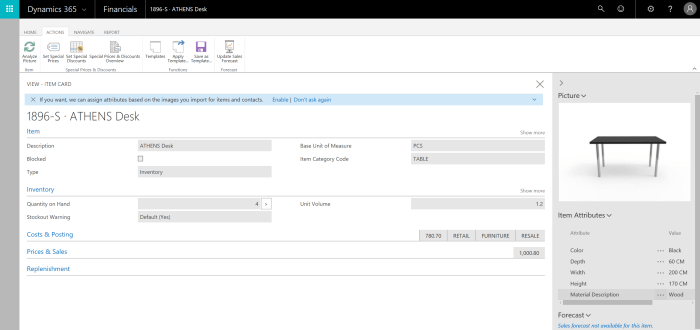
ml1

When you start this action for the first time, you will get similar notifications as on the following screen and you just need to enable it (of course) if you want to use:

ml2

Then, system will lead through enabling wizard. First you will see a small description about how system uses the Computer Vision API from Microsoft Cognitive Service, where you can find links with more information bout API and services… You just need to click on Next, then confirm that you understand terms of conditions and on the end – Finish (if you want to analyze this current picture, you need to check one field).

ml345.PNG

And if you check this checkmark field, system will start with analyzing this picture. This is how it works for the first time. But you can click this Analyze Picture on each Item Card where you already have a picture.

But what if you don’t have picture? As soon as you finish with inserting picture, system will by default run this feature, and system will automatically analyze new picture. When system finish with analyzing of this picture, you will find what system recognize with confidence better then 80%.
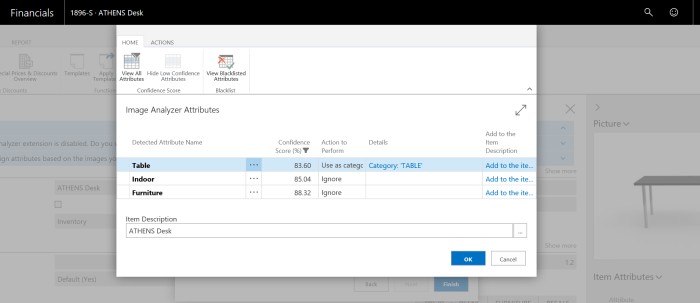
ml6.PNG

But you can find all detected attributes if you click on a View All Attributes. All attributes with not so good confidence will be painted in red.
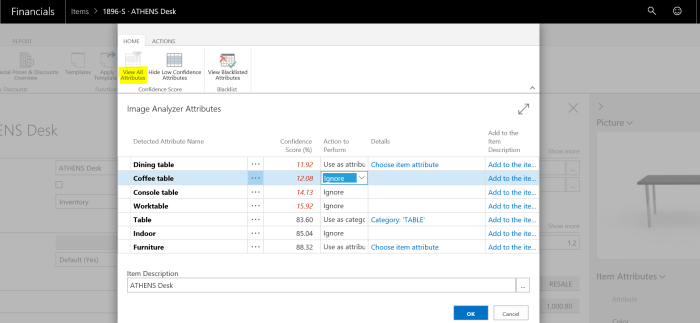
ml7

From this point, you can do a few things. First, you will see that system sometimes offer some specific option in Action to Perform. By default, system will mostly offer Ignore as option, but sometimes it is “Use as category” or “Use as attribute”. I think I don’t need to describe what it means :). Of course, you can change this option as you wish and it probably depends of what system recognized. You can also use “Add to the Item Description” for each of attributes and to create specific Item Description based on discovered attributes.

When you finish with everything you can confirm and than you need to finish with attributes. System will add as attributes and as category all attributes you decided.
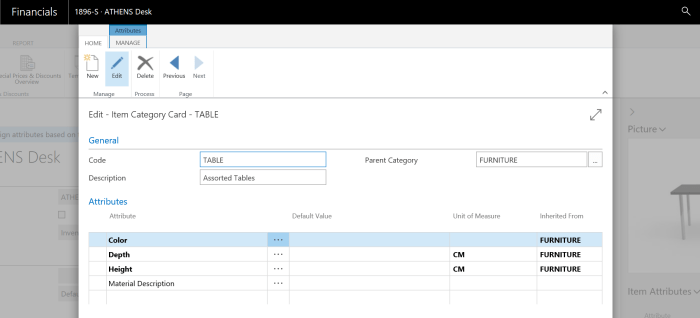
ml9.1

Now, I’ve showed how you can start with this feature and how to test it. But I wanted to test it little bit more. OK, it worked mostly nice with images we have in Cronus database (not with all, because you need to have clear enough pictures).

But what we will get in some production environment? I made a few tests taking the pictures for the same items from catalogue (ideal pictures) and made from my own (natural pictures). You can find 5 tests in the following charts:

chart1

chart2

Now, you can compare these results. First, I didn’t expect good results from realistic photos, but I was really surprised. Sometimes, ideal pictures got better percentage on the most important attributes (but not so big difference), but system very often recognized better attributes on realistic photos and that means system can understand context of photos. And I got more attributes from natural photos, but of course I got a more noses in attributes list, and this is something I could expect because in real picture you don’t have only one thing on the photo.

But I can conclude that this feature is really powerful. Of course this is just first edition of this feature and this is not unmistakable tool, but it can be very helpful in the future.

Working with Dynamics 365 Clients from Accountant Portal

In my previous post, I’ve describer how to install and start with Accountant Portal in Dynamics 365 for Financials (…and Operation Business Edition), but now I want to continue this story.

First, when you want to add a new client, you can do it from your home page. Just click on Manage Clients action and then choose some of your existing clients or add new one clicking on New. If you want to create new one, minimum what you must to do is to add a name and Client URL, where you need to enter the URL destination for your client’s instance for your client D365 system (just basic part of URL: https://XXXXXX.financials.dynamics.com).

ap01.jpg

When you finish it, close the page and click on Client Summary -> Redisplay All Companies, and new company will appear on your home page.

ap02.jpg

The basic information on your home page about companies you manage are:

  • Company names
  • Cash Account Balances
  • Overdue Purchase Invoice Amounts
  • Overdue Sales Invoice Amounts

If you need more information or if you want to do something directly in one of the company, you need to click on a Company Name or on Client Summary -> Go To Client.

If you are registered user in this client database, you will open it, but if you are not, system will ask to type your new credentials. After you finish with this, new database will be opened in new window and you can continue with work.

How to start with Accountant Portal in Dynamics 365

If you have accountant agency and want to take care about a lot of clients, you can use this new feature in Dynamics 365 for Finance and Operations Business Edition (too long name: I’ll use D365FOBE). It is really good to encourage your clients to start with Dynamics 365. After that you can use your new Accountant Portal to manage all your clients using free license for external accountants.

To do it, you need to have your own D365FOBE subscription and install this App from AppSource. Open Extension Management and go to AppSource and choose Account Portal (click on ‘Get it now’).

EA1

When you finish installation process, you need to sign out and sign in again. Then you will be noticed that Account Portal is installed and system will ask you if you want to accept user personalization changes to enable this feature (click Yes). Then you can continue with Next and Next to start 30-days trial.

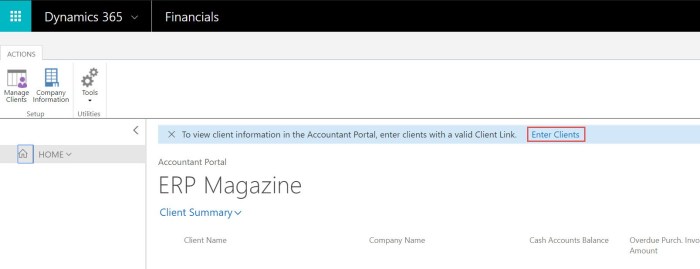
After that, you will get a different home page, where you can add new clients, choosing one of the options: Enter Clients, Manage Clients…

AP1

Then, you need to create client and the main details. The most important field is ‘Client URL’, where you need to enter the URL destination for your client’s instance for D365FOBE. When you finish with this, you need to click on ‘Test Client URL’ actions to check if everything is OK.

AP2

After filling other details about your client, you can close this page and see your new client on your home page.

AP3

Here, you will see the basic clients information and you can choose to go to the client. . From this page, accountants can drill down to their clients’ specific transaction details. These were only the basic steps how to start.

My sessions on this fall conference season

This fall Dynamics NAV conference season will start soon, in two months and it is the last moment to register on conference you planned to go. This season we expect thick events schedule and officially season will start in Orlando on Directions NA at September 17th. If you need the full list of Dynamics conferences, you can find here.

I’ll have my session on three of these conferences. First I’ll start with Directions NA, then continue with Directions EMEA and finish my season on NAVUG Summit.

orlandomadridnashville

I’ll have the same session on Directions NA and Directions EMEA – ‘Project Management Methodology in Dynamics 365 BE Implementation‘ and I already wrote about this topic.

My first session will be third day of Directions NA – September 19th at 3:15pm. As I said, I’ll have the same session on Directions EMEA, and it will be at the first day of conference, after Keynote – October 4th at 11:15am. After these two conferences where I’ll have soft skills topic (project management), I’ll have more technical topics on NAVUG Summit, starting from October 11.

My topics will be how to use Flows with NAV, where I’ll show not only technical topic, but also practical example how and where to use it. And then, I’ll have topic about variations in Manufacturing in NAV, where I’ll try to transfer my experiences in a lot of Mfg implementations. Schedule is published, but it will be changed for sure. I know this, because I need to provide two sessions in the same moment 🙂 … and I know myself, I cannot do it 🙂

See you there…

New Dynamics NAV API’s

As I promised a few days ago in my post about news in Dynamics NAV, now I’ll add some additional news. In this post I’ll show new API’s.

Currently we have these 42 completed API’s:

APIs01

And we will have these API’s soon:

APIs02

Sorry because of quality of pictures (photos taken on Microsoft Inspire). I’ll make them better in the few following days. Today, I just wanted to share these info.

NAV news from Microsoft Inspire

I didn’t write for a while, but now we can speak about some news in Dynamics NAV. We got some information on Microsoft Inspire conference and not only about NAV. There are a great news, as announcement of new products, e.g. Microsoft 365 enterprise and business edition… But in this text I just want to mention few things about NAV.

The first, we will continue with both of models, ‘on premises’ and ‘on Azure’. We can expect for all Dynamics products we currently have, ongoing development.

Insp1.PNG

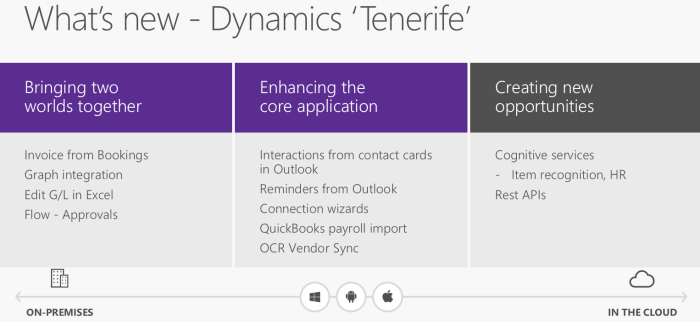
Except this important information about future releases of all Dynamics group of products, we got the main information about the most important technical and functional news in NAV ‘Tenerife’. You can find them on the following picture:

Insp2.PNG

And of course, these are not all news we will see in the next release. For example there is a new and better out of the box PowerBI integration, not only on the role centers. Now we will use more contextual PowerBI integration on different places in NAV.

Insp4jpg.jpg

And not only this. But we will have more information soon… I’ll keep you in a touch.

In-Client Designer in Dynamics NAV – June Update

To continue yesterday’s article about In-client Designer in Dynamics NAV as I promised. If you want to check these features from this year June update, you need to deploy Azure virtual machine from the following link: http://aka.ms/navdeveloperpreview.

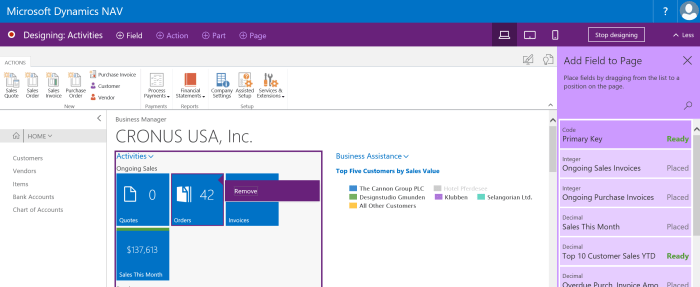
One of the biggest feature is possibility to customize Role Center. Now, we can reposition or hide Cue  or Cue group on Role Center. And not only on Role Center, we can also do it on any page where we have cues.

InDesign4

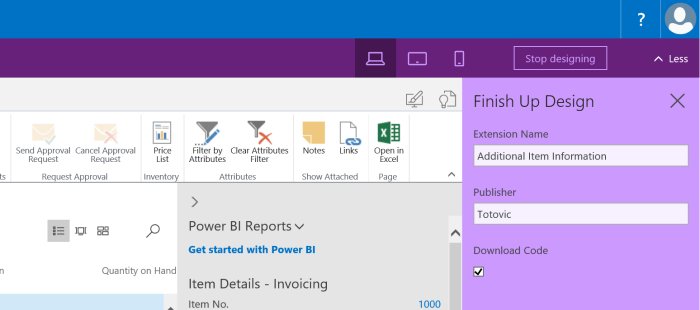
What is more new in In-client designer? When we want to finish our customization, system will ask us for our Extension Name and Publisher as well.

InDesign5

When we save it, system will download it as a zipped VS Code:

InDesign6

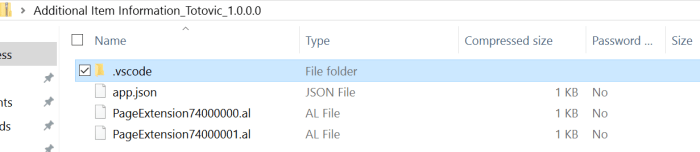
Of course, we have a lot more features and improvements, but they are mostly related to VS Code. In some new articles, I’ll show more about it.

In-Client Designer in Dynamics NAV

Recently, Microsoft published new Developer Preview for the next NAV version. If you try to find it on Azure portal as one of the NAV virtual machines, you will find “Dynamics NAV ‘Tenerife’ Development Preview”.

When you install run NAV after deployment, in the first moment you will not see ‘Design Mode’ icon. To get it, you need to run ‘Install New Developer Experience’ PowerShell script. After that you can try In-client designer. Now let’s see some of the features. This tool can be used for page design.

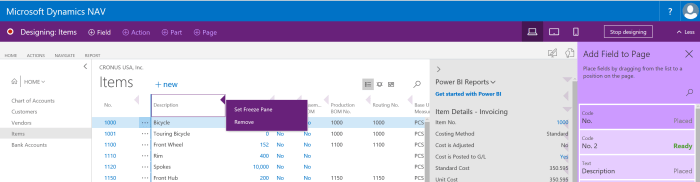
Currently, we can work only with Fields and not with Actions, Parts and Pages. If we run design for the list page, we can change an order on columns, remove some of fields, add them and set freeze pane.

InClient1

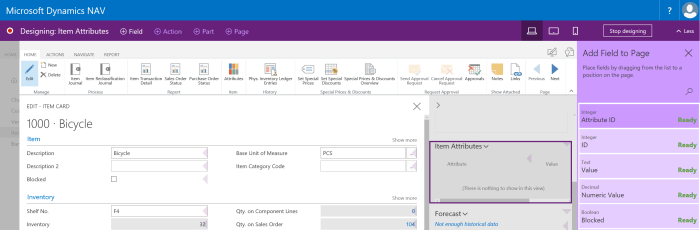
The same situation is if we want to make some customization on card page; we can do everything the same as on list, except adding freeze pane 😊. But this is with standard fields on pages. On the other side, we can add fields on card part pages. We can notice that we have context oriented fields for part pages. And also, we have some controls, as we can only drop media fields onto card part pages and we cannot drop a field under a repeater control, because this is not the design that list pages were intended for.

InClient2.PNG

And finally, we can add or remove some parts on role center. When we decide to finish with customizations, we just need to click on ‘Stop’ and system will ask us what to do with ours work. System will offer to save the changes to the tenant for all users, or to save the changes to a VS Code package file that we can work on later in VS Code.

InClient3

On the first sight, that is all, but if you create Azure VM using http://aka.ms/navdeveloperpreview URL, you can get some newer features. More about this in the next post.

Dynamics 365 for Talent – Integrations

Few days ago, I’ve started with a story about new product (still Technical Preview) – Dynamics 365 for Talent. I want to spend a few words about possible integrations.

When you look at the official announcement, you can find that key integrations will support the overall business and the following integrations will be created, but they will be available at or shortly after general availability:

  • LinkedIn
  • Microsoft Dynamics AX 2012 R3
  • Microsoft Dynamics 365 for Finance and Operations, Enterprise Edition
  • Background screening
  • Global payroll providers
  • ATS providers

As you can see, there are not planed integration with Dynamics 365 for Financials or with Dynamics NAV. But  think it will be necessary because these products don’t have a real HRM solution. But I’ve also found that it will be possible to use Common Data Services platform with built-in extension points for Power Apps, Flow and Power BI.

TalentSys.PNG

But, when I tried to make connection via Flow and Power App, I’ve found that it is still not available as a connection. Of course, it is probably because it is only technical preview and I’m sure it will be available with a general availability. I’m waiting this moment and I want to make some kind of integration. I’ll write about it, I hope soon.

Directions 2017 NA

The third year in a row, I’ll have session in Directions NA. I’ve got confirmation a few days ago and I can say that I’m so happy, because it is one of the my favorite conferences and I really love the American audience.

DirectionsNA

Conference will be held at the beautiful hotel JW Marriott Orlando, Grande Lakes, Florida in period September 17-21. It is still not too late to make registration here. I would like to see all of you there.

DirectionsHotel

This time, my topic will not be technical, but related with Dynamics 365. I’ll speak about Project Management Methodology in D365 BE Implementation. I think this is important topic although we are usually thinking only on very fast selling and very fast implementing solution, when speak about D365 Business Edition. But it is still a project and we still need to take care about a lot of things and to manage it.

Now, I don’t want to speak about all details here, because I’ll try to help you in this kind of project management with this session.