Posting Groups #1 – Item Purchase Posting

When we want to post item purchase, we can do it in one step (posting receipt and invoice in the same time) or in two steps (posting receipt in the first step, and then posting invoice). In my example, I have used second example. In my example, I also use line and invoice discounts, for better example.

But, in any case, we have some rules about posting groups. Some posting groups are used from document header, and other from document line. In following chart, you can see how system uses posting groups on documents.

Dijagram

When we finish posting of receipt, we will get only two entries in G/L Ledger. These are only entries about inventory:

PPR-i

When we post invoice related with posted receipt, we will get more entries in G/L Entries. You can find completely description of them in next table:

PPI-i1

Using of Posting Groups – Table of Content

Posting groups in Microsoft Dynamics NAV are very important part of configuration process. All G/L Entries depends of correctly configured posting groups. We can find a lot of them: General Business and Product Posting Groups, VAT Business and Product Posting Groups, Customer and Vendor Posting Groups, Inventory Posting Groups…

Sometime, it is very confusing how it works, especially for unexperienced people. Because of that, I will prepare small school of using of posting groups. In following posts, I will prepare a lot of examples to be clear what we get.

This post will be updated with TOC of all regarding posts to have everything on one place.

A) Purchase & Sales

A1) Item Purchase Posting

A2) Item Sales Posting

A3) Item Charges Purchase Posting

A4) Item Sale Posting with Payment Method

A5) Item Returns Posting (Sales & Purchase)

A6) Finance Charge Memos and Reminders with Fees

A7) Prepayments Posting

A8) Payment Posting with same and different currencies

A9) Payment Discounts and Tolerances

A10) Deferrals in Purchase

A11) Deferrals in Sales

B) Inventory Management

B1) Adjust Cost – Item Entries Posting

B2) Change Standard Cost (using Revaluation)

B3) Revaluation Posting

B4) Assembly Orders

C) Production Management

C1) Manufacturing Posting (FIFO & Average)

C2) Manufacturing Posting (Standard Cost Type)

D) Fixed Assets

D1) FA Purchase Posting (Acquisition and Maintenance)

D2) FA Depreciation Posting

D3) FA Reclassification Journal Posting

D4) FA Sales Posting

D5) FA Sales Credit Memo Posting

D6) FA Write-Down and Appreciation Posting

D7) FA Disposal Posting

E) Jobs

E1) Item Purchase for Job Posting

E2) Job WIP Posting (part 1)

E3) Job WIP Posting (part 2)

E4) Job WIP Posting (part 3) – Cost Value WIP Method

F) Service Management

F1) Consumption and Invoicing using Service Order

F2) Posting in Service Order with Warranty Option

NAV Conferences in 2015

Microsoft published Microsoft Dynamics NAV 2015 last year in October and we expect new release again in October this year. That means, we will have a lot of very interesting conferences this year.

Convergence 2015 in Atlanta has finished in March and we have few of them currently in April, but we have yet to see the most interesting sessions to the in the second part of this year.

This is calendar of all Microsoft Dynamics NAV conferences to the end of year. See you on some of them. If you have some additional information, please send me comment.

New Cumulative Update 6 for NAV 2015 has been released

Cumulative Update 6 for Microsoft Dynamics NAV 2015 has been released today, few hours ago. It includes the most of application area (Finance, Inventory, Jobs, Manufacturing, Marketing, Purchase, Sales, Service and Warehouse) and very useful platform hotfixes and regulatory features that have been for Microsoft Dynamics NAV 2015.

It also has a lot application hotfixes for following localizations: Belgium, Switzerland, Czech Republic, Germany, Spanish, Italy, North America, Netherlands, Norway, Russia and UK. There are also some new local regulatory features for Germany, Italy, Russia and UK.

You can download Cumulative Update 6 for Microsoft Dynamics NAV 2015 from here. This CU is named as Build 40459.

In the same time, Microsoft has already published Cumulative Updates for Microsoft Dynamics NAV 2013 (CU 25; Build 40468) and Microsoft Dynamics NAV 2013 R2 (CU 18; Build 40452).

Microsoft Dynamics NAV 2015 Feature Comparison Tool

Microsoft has recently published new Feature Comparison Tool. Before the newest release, we could compare up to Microsoft Dynamics NAV 2013 R2. Now we can make a comparison from NAV 4.0 to NAV 2015.

You can select only your current version to see existed features. Also, you can see all features of your future versions. Or you can make compare all versions on the same place to see what you are missing.

compare

You can try it on the following link.

New Cumulative Update 5 for NAV 2015 has been released

Cumulative Update 5 for Microsoft Dynamics NAV 2015 has been released today. It includes almost all application (Administration, Client, Finance, Inventory, Jobs, Manufacturing, Marketing, Purchase, Sales, Server, Service and VAT/Sales Tax/Intrastat) and very useful platform hotfixes and regulatory features that have been for Microsoft Dynamics NAV 2015. It also has a lot hotfixes for following localizations: Australia, Belgium, Switzerland, Czech Republic, Germany, Denmark, Spanish, Italy, France, North America, Netherlands, Norway and Russia.

You can download Cumulative Update 5 for Microsoft Dynamics NAV 2015 from here. This CU is named as Build 40262.

Few days ago, Microsoft has already published Cumulative Updates for Microsoft Dynamics NAV 2013 (CU 24; Build 40118) and Microsoft Dynamics NAV 2013 R2 (CU 17; Build 40076).

Microsoft Dynamics NAV in statistic – 2015

Last year, I wrote about number of Microsoft Dynamics NAV implementation on my blog. On last Convergence we got information that NAV has 102.000 customers with 8.000 customer adds in this year.

Now, we have new information for the last year. Microsoft Dynamics NAV has 8.000 customer adds again. This mean, Microsoft Dynamics NAV is the most popular ERP solution on the world with 110.000 customers all around the world. NAV is also Microsoft Dynamics solution with the best growth in year.

Microsoft Dynamics NAV increases its participation in Microsoft Dynamics family from 46% to the 48%.

NAVConv

People still trust and like NAV globally. The last version was really excellent and we can expect more and more in following version.

PowerShell & NAV on MSDN Blog

In last few months, Microsoft Dynamics NAV Team Blog publishing excellent articles about using Windows PowerShell with Microsoft Dynamics NAV. I have collected all of them on one ToC. Read, learn and enjoy:

And, one additional article about Using Windows Powershell cmdlets to modify companies and databases (not part of Coffee Break story).

All articles are wrote by Jasminka Thunes (Escalation Engineer Dynamics NAV EMEA), Lars Lohndorf-Larsen (Escalation Engineer Dynamics NAV EMEA) and Bas Graaf (Senior Software Engineer Dynamics NAV).

Thanks, very useful.

Multitenancy on NAV2015 Image on Microsoft Azure

When we speak about NAV on Azure, we expect Multitenancy as main strength. This is because, we expect an easy repeatability. Now, I will explain how to achieve this goal using NAV 2015 image deployed on Microsoft Azure.

We have excellent tolls, but we also have some rules. First, if you already run “O365 Integration pack” and “ClickOnce Deployment pack” scripts, unfortunately you cannot use this tools. You will get message similar as on following picture:

Multi0

You need to have a clean image deployment with running only “Initialize the VM pack” (must run it). Then, you need to run install.ps1 file from C:\DEMO\Multitenancy folder. You can find it, when you click on Enable Repeatability from NAV on Azure Welcome Screen. You can run this PowerShell file using PowerShell ISE.

When you open this script, you have to replace “vmadmin” in path with your user name on all places you can find. You can see one of the examples on following picture:

Multi0-1

You could also rename tenant ID, if you want it. It has name “Default”, by default.

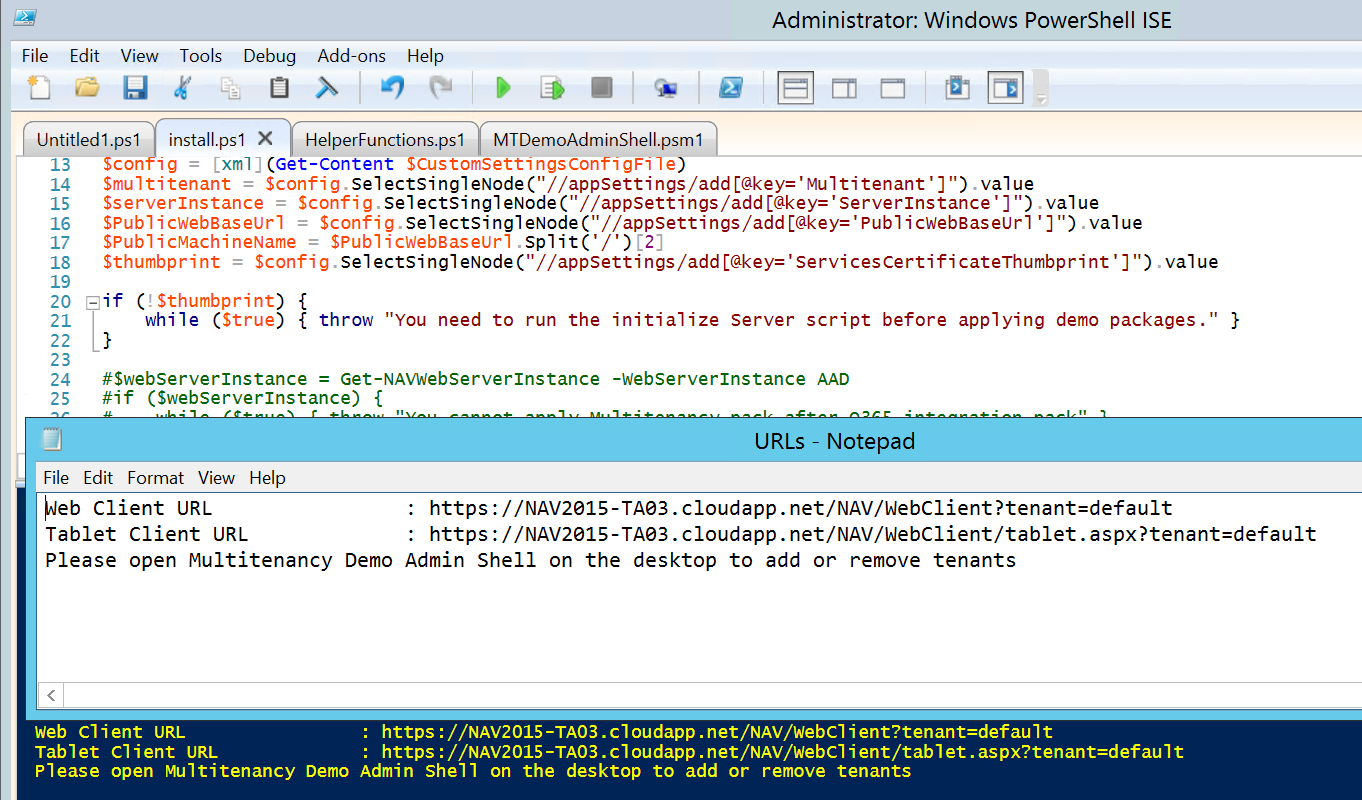
After that, you can save and run your script. When script is finished, you will get URLs file with your new links with tenants.

Multi1

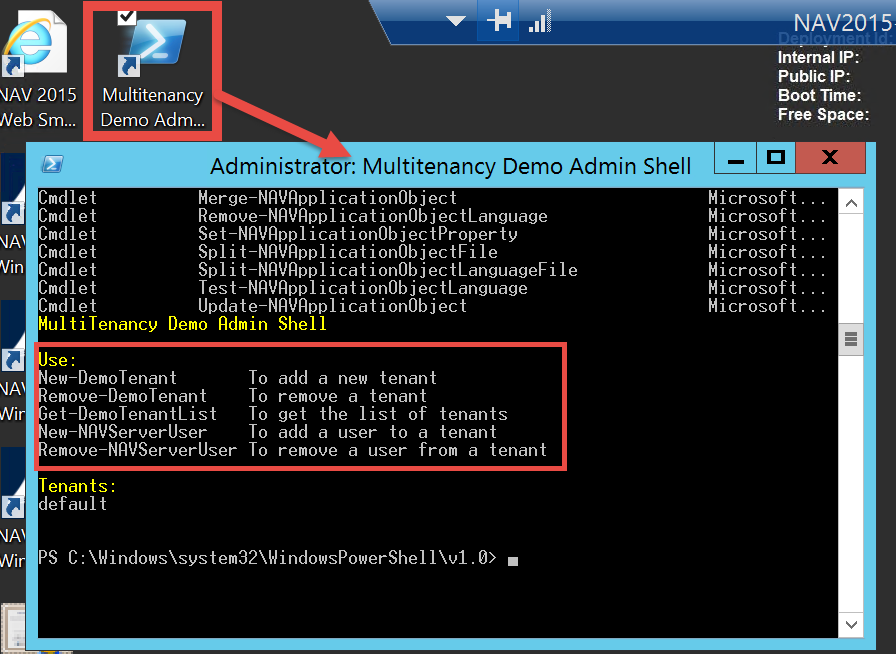
Now, you can use these new links to run your NAV 2015 with tenant. If you want to add new tenant or remove existed, you can do it running Multitenancy Demo Admin Shell from your VM desktop. You can also use it tool to add users to tenant or remove existed from tenant.

Multi2

Using ClickOnce to create Windows Client for NAV2015 Image on Microsoft Azure

The last time when I wrote about new NAV 2015 image on Microsoft Azure, I showed you how to create VM and how to change credential to NavUserPassword for really cloud using. After running the Initialize the Virtual Machine, you got possibility to run all NAV clients from VM and Web Client from your computer. Of course, for this you had to add new Endpoint on Microsoft Azure Portal: HTTPS, with 443 as port numbers. But, I suppose you want to use NAV with Windows Client from your PC. For this usage, we again got an excellent tool on Welcome screen. You need to click on Install Click Once deployment of the Windows Client link and you will find PowerShell script in DEMO folder. You need to run your PowerShell ISE as Administrator and open this script install.ps1. Now, you only need to run this PS script. After few minutes, system will show you all links, and on the end link for ClickOnce. ClickOnce1

Now, you have to add new Endpoints on your Microsoft Azure Portal:

  • HTTP, with 80 as port numbers for ClickOnce install (this port is configured in previous script)
  • Windows Client, with 7046 for NAV Window Client running

ClickOnce0

When you finish with Endpoints, you have to use your ClickOnce link from URLs file on your Internet Explorer. System will open ClickOnce Online Installation page. You need to run Install and wait. ClickOnce2

After installation is finished, you only need to fill your credentials and run your Microsoft Dynamics NAV 2015 Windows Client on Microsoft Azure.

ClickOnce3

That’s all about easy using script for ClickOnce Windows Client installation. But, I will show you something more about it few daysd